Blog
- Android UI Automation with FindNode: Automate UI Elements Without Fixed Coordinates
- Android Automation: How to Automate Real Android Devices from PC
- Scrcpy Multiple Devices: How to Control Multiple Android Devices on Windows
- Deploy APK to Multiple Android Devices: Batch Installation Guide
- Vysor Alternative for Windows: Control Android with Keyboard and Mouse
- Screen Mirroring Android to PC: USB and Wi-Fi Methods
- Best scrcpy Alternatives for Windows: 5 Options Compared
- Best File Transfer Software from Android to PC: Which Method Should You Use?
- How to Control Android with Keyboard and Mouse from a PC
- How to Test Mobile Apps on Multiple Devices Efficiently
- How to Manage Multiple Devices Efficiently
- Local vs Cloud Device Farm: Which Is Better
- Multi-Device Setup for Live Streaming Workflows
- How to Use an Android Device Farm Efficiently
- Android Screen Mirroring with Control: What You Need to Know
- How to Mirror Multiple Android Devices to PC
- Best Android Screen Mirroring to PC: Full Guide
- How to Control Multiple Demo Devices for Retail and Exhibitions
- How to Manage Multiple Devices for Social Media Workflows
- How to Use Multiple Devices for Content Creation
- Best Multi-Device Workflow Tools for Efficient Operations
- Mobile Device Management vs Device Control Software: What’s the Difference
- How to Control Multiple Android Devices from One PC
- Android Device Farm: How to Build and Control Multiple Android Devices
- Control Android Phone from PC | Mirror and Operate Android on Windows
Vysor Alternative for Windows: Control Android with Keyboard and Mouse
If you use Vysor to view and control an Android phone from a computer, you may eventually look for another option that better fits your workflow.
Some users simply want to mirror an Android screen to Windows. Others need more: keyboard and mouse control, file transfer, multiple-device management, synchronized operations, or automation.
That is where different Vysor alternatives start to serve very different purposes.
In this guide, we look at what to consider when choosing a Vysor alternative for Windows and how Total Control can be used to control one or multiple physical Android devices directly from a PC.
What Is Vysor?
Vysor is a desktop tool for viewing and controlling Android devices from a computer. It is commonly used when users want to display an Android screen on a PC and interact with the device using a mouse and keyboard.
Typical use cases include:
- Viewing an Android screen on a desktop computer.
- Clicking and swiping with a mouse.
- Typing on Android using a physical keyboard.
- Working with Android apps without constantly switching between the phone and PC.
For basic Android screen control, this type of workflow is convenient. However, users who work with several Android devices or need more advanced device operations may want a Vysor alternative with stronger multi-device and automation features.
Why Look for a Vysor Alternative?
There is no single reason to replace Vysor. Different users may be looking for a Vysor alternative because they need a different combination of features.
You may want to:
- Control several Android devices from one Windows PC.
- Synchronize mouse and keyboard operations across devices.
- Transfer files between Windows and Android.
- Install APK files from the PC.
- Use Android devices over USB or a network connection.
- Automate repetitive Android operations.
- Work with larger groups of physical Android devices.
- Access Android UI elements through scripts or APIs.
Total Control as a Vysor Alternative for Windows
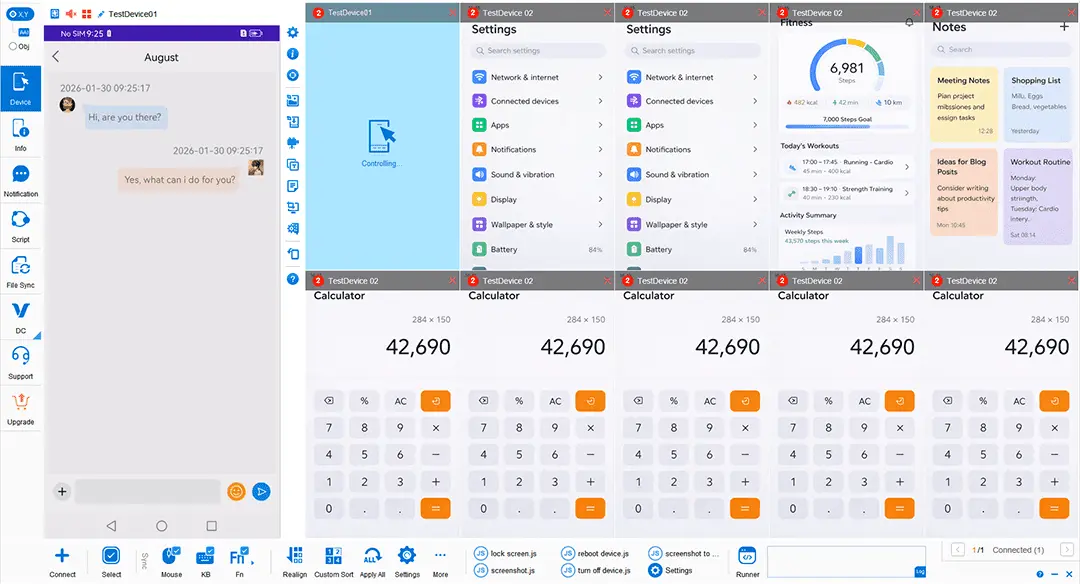
Total Control is a Windows application for viewing, controlling, and managing physical Android devices. Once a device is connected, its screen can be displayed inside a Windows Device Window and controlled with the PC mouse and keyboard.
Total Control supports features such as:
- Mouse clicks, dragging, scrolling, and swipe-style operations.
- PC keyboard input.
- Android screen mirroring.
- USB and TCP/IP connections.
- Copy and paste between Windows and Android.
- Drag-and-drop file transfer.
- Screen recording and screenshots.
- Multiple Android device management.
- Synchronized mouse and keyboard operations.
- JavaScript, REST API, FindNode, AAI, and other automation tools.
This makes Total Control relevant not only for users looking for a Vysor alternative for Android control, but also for workflows involving multiple physical Android devices.
Vysor Alternative with Keyboard and Mouse Control
For many users, the most important requirement is simple: control Android with the keyboard and mouse already connected to the PC.
With Total Control, the Android screen is displayed inside Windows. The mouse can be used for common touch-style actions, while the PC keyboard can be used for text input.
Typical mouse operations include:
- Click to tap.
- Click and drag to swipe.
- Scroll through supported interfaces.
- Interact with buttons, lists, text fields, and other Android UI elements.
Total Control also provides Sigma Keyboard for PC keyboard input on Android devices. This is useful for messaging, data entry, form testing, repetitive text input, and other workflows where typing directly on the phone would be less efficient.
USB and Wireless Android Control
Total Control supports both USB and TCP/IP connections.
USB is commonly used for the initial setup, including Android USB debugging authorization and the components required for device control. After setup, network-based connections can also be used where the required network connectivity is available.
This gives users flexibility depending on the physical device layout:
- A small desktop setup may use USB.
- Devices distributed around a workspace may use network connections.
- Larger environments may combine USB and TCP/IP-connected devices.
A wireless connection should not be confused with unrestricted Internet remote access. Network routing, authorization, and connection configuration still determine whether a device can be reached.
Vysor Alternative for Multiple Devices
One of the main differences between a basic single-device control workflow and Total Control is multi-device operation.
Total Control can manage multiple Android devices from one Windows computer. Depending on the purchased license and available PC and network resources, Total Control can scale up to 100 devices.
Windows Desktop Mode
In Windows Desktop Mode, each connected Android device appears in its own independent Device Window.
This is useful when you want to:
- Keep several Android devices visible at the same time.
- Resize and position each device window independently.
- Work with a small number of phones.
- Switch quickly between devices.
Multi-Device Control Center
For larger device groups, Total Control provides the Multi-Device Control Center, or MDCC.
MDCC displays multiple Android devices in one consolidated workspace. A main device can be controlled with the mouse and keyboard, while selected operations can be synchronized to other devices.
Typical use cases include:
- QA testing.
- Device labs.
- Repetitive app operations.
- Demonstrations.
- Device configuration.
- Large groups of physical Android devices.
Synchronize Multiple Android Devices
Simply displaying multiple Android screens is different from controlling them together.
Total Control supports synchronized operations across selected devices, including:
- Mouse operations.
- Keyboard input.
- Supported function-key shortcuts.
For devices with similar layouts, coordinate-based synchronization can repeat actions at corresponding screen positions.
For workflows where device resolutions or layouts differ, Total Control can also use Android UI objects through FindNode-based synchronization, reducing dependence on fixed screen coordinates.
Object-Based Android Control with FindNode
Traditional automation often depends on fixed coordinates.
For example:
Click X=520, Y=860This approach can fail if another device has a different screen resolution or if the target UI element moves.
Total Control includes FindNode, which can search Android Accessibility UI elements using queries and interact with the matched element.
This allows automation and synchronization to rely more on UI elements and less on exact screen coordinates.
Copy and Paste Between Windows and Android
Total Control supports copying text between Windows and Android.
Windows to Android
Copy text in Windows and paste it into an Android text field using Total Control.
Android to Windows
Text copied from Android can be transferred to the Windows clipboard for use in desktop applications.
This can speed up workflows involving:
- URLs.
- Verification codes.
- Account information.
- Test data.
- Long text.
- Repetitive form entry.
Transfer Files and Install APKs
Total Control supports file transfer between Windows and Android.
Files can be dragged from the PC to an Android device, and APK files can be transferred and installed on the device.
For larger device groups, MDCC can also be used for multi-device file operations and batch app installation.
This is useful when the Android workflow goes beyond screen mirroring. For example, a QA engineer may need to:
- Connect several Android devices.
- Deploy an APK.
- Open the application.
- Perform the same actions across devices.
- Inspect UI behavior.
- Capture screenshots or logs.
Screen Recording and Screenshots
Total Control includes screenshot and video recording functions for connected Android devices.
These can be useful for:
- Recording app demonstrations.
- Documenting bugs.
- Creating QA evidence.
- Preparing support materials.
- Capturing test results.
Stream Android Audio to the PC
Total Control supports software audio transmission on Android 10 and later, although some applications may not support this form of audio transmission.
This can be useful when operating Android apps from Windows and wanting device audio to accompany the mirrored screen.
Android Automation Beyond Manual Control
Users looking for a Vysor alternative may initially only need keyboard and mouse control, but Total Control can also be extended into Android automation.
The software includes tools such as:
- JavaScript APIs.
- REST API.
- FindNode.
- AAI.
- Capture/Replay.
- UI Explorer.
- Task execution.
- Scripting utilities.
This makes it possible to move from manually controlling one Android device to automating repeated operations on multiple real Android devices.
Vysor vs Total Control
| Capability | Vysor | Total Control |
|---|---|---|
| View Android screen on a PC | Yes | Yes |
| Control Android with mouse | Yes | Yes |
| Use PC keyboard with Android | Yes | Yes |
| Windows support | Yes | Yes |
| Multi-device workspace | Check current Vysor edition and workflow | Yes |
| Synchronize operations across Android devices | Check current Vysor functionality | Yes |
| Object-based synchronization | Not assumed here | Yes |
| FindNode / UI element automation | Not assumed here | Yes |
| JavaScript automation | Not assumed here | Yes |
| REST API for device control workflows | Not assumed here | Yes |
| Large multi-device environments | Depends on product configuration | Up to 100 devices depending on license and resources |
The two products overlap in Android-to-PC workflows, but they are not identical. Vysor is a familiar option for straightforward desktop Android control, while Total Control extends further into multi-device management, synchronization, and automation.
Who Is Total Control Best Suited For?
Individual Android Control
Use the PC keyboard and mouse to operate a real Android phone from Windows.
Multi-Device Operations
Display and control several Android devices from one computer.
QA and Device Testing
Work with physical Android devices, capture screenshots, deploy applications, repeat operations, and run automation.
Android Device Labs
Use MDCC and higher device-capacity licenses to manage larger groups of Android devices.
Automation
Use JavaScript, REST API, FindNode, and object-based operations to automate repetitive Android tasks.
How to Start Controlling Android from Windows
- Install Total Control on the Windows PC.
- Enable Developer Options and USB debugging on the Android device.
- Connect the device using a data-capable USB cable.
- Approve the USB debugging authorization on Android.
- Open the connected Android device in Total Control.
- Use the Windows mouse and keyboard to control the device.
After the initial setup, additional connection and multi-device options can be configured depending on the environment.
Which Vysor Alternative Should You Choose?
The right tool depends on what you actually need.
If your main requirement is simply to view and control one Android phone from a computer, a basic Android mirroring and control application may be sufficient.
If your workflow requires multiple Android devices, synchronized operations, file transfer, app installation, UI-element-based automation, scripts, or APIs, then Total Control is designed for that broader type of environment.
The key question is not only whether software can mirror an Android screen. It is whether the software continues to fit your workflow as the number of devices and the complexity of the operations increase.
FAQ
Is Total Control a Vysor alternative?
Yes. Total Control can be used as an alternative for Android-to-Windows workflows where users need screen mirroring, mouse and keyboard control, file operations, multi-device management, synchronization, or automation. The two products are not identical, so the better fit depends on the features you need.
Can I control Android from Windows with a keyboard and mouse?
Yes. Total Control displays a connected Android device in Windows and supports mouse and keyboard control for normal device interaction.
Can I control multiple Android devices from one PC?
Yes. Total Control supports multiple connected Android devices and provides both Windows Desktop Mode and the Multi-Device Control Center. Device capacity depends on the purchased license and available PC and network resources.
Can I synchronize keyboard and mouse actions across Android devices?
Yes. Total Control supports synchronization of mouse, keyboard, and supported shortcut operations across selected devices.
Can Total Control work wirelessly?
Yes. Total Control supports TCP/IP connections in addition to USB. Initial setup and network requirements depend on the Android device and connection environment.
Does Total Control require an Android emulator?
No. Total Control can directly control physical Android devices. Supported emulators can also be connected when needed.
Can Total Control automate Android devices?
Yes. Total Control includes JavaScript, REST API, FindNode, AAI, UI Explorer, Capture/Replay, Task, and related scripting tools for Android automation.
If you are looking for a Vysor alternative because you need a Windows GUI, keyboard and mouse control, multi-device management, synchronization, file operations, or automation, compare those requirements with Total Control – Control Android from PC.