Blog
- Android UI Automation with FindNode: Automate UI Elements Without Fixed Coordinates
- Android Automation: How to Automate Real Android Devices from PC
- Scrcpy Multiple Devices: How to Control Multiple Android Devices on Windows
- Deploy APK to Multiple Android Devices: Batch Installation Guide
- Vysor Alternative for Windows: Control Android with Keyboard and Mouse
- Screen Mirroring Android to PC: USB and Wi-Fi Methods
- Best scrcpy Alternatives for Windows: 5 Options Compared
- Best File Transfer Software from Android to PC: Which Method Should You Use?
- How to Control Android with Keyboard and Mouse from a PC
- How to Test Mobile Apps on Multiple Devices Efficiently
- How to Manage Multiple Devices Efficiently
- Local vs Cloud Device Farm: Which Is Better
- Multi-Device Setup for Live Streaming Workflows
- How to Use an Android Device Farm Efficiently
- Android Screen Mirroring with Control: What You Need to Know
- How to Mirror Multiple Android Devices to PC
- Best Android Screen Mirroring to PC: Full Guide
- How to Control Multiple Demo Devices for Retail and Exhibitions
- How to Manage Multiple Devices for Social Media Workflows
- How to Use Multiple Devices for Content Creation
- Best Multi-Device Workflow Tools for Efficient Operations
- Mobile Device Management vs Device Control Software: What’s the Difference
- How to Control Multiple Android Devices from One PC
- Android Device Farm: How to Build and Control Multiple Android Devices
- Control Android Phone from PC | Mirror and Operate Android on Windows
Best File Transfer Software from Android to PC: Which Method Should You Use?
There are several good ways to transfer files from Android to a Windows computer. For occasional transfers, you may not need dedicated file transfer software from Android to PC at all. A USB cable, Quick Share, or Windows integration may be enough.
Dedicated Android management software becomes more useful when file transfer is part of a larger workflow involving screen control, multiple devices, application testing, APK deployment, or repeated transfers. The best option therefore depends on what you are moving and how often you do it.
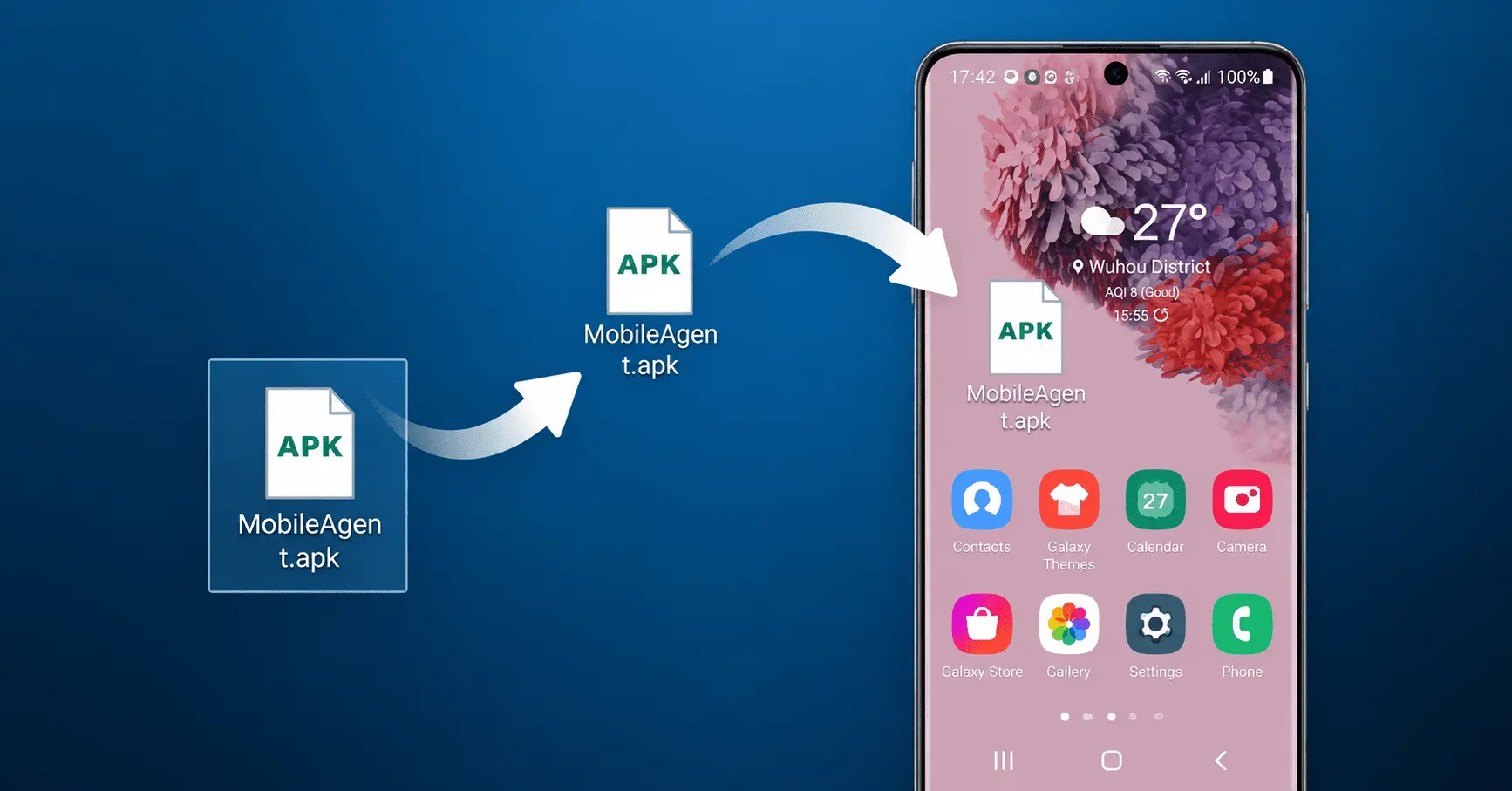
Android-to-PC File Transfer Options Compared
| Method | USB | Wireless | Two-Way Transfer | Best For |
|---|---|---|---|---|
| Total Control | Yes | Local network workflows | Yes | Android control + file management |
| Quick Share | No | Yes | Yes | Fast nearby transfers |
| Phone Link / Windows integration | No | Yes | Yes | Windows users |
| USB File Explorer | Yes | No | Yes | Simple local file copying |
| Cloud storage | No | Yes | Yes | Files needed across locations |
1. Total Control — Best When You Also Control Android from the PC
Total Control combines Android file operations with screen mirroring and PC control. This is useful when the phone is already connected for testing, application operation, or multi-device management and you want file transfer to remain inside the same Windows workflow.
Useful File Management Workflows
Depending on the device and file operation, you can:
- Open Android file management from Windows.
- Move files from Windows to Android.
- Move files from Android to Windows.
- Transfer multiple files.
- Work with files while controlling the Android screen.
- Use APK files as part of an Android testing workflow.
Best For
Total Control makes the most sense when you regularly:
- Test Android applications.
- Manage Android devices.
- Move files while controlling the phone.
- Work with multiple Android devices.
- Install or distribute APK files in a local test environment.
- Use a Windows-based Android workflow.
If you only send one photo every few weeks, a simpler transfer method is probably enough.
2. Quick Share — Best for Nearby Wireless File Transfer
Quick Share provides a straightforward way to move photos, videos, documents, files, and folders between compatible Android and Windows devices that are nearby.
How It Works
For Android to Windows:
- Select the file on Android.
- Tap Share.
- Choose Quick Share.
- Select the nearby PC.
- Accept the transfer when required.
For Windows to Android:
- Open Quick Share on Windows.
- Select or drag files into the application.
- Select the Android device.
- Accept the transfer when required.
Best For
Use Quick Share when:
- Both devices are nearby.
- You want a wireless transfer.
- You do not need Android screen control.
- You frequently send photos, videos, or documents.
3. Microsoft Phone Link — Best for Windows Integration
Microsoft Phone Link and Link to Windows provide another way to move content between supported Android phones and Windows computers. The workflow is attractive if the Android phone is already integrated with Windows for notifications, messages, photos, or other phone functions.
Best For
Phone Link is a practical option when:
- You already use Windows.
- Your Android device supports the required integration.
- You want file sharing alongside other phone-to-PC features.
Limitation
Feature availability can vary by Android device and Windows configuration. If you manage many phones from different manufacturers, a dedicated Android management tool may provide a more consistent operational workflow.
4. USB and Windows File Explorer — Best for Simple Local Copying
Do not overlook normal USB file transfer. For straightforward local copying, connecting Android to Windows and opening the device storage in File Explorer can be enough.
How to Transfer Files from Android to PC with USB
- Connect Android to the PC with a USB data cable.
- Unlock the phone.
- Select an appropriate USB file-transfer mode if Android asks.
- Open File Explorer.
- Open the Android device storage.
- Copy files to or from the PC.
Advantages
- No account required.
- No Wi-Fi required.
- Easy to understand.
- Suitable for straightforward local transfers.
Limitations
USB file browsing does not automatically provide screen mirroring, Android control, multi-device synchronization, or automation. It is a transfer method rather than a complete Android management workflow.
5. Cloud Storage — Best for Files Needed on Multiple Devices
Google Drive, OneDrive, Dropbox, and similar services provide another way to move files between Android and PC. Instead of connecting the phone directly to the computer, you upload the file from Android and then access or download it from the PC.
Best For
Cloud storage works well for:
- Documents used across multiple devices.
- Files that need to remain synchronized.
- Sharing files with other people.
- Access from different locations.
Limitations
Cloud transfer normally requires internet connectivity and may be inefficient when the files only need to move between a phone and a nearby computer.
Which Is the Best Software to Transfer Files from Android to PC?
There is no single answer. Choose based on the job:
For a Few Nearby Files
Use Quick Share.
For Basic USB Transfers
Use Windows File Explorer.
For Windows Phone Integration
Use Phone Link when your device supports the functions you need.
For Cloud Synchronization
Use your existing cloud-storage service.
For Android Control Plus File Transfer
Use an Android management tool such as Total Control. This category is useful when file transfer is only one step in a larger process.
For example, an Android QA workflow may involve:
- Connecting the device.
- Installing an APK.
- Launching the application.
- Controlling Android from the PC.
- Copying test files to the device.
- Capturing screenshots.
- Retrieving output files.
Using one Android management environment can reduce unnecessary switching between separate tools.
How to Transfer Files from Android to PC with Total Control
Step 1: Connect the Android Device
Connect the Android device to Total Control and open its Device Window.
Step 2: Open File Management
Open the available file-management function to browse Android folders and files.
Step 3: Select the Files
Locate the files you want to move from Android.
Step 4: Transfer Them to Windows
Move the selected files to the required location on the PC. The reverse workflow can be used for supported transfers from Windows to Android.
How to Transfer Files from Android to PC Wirelessly
If you specifically want to transfer files from Android to PC without a USB cable, the most useful options are:
- Quick Share: Best for nearby devices and quick transfers.
- Phone Link: Useful if Android and Windows are already linked.
- Cloud storage: Best if the files should remain accessible from multiple locations.
- Android management software: Useful if you also need screen control or broader device-management functions.
Common Android File Transfer Problems
The Phone Only Charges
The USB cable may not support data transfer. Try another cable and check Android's USB connection mode.
Android Does Not Appear in File Explorer
Try:
- Unlocking the device.
- Reconnect the USB cable.
- Selecting file-transfer mode.
- Trying another USB port.
- Checking the relevant Windows device driver.
Wireless Transfer Cannot Find the PC
Check Wi-Fi, Bluetooth where required, device visibility, network permissions, firewall settings, and the software requirements on both devices.
File Transfer Is Too Slow
For wireless transfers, network quality matters. For USB, test another cable and port. If you are moving a large set of files, a wired transfer is often easier to troubleshoot.
Some Android Folders Cannot Be Accessed
Modern Android versions restrict access to some application and system directories. A file-transfer application cannot necessarily bypass Android storage and security restrictions.
File Transfer Software vs Android Device Management Software
These categories overlap but solve different problems. A dedicated file-transfer utility focuses primarily on moving data. Android device-management software may combine file transfer with screen mirroring, keyboard and mouse control, screenshots, APK installation, multi-device management, and automation.
If you frequently need several of those capabilities, an integrated tool can be more efficient than using a separate application for each task.
FAQ
What is the easiest way to transfer files from Android to PC?
For nearby wireless transfers, Quick Share is convenient. For a wired transfer, USB and Windows File Explorer may be enough. The best method depends on file size and whether you also need Android control or device management.
What software can transfer files from Android to PC?
Options include Quick Share, Microsoft Phone Link, Android management software such as Total Control, cloud storage applications, and other file-sharing utilities.
Can I transfer files from Android to PC without USB?
Yes. You can use Quick Share, Phone Link, cloud storage, or compatible local-network file transfer software.
Can I transfer files from PC to Android as well?
Yes. Most modern Android file transfer methods support transfers in both directions, although the exact workflow varies by tool.
Can I drag and drop files between Android and PC?
Yes, with software that exposes Android files or provides a drag-and-drop interface. Android management tools can combine this with screen control and other device functions.
Do I need internet to transfer files wirelessly?
Not always. Nearby and local-network transfer technologies can move files without uploading them to cloud storage, although each tool has its own connection requirements.
If file transfer is part of a larger Windows-to-Android workflow, try Total Control – Control Android from PC to combine file management with screen mirroring, keyboard and mouse control, and multi-device operations.