Blog
- Android UI Automation with FindNode: Automate UI Elements Without Fixed Coordinates
- Android Automation: How to Automate Real Android Devices from PC
- Scrcpy Multiple Devices: How to Control Multiple Android Devices on Windows
- Deploy APK to Multiple Android Devices: Batch Installation Guide
- Vysor Alternative for Windows: Control Android with Keyboard and Mouse
- Screen Mirroring Android to PC: USB and Wi-Fi Methods
- Best scrcpy Alternatives for Windows: 5 Options Compared
- Best File Transfer Software from Android to PC: Which Method Should You Use?
- How to Control Android with Keyboard and Mouse from a PC
- How to Test Mobile Apps on Multiple Devices Efficiently
- How to Manage Multiple Devices Efficiently
- Local vs Cloud Device Farm: Which Is Better
- Multi-Device Setup for Live Streaming Workflows
- How to Use an Android Device Farm Efficiently
- Android Screen Mirroring with Control: What You Need to Know
- How to Mirror Multiple Android Devices to PC
- Best Android Screen Mirroring to PC: Full Guide
- How to Control Multiple Demo Devices for Retail and Exhibitions
- How to Manage Multiple Devices for Social Media Workflows
- How to Use Multiple Devices for Content Creation
- Best Multi-Device Workflow Tools for Efficient Operations
- Mobile Device Management vs Device Control Software: What’s the Difference
- How to Control Multiple Android Devices from One PC
- Android Device Farm: How to Build and Control Multiple Android Devices
- Control Android Phone from PC | Mirror and Operate Android on Windows
Screen Mirroring Android to PC: USB and Wi-Fi Methods
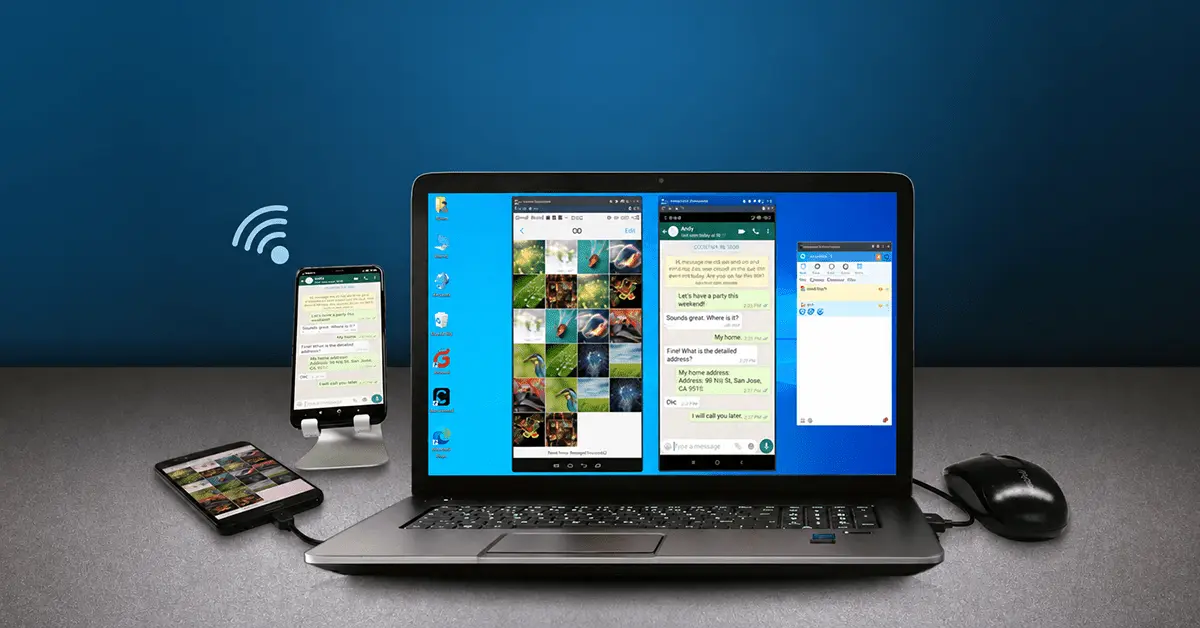
Screen mirroring Android to PC means displaying the live Android screen inside a computer window or on a larger monitor. Depending on the software, you may also be able to control Android with the PC mouse and keyboard, transfer files, capture the screen, or work with multiple devices.
The two most common connection methods are USB and Wi-Fi. USB is normally the better starting point when connection stability matters. Wi-Fi is more convenient when you want to remove the cable.
Screen Mirroring vs Casting vs Android Control
These terms are often used interchangeably, but they describe different capabilities.
Screen Mirroring
Screen mirroring displays the Android screen on the PC in real time. The computer essentially shows what is happening on the phone.
Casting
Casting usually refers to sending content or a screen to another display. Some casting tools are designed mainly for presentations and media rather than full device control.
Android Control from PC
Android control goes one step further. The PC receives the Android screen and can send mouse, keyboard, click, swipe, or other input back to the device. If you want to view the Android screen on PC and operate it at the same time, choose a tool that explicitly supports control rather than view-only mirroring.
Method 1: Screen Mirroring Android to PC with USB
USB is a practical choice for:
- App testing.
- Long work sessions.
- Live demonstrations.
- Android control.
- Environments with unreliable Wi-Fi.
Step 1: Install Android Mirroring Software
Install a screen mirroring or Android control application on the PC. For example, Total Control displays connected Android devices in Windows Device Windows and supports mouse and keyboard interaction.
Step 2: Enable USB Debugging
Some Android-to-PC control tools require debugging access. Enable Developer Options on the Android device, then enable USB debugging. The exact menu path depends on the phone manufacturer and Android version.
Step 3: Connect the Android Device
Connect the phone with a USB data cable. Watch the Android screen for a debugging authorization message and approve the PC if you trust it.
Step 4: Start Screen Mirroring
Select or connect the device in the PC software. The Android display should appear on the computer. If the application supports interactive control, you can then use the mouse and keyboard to operate Android directly from Windows.
Method 2: Mirror Android to PC Wirelessly
Wireless screen mirroring removes the need to keep the Android device connected with a USB cable. It can be more convenient for presentations, demonstrations, temporary screen sharing, or everyday desktop use.
Many Android mirroring applications use a local network for wireless connections. Some tools require the first connection or authorization to be completed through USB before a local Wi-Fi or TCP connection can be used.
Basic Wireless Setup
- Install the required Android mirroring or control application.
- Configure and authorize the Android device.
- Connect the PC and Android device to the required local network.
- Select the Android device from the PC application.
- Start mirroring.
If wireless mirroring is unstable, test the same device over USB first. A successful USB test helps determine whether the problem is the Android device or the network.
USB vs Wi-Fi Screen Mirroring
| Factor | USB | Wi-Fi |
|---|---|---|
| Setup convenience | Moderate | High after setup |
| Connection stability | Usually higher | Depends on the network |
| Cable required | Yes | No |
| Suitable for long testing sessions | Yes | Depends on network quality |
| Mobility | Limited | Better |
| Troubleshooting | Usually easier | More variables |
Neither method is always better. For fixed workstations and device testing, USB is often the practical choice. For presentations and everyday desktop use, Wi-Fi may be more convenient.
How to Mirror and Control Android with Total Control
Total Control combines Android screen mirroring with device control. Its Windows client can display connected Android devices and send mouse and keyboard input back to them.
A normal workflow is:
- Install Total Control.
- Connect the Android device.
- Enable USB debugging if required.
- Approve the PC on Android.
- Open the Device Window.
- View the live Android screen.
- Use the mouse to click, drag, and swipe.
- Use the PC keyboard to enter text.
- Switch to a supported local network connection when appropriate.
This approach is useful when screen mirroring is only one part of a larger Android workflow.
When Screen Mirroring Alone Is Not Enough
If You Only Need to Present the Screen
A simple casting application may be enough.
If You Need to Control Android
Choose software that explicitly supports mouse and keyboard input.
If You Need to Transfer Files
Look for integrated file-management or drag-and-drop support.
If You Need to Work with Multiple Phones
Check whether the software merely opens several device windows or actually provides device organization and synchronized control.
If You Need Automation
Look for scripting, API access, UI-element identification, or repeatable workflow support. Multi-device environments benefit most when control, synchronization, and automation are designed to work together.
Screen Mirroring Android to PC Without an Emulator
You do not need an Android emulator to mirror a real Android phone. An emulator runs a virtual Android system on the computer. Screen mirroring software displays the screen of the real Android device instead.
This distinction matters for:
- Hardware-specific testing.
- Camera and sensor behavior.
- Manufacturer-specific Android versions.
- Real-device QA.
- Applications that behave differently on physical devices.
Common Android Screen Mirroring Problems
The PC Does Not Detect the Android Phone
Check the following:
- USB cable.
- USB data mode.
- USB debugging.
- Android authorization message.
- Windows USB drivers.
- Another USB port.
A charging-only cable is a common cause of connection problems.
The Android Screen Is Black
Possible causes include protected applications, screen-capture restrictions, Android permissions, and device-specific security policies. Test another Android screen or application before assuming the entire connection has failed.
Wi-Fi Mirroring Keeps Disconnecting
Check that:
- Both devices are on the correct network.
- The Wi-Fi connection is stable.
- Guest-network or client-isolation settings are not separating devices.
- VPN or firewall software is not interfering with the local connection.
Screen Mirroring Has Too Much Lag
Try USB. If USB significantly improves responsiveness, the wireless network is likely the main bottleneck. You can also reduce mirroring quality or resolution if the software provides those controls.
The Screen Appears but the Mouse Cannot Control Android
This usually means you have a view-only mirroring connection or the control permission has not been configured. Mirroring and remote input are separate capabilities.
Best Method for Different Use Cases
Office Productivity
Choose screen mirroring with keyboard and mouse control.
Android Development and QA
USB-based mirroring and control is normally the most predictable starting point.
Presentations
Wireless casting can be more convenient.
Multi-Device Testing
Use software designed specifically for managing multiple Android devices.
Mobile Gaming
Look for game-specific key mapping rather than only generic screen mirroring, because game controls have different input requirements from ordinary Android application control.
FAQ
How do I mirror my Android screen to my PC?
Install compatible Android mirroring software, connect the phone by USB or Wi-Fi, approve any required Android permissions, and select the device in the PC application.
Can I screen mirror Android to PC with USB?
Yes. USB is supported by many Android mirroring tools and is often a good choice when you want a stable local connection.
Can I mirror Android to PC wirelessly?
Yes. Many applications support local Wi-Fi or other wireless casting methods after the Android device and PC are configured.
Can I control Android while screen mirroring?
Only if the software supports device control. Some applications provide view-only casting, while others can also send mouse and keyboard input back to Android.
Is an Android emulator required for screen mirroring?
No. Screen mirroring displays a real Android device on the PC rather than creating a virtual Android device.
Can I mirror multiple Android screens to one PC?
Yes, with software that supports multiple Android devices. The number of devices and available control options depend on the application and computer resources.
If you need more than view-only mirroring, try Total Control – Control Android from PC to combine screen mirroring with mouse control, keyboard input, file operations, and multi-device management.