Blog
- Android UI Automation with FindNode: Automate UI Elements Without Fixed Coordinates
- Android Automation: How to Automate Real Android Devices from PC
- Scrcpy Multiple Devices: How to Control Multiple Android Devices on Windows
- Deploy APK to Multiple Android Devices: Batch Installation Guide
- Vysor Alternative for Windows: Control Android with Keyboard and Mouse
- Screen Mirroring Android to PC: USB and Wi-Fi Methods
- Best scrcpy Alternatives for Windows: 5 Options Compared
- Best File Transfer Software from Android to PC: Which Method Should You Use?
- How to Control Android with Keyboard and Mouse from a PC
- How to Test Mobile Apps on Multiple Devices Efficiently
- How to Manage Multiple Devices Efficiently
- Local vs Cloud Device Farm: Which Is Better
- Multi-Device Setup for Live Streaming Workflows
- How to Use an Android Device Farm Efficiently
- Android Screen Mirroring with Control: What You Need to Know
- How to Mirror Multiple Android Devices to PC
- Best Android Screen Mirroring to PC: Full Guide
- How to Control Multiple Demo Devices for Retail and Exhibitions
- How to Manage Multiple Devices for Social Media Workflows
- How to Use Multiple Devices for Content Creation
- Best Multi-Device Workflow Tools for Efficient Operations
- Mobile Device Management vs Device Control Software: What’s the Difference
- How to Control Multiple Android Devices from One PC
- Android Device Farm: How to Build and Control Multiple Android Devices
- Control Android Phone from PC | Mirror and Operate Android on Windows
How to Control Android with Keyboard and Mouse from a PC
You can control Android with keyboard and mouse in several ways: connect physical peripherals directly to the phone, mirror and control Android from a PC, or use an Android control tool such as scrcpy. For people who already work on a Windows computer, controlling the real Android device from the PC is often the most practical option.
A PC-based setup lets you view the Android screen in a desktop window, click and swipe with the mouse, type with the computer keyboard, and move between Windows and Android without constantly switching devices.
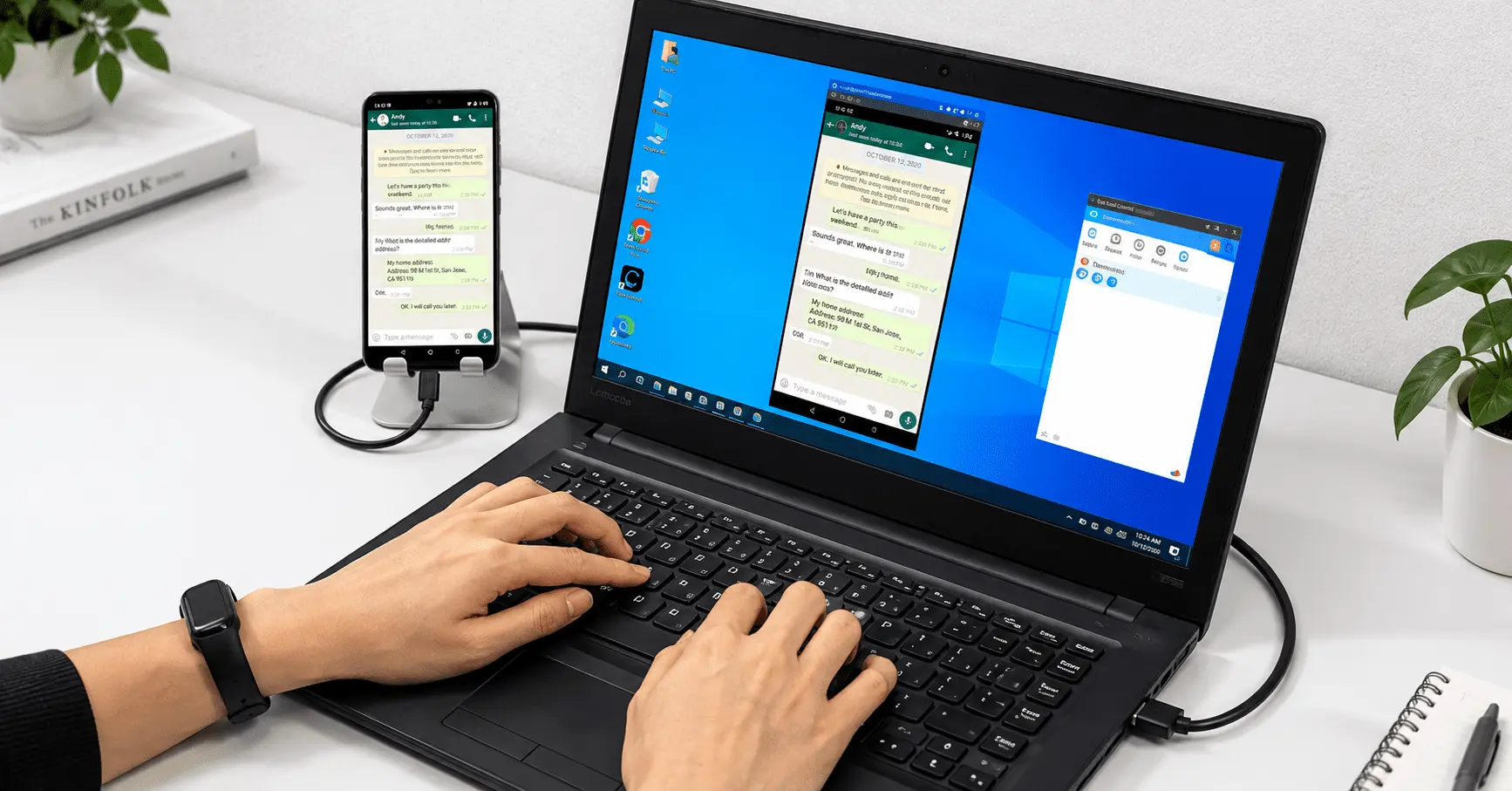
Three Ways to Control Android with a Keyboard and Mouse
The best method depends on whether you want to use the phone screen itself or control Android directly from Windows.
| Method | Android Screen on PC | PC Keyboard & Mouse | Best For |
|---|---|---|---|
| Bluetooth or USB OTG | No | Direct peripherals | Simple standalone Android use |
| Android control software | Yes | Yes | Productivity, testing, and multi-device work |
| scrcpy | Yes | Yes | Technical users who want lightweight control |
If you only want to type on your phone with a Bluetooth keyboard, direct pairing may be enough. If your goal is to control the Android screen from a PC, screen mirroring with input control is usually more convenient.
How to Control Android with Keyboard and Mouse from Windows
A typical PC-based workflow follows these steps:
- Install Android control software on the Windows PC.
- Enable Developer Options on the Android device if required.
- Enable USB debugging.
- Connect the Android device to the PC with a data-capable USB cable.
- Approve the debugging authorization request on the phone.
- Open the mirrored Android screen on the PC.
- Use the mouse to click, drag, scroll, and swipe.
- Use the PC keyboard for Android text input.
Some applications can switch to a local Wi-Fi or TCP connection after the first USB configuration, allowing the device to remain on the same local network without staying connected by cable.
Using Total Control
Total Control is designed for controlling physical Android devices from Windows. A connected device appears in a Device Window where the Android screen can be operated using the PC mouse and keyboard. It also includes features for file operations, clipboard workflows, multi-device management, and automation.
1. Install Total Control on Windows
Install and launch Total Control on the PC.
2. Enable USB Debugging
On most Android devices, open Settings > About phone and tap the build number repeatedly until Developer Options are enabled. Then open Developer Options and enable USB debugging. Menu names may vary by manufacturer and Android version.
3. Connect the Android Device by USB
Use a USB cable that supports data transfer. When Android displays a USB debugging authorization message, approve the computer. After the connection is established, Total Control can display the Android screen inside Windows.
4. Control Android with the Mouse
The PC mouse can be used for normal touch-style actions, including:
- Click to tap.
- Click and drag to swipe.
- Scroll through supported screens.
- Open applications and Android menus.
- Interact with buttons and other UI elements.
5. Type on Android with the PC Keyboard
Keyboard input is useful for messaging, form entry, testing, support work, URLs, account data, and any workflow that requires repeated text entry. A physical PC keyboard is usually more comfortable than typing long text on a touchscreen.
PC Control vs Connecting a Keyboard Directly to Android
Android can also accept a physical keyboard and mouse through Bluetooth or USB OTG. That approach works well when the Android device itself remains your main display.
PC-based Android control is different because:
- The Android screen is visible on the PC monitor.
- Your existing Windows keyboard and mouse can operate the phone.
- You can move quickly between Windows applications and Android.
- Screen capture, file management, and other tools can be available in the same application.
- Software designed for multi-device workflows can organize more than one Android device.
When PC Keyboard and Mouse Control Is Most Useful
Android App Testing
Developers and QA teams often repeat the same actions across real phones. Operating devices from a PC can make long testing sessions easier and reduce the need to handle each physical screen manually.
Managing Multiple Android Devices
A normal Bluetooth keyboard is designed for one active device at a time. Multi-device Android software can display and manage several devices from one Windows computer and, where supported, synchronize selected operations across them.
Faster Text Entry
Typing passwords, messages, test data, URLs, commands, or long text on a touchscreen can be inefficient. A full PC keyboard is better suited to repeated text entry.
Demonstrations and Training
Displaying Android on a large monitor makes applications easier to demonstrate during training, customer support, presentations, and product testing.
USB or Wi-Fi: Which Connection Is Better?
USB is usually the best place to start because it removes many variables caused by wireless networking and makes initial device authorization easier to troubleshoot. Wi-Fi is more convenient after configuration when you do not want the phone permanently attached to a cable.
For wireless Android control, check that:
- The PC and Android device are on the required local network.
- Network isolation is not blocking communication.
- The wireless connection is stable.
- Initial Android authorization has been completed where required.
Common Problems When Controlling Android from a PC
Android Is Charging but Not Detected
Try another USB cable. Some cables support charging but do not provide reliable data transfer. Also check USB debugging, Android authorization prompts, Windows USB drivers, the selected USB mode, and another USB port.
The Keyboard Does Not Type into Android
Click the Android text field first to make sure it has focus. Then check the input method used by the Android control application. Mouse input and keyboard text input may use different mechanisms.
Wireless Control Is Laggy
Test the same device over USB. If USB is smooth, the local network is probably the main source of latency or instability.
scrcpy or a GUI Android Control Tool?
scrcpy is a strong option for users who want a lightweight, free, open-source tool and are comfortable with a more technical workflow. It supports Android screen mirroring and keyboard/mouse control over USB or TCP/IP on Windows, macOS, and Linux.
A graphical application such as Total Control makes more sense when you want a Windows-focused environment that combines device windows, multi-device management, file operations, clipboard tools, synchronization, and automation. The better choice depends on whether your priority is lightweight manual control or a broader Android management workflow.
FAQ
Can I control my Android phone with my PC keyboard and mouse?
Yes. Android control software can mirror the Android screen to your PC and send mouse and keyboard input from Windows back to the physical Android device.
Can I use a PC mouse on Android without an emulator?
Yes. An emulator is not required. You can control a real Android phone or tablet connected to the PC with compatible Android control software.
Do I need to root Android to control it from a PC?
Many Android mirroring and control tools do not require root access. Connection and authorization requirements depend on the software and Android device.
Can I control Android wirelessly from Windows?
Yes. Some tools support local Wi-Fi or TCP connections after the Android device has been configured and authorized.
Can one keyboard and mouse control multiple Android phones?
Yes, if you use software designed for multi-device Android control and synchronization rather than a simple Bluetooth keyboard or mouse connection.
Is keyboard and mouse control the same as screen mirroring?
No. Screen mirroring only displays the Android screen. Android control software also sends keyboard and mouse actions from the PC back to the device.
If you want to control real Android devices directly from a Windows PC, try Total Control – Control Android from PC and test the mouse, keyboard, mirroring, and device-management workflow with your own device.