Examples
- Unified App Operation Workflow Across Multiple Devices
- Multi-Device Batch Execution & Result Collection
- Task Creation, Execution, and Result Retrieval
- Prevent Automatic System Sleep
- Search Devices by Tag
- Sharing Objects Across Multiple Tasks
- Execute Tasks Across Terminals
- Business Script Execution and Exit Code Control
Connecting More Than 100 Devices
Please refer to Sigma Connection Agent (SCA) for more information.
Introduction
Core Capabilities and Value
The SCA (Sigma Connection Agent) interconnection management feature is an extended capability provided in the Professional Edition of Total Control. It is used to centrally connect and manage real Android devices or emulators that are connected to multiple controlled computers, all through a single master computer.
This solution breaks through the physical limitation on the number of devices that a single computer can connect to, supporting large-scale connections and management of more than 100 devices; it simplifies multi-device operations and testing workflows, eliminating the need to frequently switch between multiple controlled computers, allowing centralized operations to be completed from the master computer; it is compatible with both USB-connected real devices and mainstream emulators, adapting to diverse scenarios such as testing, operations, and demonstrations; and even under large-scale connection conditions, it maintains stable device connections without affecting script execution efficiency or device mirroring quality.
Prerequisites:
- The master computer must have Total Control Professional Edition installed (please confirm that the current version supports the SCA feature)
- The controlled computers must have the SCA agent tool installed, and the devices must have USB debugging enabled
- Operating system requirements: both the master and controlled computers must use Windows 10 / Windows 11 (64-bit)
- The master computer and all controlled computers must be in the same local area network, with IP-level connectivity (bidirectional connectivity can be verified using the ping command)
Connection Steps
1. Controlled Computer Configuration (must be performed on each controlled computer)
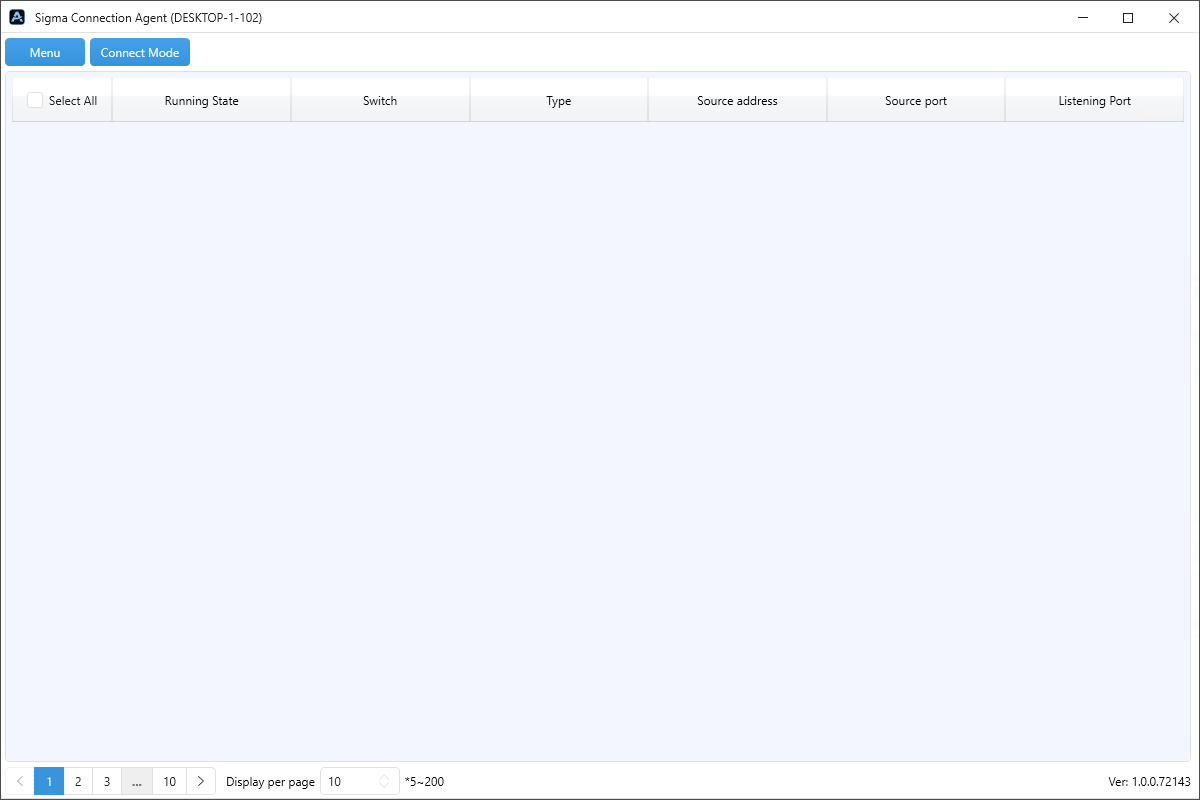
1.1 Download and install the SCA agent tool, then start SCA after installation. Download link
1.2 Enable USB debugging on the device and connect the device to the controlled computer using a USB cable (it is recommended to use the original or certified cable). How to connect (refer to steps 1–3)
1.3 Automatic device detection and verification
- After the SCA tool starts, it will automatically scan the devices connected to the controlled computer (including real devices and emulators).
- After scanning, device information will be displayed in the SCA tool’s device list, including model, serial number, and other basic information.
- When the device list shows “Device started successfully” and the device status is normal, the controlled computer configuration is complete.
2. Master Computer Configuration
2.1 Start Total Control and enter the SCA settings
- Start Total Control Professional Edition and ensure the software runs normally without error messages.
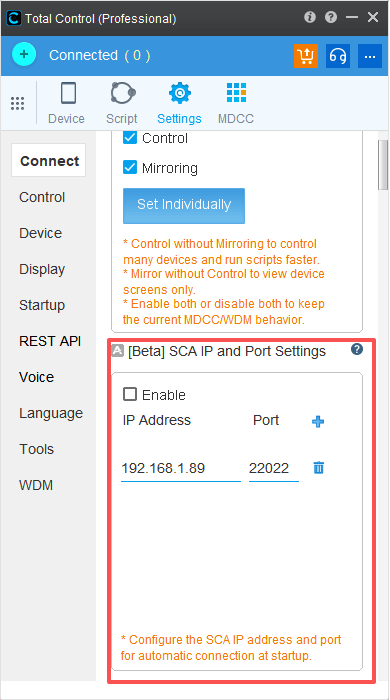
- In the top menu bar of the main interface, click “Settings”, and find the “[Beta] SCA IP and Port Settings” option in the left navigation panel.
2.2 Configure controlled computer connection information
- Check the “Enable” option to activate the SCA interconnection feature.
- Enter the LAN IP address of the controlled computer in the “IP Address” input box (to connect multiple controlled computers, click the “+” button for batch configuration).
- The default “Port” value is 22022 (if modification is required, make sure the listening port of all controlled SCA tools is adjusted accordingly).
3. Centralized Device Connection and Verification
3.1 Return to the Total Control main interface and enter the Connection Window.
3.2 The system will automatically scan the configured controlled computers and retrieve the list of devices connected to them.
3.3 After scanning is complete, the devices from the controlled computers will be displayed uniformly in the device list on the master computer, and their connection icons will use the SCA-specific style to distinguish them from locally connected devices.
3.4 Select any device and click the “Control” or “Mirror” button to verify. If the device screen is displayed normally and operations can be performed, the connection is successful.
4. Notes and Frequently Asked Questions
4.1 Configuration Notes
- Please confirm that the firewalls on both the master and controlled computers allow the communication port used by SCA (default 22022) to avoid connection blocking.
- The controlled computers must remain powered on, and the SCA tool must keep running continuously (it is recommended to set it to start automatically on boot).
- When configuring multiple controlled computers at the same time, ensure that each controlled computer has a unique LAN IP address and that the port configuration is consistent.
- When connecting a large number of devices (more than 50), it is recommended to use a wired network between the master and controlled computers to improve overall stability.
4.2 Common Troubleshooting
Issue 1: The master computer cannot recognize devices on the controlled computers
Troubleshooting Steps
- Confirm that the IP connectivity between the master and controlled computers is available (run ping to the controlled computer’s IP from the master computer to verify).
- Check whether the SCA tool on the controlled computer is running properly and whether the devices are displayed in the SCA device list.
- Verify that the IP address and port configured in Total Control match those on the controlled computer.
- Try temporarily disabling third-party security software on both the master and controlled computers to avoid communication being blocked.
Issue 2: The device connects successfully but cannot be controlled or mirroring is laggy
Troubleshooting Steps
- Check whether the USB cable is in good condition and replace it if necessary before reconnecting.
- Confirm that the USB port on the controlled computer is working properly; try switching ports for testing.
- Reduce the number of devices being controlled or mirrored simultaneously to avoid insufficient system resources or network bandwidth.
- Upgrade Total Control and the SCA tool to the latest versions to fix known compatibility issues.
Issue 3: After configuring multiple controlled computers, some devices cannot be recognized
Troubleshooting Steps
- Confirm that the corresponding controlled computer’s IP has been correctly added to the SCA configuration on the master computer.
- Check whether the listening port of the SCA tool on that controlled computer matches the configuration on the master computer.
- Restart the SCA tool on the corresponding controlled computer and trigger device scanning again.