How to copy and paste between an Android phone and a Windows PC with Total Control
Copying a link on your computer and sending it to an Android app should not require emailing it to yourself. The same is true when you find an address, message, or product detail on your phone and need it in a Windows document. A practical Android clipboard sync workflow can remove those extra steps.
Total Control lets you control a real Android device from Windows and copy and paste text in both directions. It also offers an optional setting for automatically bringing copied Android text into the Windows clipboard. This guide explains what to set up, how each direction works, and how to handle text across selected Android devices.
What Does It Mean to Sync the Android Clipboard?
There are three useful clipboard workflows to distinguish:
- Windows to Android: copy text on your PC, then paste it into an Android app through Total Control.
- Android to Windows: copy text on the phone and paste it into a Windows application, using a device-window copy control or optional automatic synchronization.
- Windows to multiple Android phones: use Total Control’s selected-device controls and supported synchronization features when the same text needs to reach more than one phone.
These are practical copy-and-paste operations, not a promise that every app, password field, image, or clipboard-history item will continuously mirror itself across all devices.
Before You Start
- A Windows computer with Total Control installed.
- An Android phone with USB debugging enabled and a USB cable that supports data transfer for the initial setup.
- An app with a text field that accepts pasted content, such as Notes, a browser form, or a messaging app.
On the phone, enable Developer options and USB debugging, connect it to Windows, and approve the authorization prompt. Total Control can then display the phone in a Device Window. If you are new to this process, follow the official Getting Started guide.
How to Copy and Paste from Windows to Android
- Connect the phone. Open Total Control and confirm you can click and scroll inside its Device Window.
- Open an Android text field. For example, tap the message box in a chat app or open a note on the phone.
- Copy text in Windows. Highlight a sentence, URL, or prepared support reply in a PC application and press Ctrl+C.
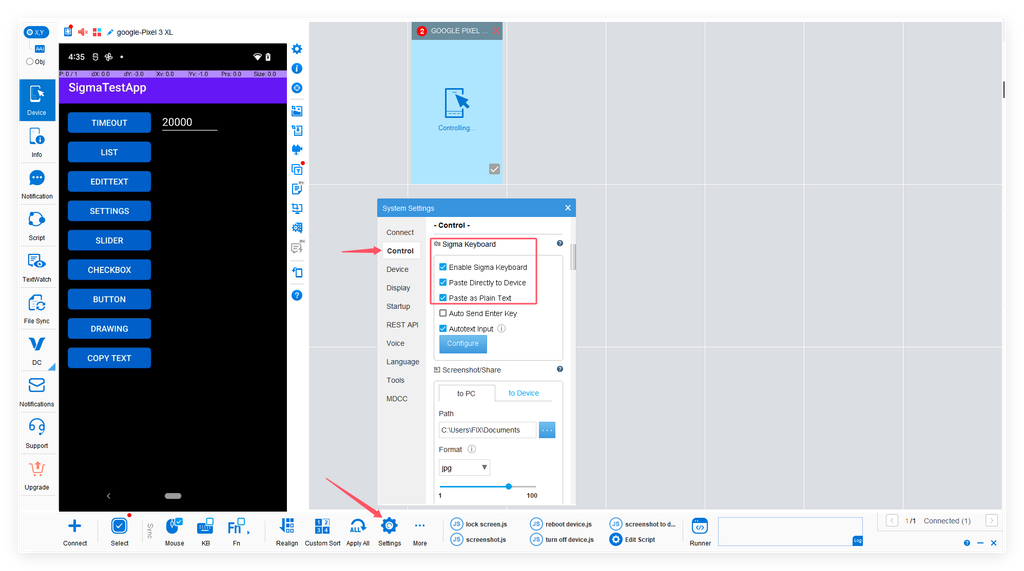
- Paste through Total Control. Paste into Total Control’s text-entry field and send it to the Android app. For direct pasting into the focused Android field, open Settings → Control → Sigma Keyboard, turn on Paste Directly to Device, turn on Enable Sigma Keyboard,then paste with Ctrl+V in the active Device Window.
If direct pasting does not work, check that Sigma Keyboard is enabled and that the Android input field has focus. The Paste as Plain Text option can help when an app does not handle formatting well.
How to Sync Clipboard from Android to PC
The reverse direction is useful when you need to move a phone message, test result, product code, or website address into a Windows application.
- In the Android app, select the text you need and tap Copy.
- When Total Control displays its clipboard copy indicator in the Device Window, use it to copy the phone’s text into the Windows clipboard.
- Switch to a Windows application, such as Notepad, a spreadsheet, or your browser, and press Ctrl+V.
Enable Automatic Android-to-Windows Clipboard Sync
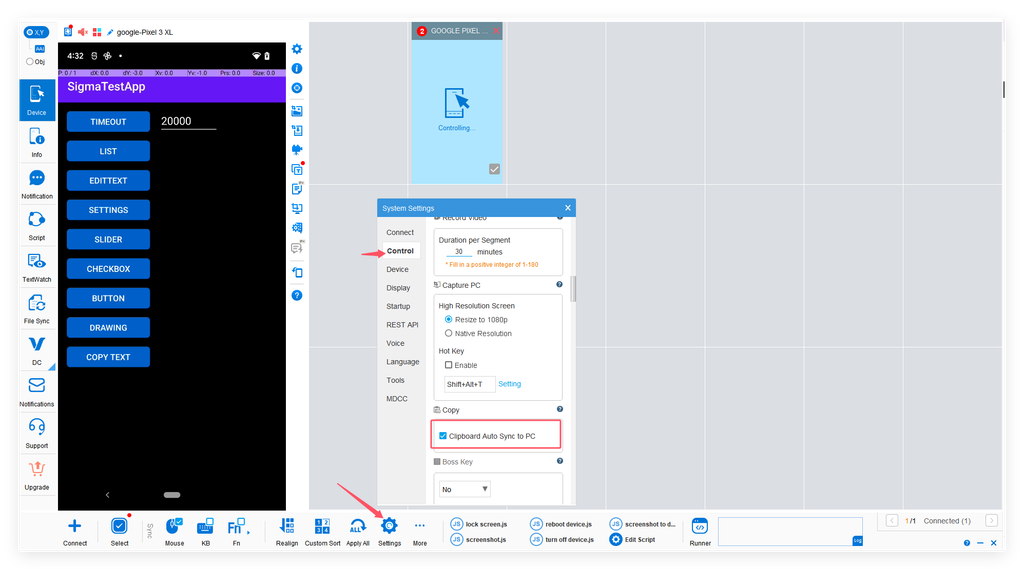
If you copy from the phone regularly, go to Settings → Control → Copy and turn on Clipboard Auto Sync to PC. This removes the need to click the copy indicator each time for supported copied text. This setting describes the Android-to-PC direction; it does not mean that all Windows clipboard changes are automatically pasted into every Android app.
When Android Text Cannot Be Selected: Try Copy Text
Some apps display labels or other text that you cannot select with a normal long press. In supported cases, Total Control’s Device Menu → Copy Text feature uses Android UI elements to obtain that text. Choose Copy Text, click the relevant visible element, and paste the resulting content into Windows.
This depends on whether the app exposes a suitable UI element; text drawn entirely as a graphic may not be available. Check the Total Control feature comparison for edition-specific support.
Sync Clipboard Content Across Multiple Android Devices
One of the more useful Total Control scenarios involves preparing the same text once and applying it to selected Android phones. It can reduce repetitive typing for customer service, app testing, and multi-device setup.
- Connect the Android devices you intend to use and open Total Control’s device list or Multi-Device Control Center (MDCC), as supported by your edition.
- Select the target devices instead of sending the text to every connected phone.
- Set the devices to the matching input screen. Use the available Keyboard synchronization or Windows-clipboard-to-selected-device function for your edition, then enter or paste the prepared text.
- Check the result on each phone before pressing Send, submitting a form, or making another irreversible action.
Synchronization works best when each phone is in the expected app state. A permission dialog, different account, or missing input field can change the result on an individual device. See the Main Window overview for actual device-selection and keyboard-sync controls. MDCC and advanced multi-device capabilities depend on the selected Total Control license.
Can You Sync Formatted Text, Images, and Files?
The term clipboard sync can describe several different kinds of content. It is important to use the correct Total Control feature for each one.
| Content | What to expect |
|---|---|
| Plain text and links | The simplest copy-and-paste workflow between Android and Windows. |
| Formatted text / HTML | Available in supported Professional workflows; results still depend on whether the destination app accepts formatting. |
| Images | Use the relevant image-copy, sharing, or screen-capture features. Do not assume images behave exactly like copied text. |
| Files and APKs | Use file transfer, drag-and-drop, or File Manager; file movement is a separate task from text clipboard synchronization. |
The official feature comparison distinguishes the Lite and Professional text-copy capabilities, along with other transfer options.
Where Clipboard Sync Helps Most
Customer support: prepare accurate replies on Windows and paste them into Android-based support or messaging apps. Review the destination and recipient before sending.
Android app testing: reuse the same URLs, search terms, and test strings without manually retyping them on different phones.
Content and operations teams: move captions, product titles, short descriptions, and reference links between a PC workspace and the Android apps used for posting or review.
Troubleshooting: Android Clipboard Sync Not Working
| Problem | What to check |
|---|---|
| Windows text does not appear on the phone | Confirm the phone is connected, focus the correct Android text field, and check Sigma Keyboard and Paste Directly to Device. You can also paste into the Total Control text-entry field. |
| Text copied on Android is missing in Windows | Check the Device Window copy indicator, or enable Clipboard Auto Sync to PC under Settings → Control → Copy . |
| Bold text or formatting disappears | Check whether Paste as Plain Text is enabled, your Total Control edition, and whether the destination app accepts HTML formatting. |
| Text reaches the wrong phone | Review the selected devices and keyboard synchronization controls before pasting or sending. |
| Copying works in one app but not another | Try a simple text field such as Notes. Some apps limit selection, clipboard access, or pasting behavior. |