如何通过 Rest API 调用 自定义接口
更多信息请参阅 Call JS API through RestAPI
简介:
Total Control 会在脚本目录下自动生成 restExt.js。你可以在其中通过 restDeviceRegister() 把一个 HTTP URL 映射到一个 JS 函数(JS API / Device API)。
这样外部系统只需要调用 Rest API,就能触发脚本能力(例如:获取前台 App、执行自动化步骤等)。
本案例将演示最常见的一条链路:
- 在 restExt.js 注册接口 GET /getapp → 调用 device.getForegroundApp()
- 外部脚本登录获取 token
- 获取设备 id
- 调用自定义接口 /getapp 并获取返回值
运行前:
- 下载并安装 Total Control 11.0(Update 20)及以上版本(立即下载)
- 连接 Android 设备(支持 USB 连接 或 TCP 连接)
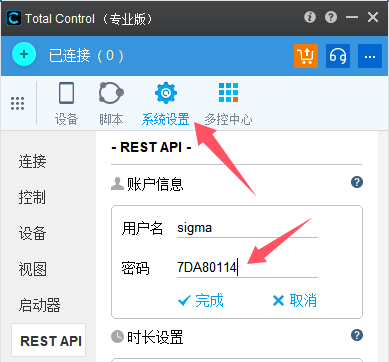
- 打开 主面板 → 系统设置 找到 REST 用户名和密码(示例中 sigma:7DA80114 需替换为您的实际信息)
- 在 restExt.js 中注册自定义 URL :
打开默认脚本目录下的 restExt.js,追加以下代码:
/**
 * 将 GET /getapp 映射到 JS API:device.getForegroundApp()
 */
restDeviceRegister(
	"myGetApp",          // 自定义名字(仅用于标识,不做检查)
	"getapp",            // URL 路径:/devices/{id}/getapp
	tcConst.rest.GET,    // GET
	null,                // 参数名:GET 可为 null
	doGetForegroundApp,  // 回调函数
	{ multiple: false }  // 单设备
);

function doGetForegroundApp(url, method, device, opt, params) {
	// 这里就是你要调用的 JS API
	var ret = device.getForegroundApp();
	return ret; // 返回值会作为 HTTP 响应返回给调用方
}
- 打开脚本终端(主面板 → 脚本 → 脚本终端),将示例代码直接拷贝到终端执行
// 外部调用(登录 → 获取设备 → 调用自定义接口)
var { request } = require("ringo/httpclient");
var base64 = require("ringo/base64");

// 1) 登录获取 token(把账号密码替换成你的)
var userpass = base64.encode("sigma:7DA80114");
var loginResp = request({
	method: "GET",
	url: "http://localhost:8090/TotalControl/v2/login",
	headers: { Authorization: userpass }
});

var token = JSON.parse(loginResp.content).value.token;
print("// token = " + token);

// 2) 获取主设备 ID
var devResp = request({
	method: "GET",
	url: "http://localhost:8090/TotalControl/v2/devices/main?token=" + token
});

var deviceId = JSON.parse(devResp.content).id;
print("// deviceId = " + deviceId);

// 3) 调用自定义 URL:GET /getapp
var ret = request({
	method: "GET",
	url: "http://localhost:8090/TotalControl/v2/devices/" + deviceId + "/getapp",
	data: { token: token }
});

print(ret.content);
运行结果
// token = GG1B73lWnl2cScfx
// deviceId = device@1449140439
com.example.someapp
最后一行即为 device.getForegroundApp() 的返回值(当前前台应用包名/标识)