To stream Android audio to PC with Total Control, connect your phone, enable its volume controls, and start Software Audio Transmission. Supported media sound then plays through your computer while you operate the Android screen with your mouse and keyboard. You need Professional and Android 10 or later; Android 12 or later is recommended.
What You Need Before You Start
- A Windows PC with Total Control Professional installed.
- An Android phone running Android 10 or later. The illustrated steps below follow the official recommendation to use Android 12 or later.
- A data-capable USB cable for the initial connection.
- PC speakers or headphones that already play Windows audio correctly.
- An Android app that allows its media audio to be transmitted.
The Total Control feature comparison lists Software Audio Transmission as a Professional feature. Some apps, including certain music apps, may not support it. Test the app you actually use before relying on it for a demonstration.
How to Stream Android Audio to PC via USB
1. Connect Your Android Phone
Download Total Control and install it on Windows. Enable USB Debugging on your phone, connect the USB data cable, and approve the phone’s authorization prompt. Follow any installation prompts, then click Connect when the device is ready.
Once the Device Window appears, check that you can click and scroll in the Android interface. The Getting Started guide provides screenshots for the first connection.
2. Enable Volume Control
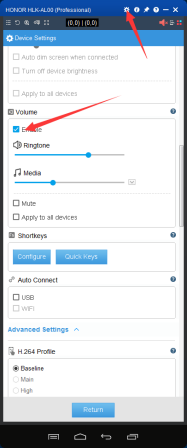
Open Device Settings using the gear icon in the Device Window. In the Volume section, select Enable. Press the phone’s physical volume buttons to raise the media volume above zero, and check that Mute is not selected.
3. Start Software Audio Transmission
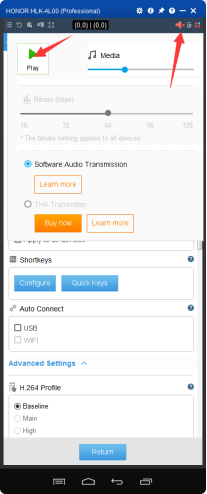
Click the speaker icon near the top-right corner of the Device Window. In the audio panel shown in Figure 1, select Software Audio Transmission, then click Play. Complete any audio permission prompts shown on your phone.
4. Play Media and Check the PC Output
Open your Android app and start a video or another piece of media. In Windows sound settings, choose the speakers or headphones you want to use. If necessary, check the Windows Volume mixer and make sure Total Control is not muted. You can now use the mouse to pause, resume, or navigate within the phone app.These screenshots come from the official audio setup guide. Button placement and permission prompts can vary with the installed version and phone.
Why Use Total Control for Android Audio
Audio is more useful when you can also operate the app that produces it. Total Control combines phone sound, screen mirroring, and keyboard and mouse control in one desktop workflow. The app continues running on your real Android device.
For an app demonstration, you can show the phone’s screen and play supported media through the PC’s speakers. For daily use, you can keep the Device Window beside your work and control playback without repeatedly picking up the phone. For app testing, you can inspect the interface while listening for playback issues.
The Device Window overview explains the desktop controls. Ordinary playback and navigation do not require scripts or command-line instructions.
Using Audio in the Multi-Device Control Center
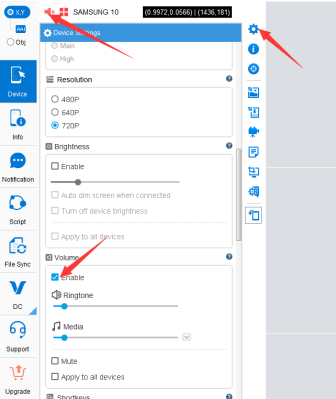
If you already work in the Multi-Device Control Center (MDCC), you can access audio there too. Open the main device’s settings, enable Volume, and use the speaker control above its screen. The official screenshot below shows the relevant locations.
When checking several phones, a practical approach is to listen to one at a time so you can identify which device is producing the sound. Keep a note of the phone and app being tested before moving to the next device.
Can You Stream Android Audio to PC over Wi-Fi?
Total Control also supports audio transmission over a TCP connection. To use the USB-to-Wi-Fi method in its network connection guide, first connect successfully by USB. Then connect the phone and PC to the same local network and follow the TCP connection instructions. For this method, repeat the USB preparation after restarting the phone.
Start with USB to establish a working audio setup. If sound becomes intermittent after switching to Wi-Fi, return to USB as a comparison test. Network conditions can affect wireless playback.
What to Check When There Is No Sound
| What you notice | What to try |
| No sound from any Android app | Check Professional access, Volume > Enable, the Play button, and the phone’s media volume. |
| Windows sounds work, but phone audio is silent | Check whether Total Control is muted in the Windows Volume mixer. Confirm your selected output device. |
| One app is silent while another works | Try different media in the affected app. Its capture policy or compatibility may prevent transmission. |
| Audio stops after disconnecting or restarting | Reconnect the device and restart transmission. Approve any new permission prompts. |
| Sound breaks up over Wi-Fi | Compare with USB, check the local network, and stop other heavy network activity during the test. |
Android lets apps restrict playback capture. That means a working mirrored screen does not guarantee transferable audio from every app. See Android’s playback capture documentation for the platform rules. If ordinary PC audio is also missing, use Microsoft’s Windows audio troubleshooting guide first.