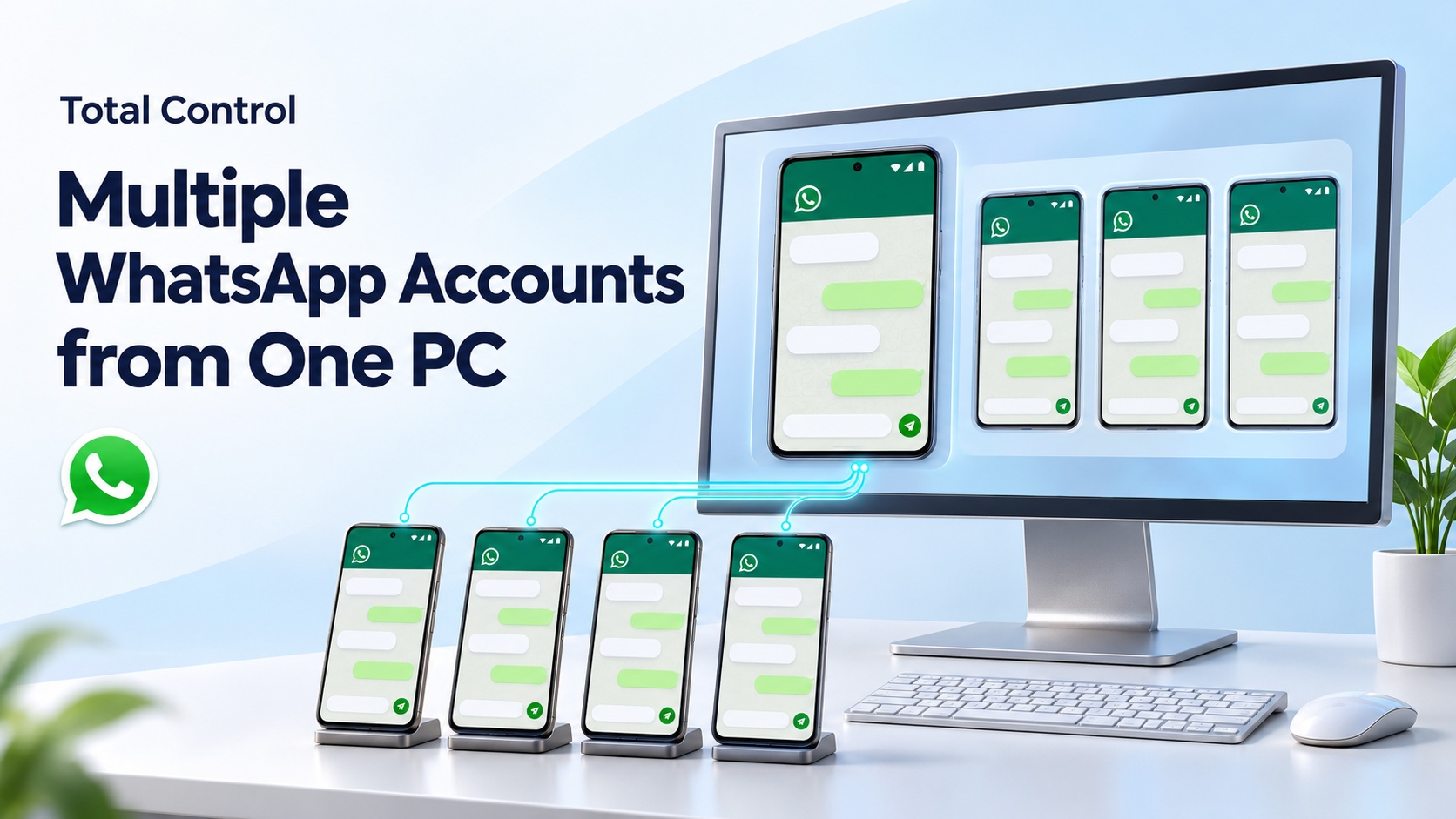
If your business uses multiple WhatsApp accounts on separate Android phones, Total Control lets you operate those phones from one Windows PC. You can view their screens, switch to the device you need, and type replies with your computer keyboard while each account remains in its own Android app.
Consider a small business with separate phones for sales, order updates, and after-sales support. During a busy afternoon, answering customers can mean picking up one phone, checking an order on the PC, then moving to another phone to reply.
A more convenient routine is to keep those phone screens beside your desktop work: identify the right device, open the conversation, check the details, and reply from your keyboard.
Choose a Workflow That Matches Your Accounts
A search for “WhatsApp desktop multiple accounts” can describe several different needs. You might want a second account, several browser sessions, or a way to operate business accounts that already live on separate phones.
This guide covers the last situation. If you currently manage multiple WhatsApp Web accounts, this approach gives you a device-based option: you work in the Android apps through their mirrored screens. Total Control provides the phone-control workspace; the accounts and conversations remain separate.
How to Manage Customer Service Across Multiple Android Phones
1 Connect Your Business Phones
Install Total Control on your Windows PC and connect the Android phones that hold your business accounts. For a USB setup, follow the Total Control Getting Started guide to enable the required debugging settings, authorize the computer, and complete the connection.
Open WhatsApp or WhatsApp Business on each phone and confirm the intended account is active. A short test with one phone first makes it easier to check keyboard input before adding the rest.
2 Name Each Phone by Its Business Role
In the Main Window, use Edit Device to change device names and add tags. Choose labels you can recognize immediately, such as Sales EN, Order Updates, or Store B Support.
These labels are for your device workspace; they do not rename the WhatsApp account. Their purpose is practical: when an order question comes in, you can find the correct phone without remembering its hardware model.
3 Keep the Relevant Screens in View
In Windows Desktop Mode, each connected phone has its own movable Device Window. Arrange two or three windows beside your order system or notes. For a larger set of phones, Multi-Device Control Center, or MDCC, brings the device screens into one workspace.
MDCC displays a larger main screen and smaller device screens. Click a smaller screen to make that phone the main device, then open the conversation you want to handle. The MDCC guide explains this layout.
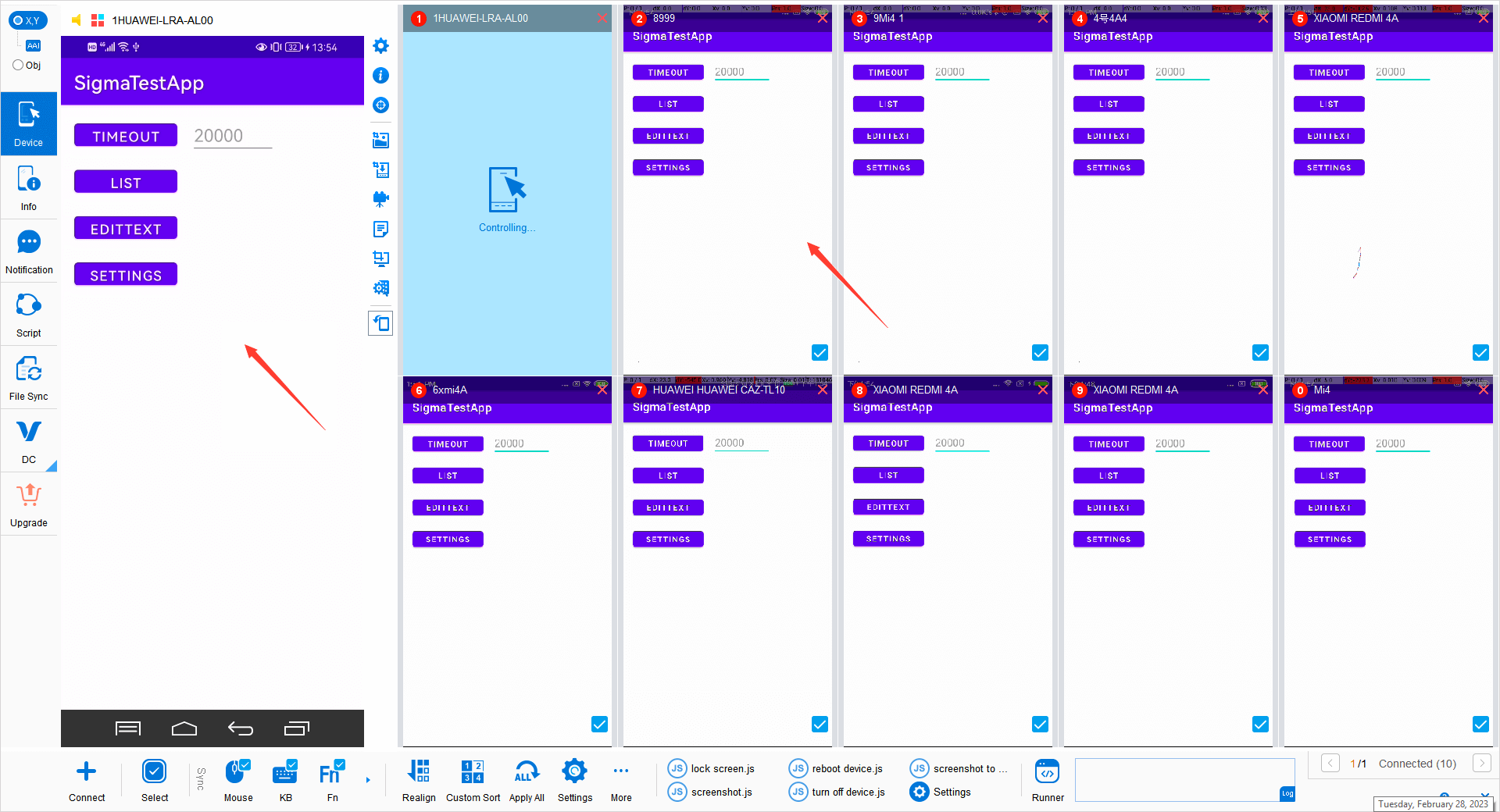
Total Control MDCC layout with a main device and smaller device screens. Official interface example using SigmaTestApp.
4 Reply to One Customer at a Time
Choose the relevant phone, check the account and customer, click the message field, and type with your PC keyboard. Keep Mouse, Keyboard, and Fn synchronization disabled while handling individual conversations so your input stays on the device you are operating.
This matters when different phones have different chats open. A customer asking about delivery needs a different response from someone requesting a refund. Use the larger screen to review the conversation before sending.
5 Reuse Common Replies from Your PC
Keep approved wording for common questions in a Windows document. Copy a reply with Ctrl+C, click the message field on the appropriate mirrored phone, and paste with Ctrl+V. Total Control supports text transfer from the Windows clipboard to Android.
For example, start with: “Thanks for contacting us. Please send your order number so I can check the status.” Adapt the wording to the conversation and review it before sending. This gives you reusable text while keeping each reply under your control.
What Changes in Your Daily Work
The benefit of this setup becomes clear during a normal customer-service task. Suppose a customer asks about an order on the Order Updates phone. Select that device, read the message, look up the order in your desktop system, and paste the relevant update into the conversation. You can then switch to the Sales phone for a different inquiry.
You keep your order information and mobile conversations within the same desktop workspace. Device names make the correct account easier to find, the keyboard makes longer replies more comfortable, and reusable text reduces repeated typing. Each phone still runs its own app and keeps its own conversation history.
As the setup grows, check Total Control features and device capacity to choose the appropriate version and authorization for your phones.