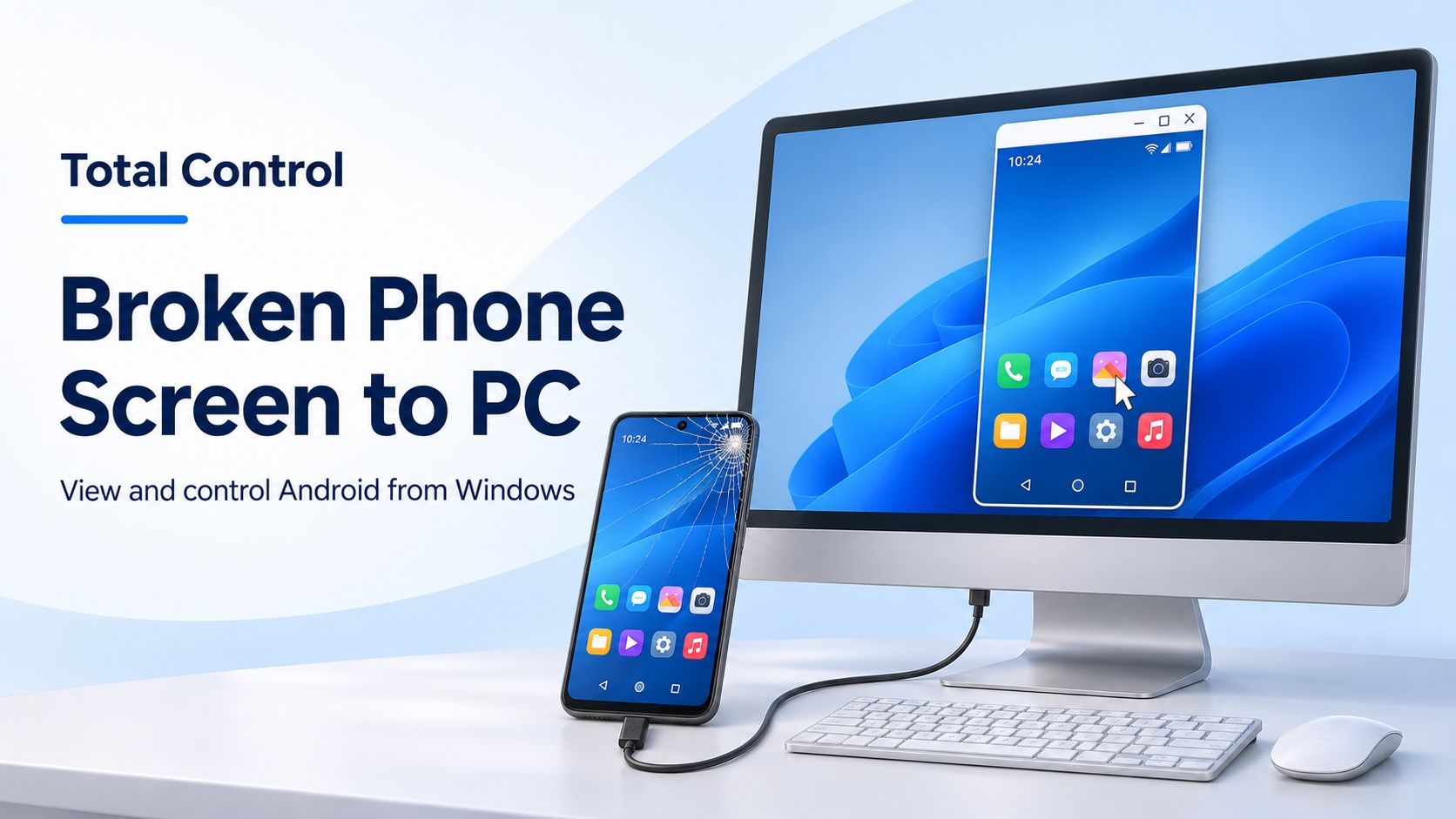
A cracked Android screen can make a simple task difficult: replying to a message, finding a document, or checking a delivery address. If the phone still works, moving those tasks to a Windows PC can help you keep using it while arranging a repair.
Total Control provides Android screen mirroring and mouse and keyboard control. For a broken phone screen to PC setup, the key requirement is access: the phone must still run, and you must be able to complete the required permissions or have a working, previously authorized connection.
Check whether your phone can connect
The condition of the display is only part of the problem. Before installing software, check which situation applies.
| Phone condition | What to do next |
| Cracked screen with usable touch | Unlock the phone and complete the normal USB setup. |
| Visible screen with failed touch | Restore a way to operate the phone and approve prompts before connecting. |
| Black screen with a previously working Total Control setup | Try the same authorized PC. Access still depends on the phone running and its permissions remaining valid. |
| Black screen with no authorized connection | Restore access to the phone first. A new PC connection cannot approve its own permission prompts. |
For the USB method below, Android requires USB debugging and authorization of the computer. Android’s official documentation explains that a new debugging connection requires unlocking the phone and accepting its authorization dialog.
If touch has failed, a compatible mouse or external display may help restore access. For example, Samsung describes these options for supported Galaxy phones. Check your exact model and adapter support; a USB-C port alone does not guarantee video output. You still need a way to approve prompts when the PC connects.
How Total Control helps you keep using the phone
Once connected, Total Control gives you a usable desktop workspace for tasks that are awkward on damaged glass. Its Device Window displays the Android screen and lets you interact with the phone from Windows.
- Read on a larger display. Resize the Device Window to make messages and app controls easier to see.
- Click and type from your desk. Use the mouse to select items and navigate, then use the PC keyboard for text entry instead of struggling with an unreliable touchscreen.
- Reuse text from Windows. Copy an address or prepared reply on the PC and paste it into an Android text field, with the supported input settings enabled.
- Move accessible files to the PC. Open File Manager from the Device Menu to browse and transfer files you need.
The practical advantage is continuity. You are operating the same physical phone, so you can open its installed apps and work with information already available there. App sign-in, security checks, and network requirements still apply. See the Total Control feature comparison for edition details.
How to connect a broken phone screen to PC
Use these steps if you can complete the phone-side permissions or already have a working setup. You need a Windows PC, the Android phone, and a USB cable that supports data transfer.
1 Install Total Control on Windows
Download the Windows software from the Total Control website, install it, and open the application.
2 Prepare the phone and authorize the PC
If needed, enable Developer options and USB debugging on Android. Connect the phone by USB, unlock it, and approve the debugging prompt. Choose Always allow from this computer only on a PC you trust. Follow any additional device-specific prompts shown by Connection Help.
3 Open the phone in Total Control
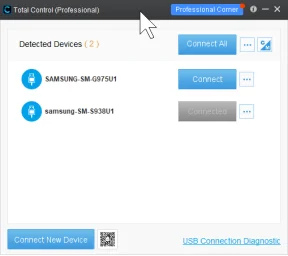
When the phone appears in the Connection Window, click Connect beside it. After connection succeeds, the Device Window opens. Use the normal USB control connection for this workflow; the separate Mirror mode is display-only.
4 Check control before starting your work
Open an app, try a mouse click, and test text entry in a non-sensitive field. Follow the input-method prompts if needed. The Total Control Getting Started guide includes illustrated connection instructions.
Use the PC to finish an urgent task
Suppose a delivery address is stored in a messaging app on your damaged phone. Open the app in the Device Window, select the conversation, and use the phone’s copy command on the address. With clipboard transfer configured, paste the text into your Windows document. You can then type a reply using the computer keyboard.
For a saved document, open Device Menu, choose File Manager, and browse to its folder. Transfer the accessible file to Windows and open the copy to check it. Copying a file does not create a complete phone backup or export private data from every app; use the app’s own export or backup option where necessary.
Work through the items you actually need: a document for today’s meeting, a message awaiting a reply, or photos you want to keep. This gives you a useful temporary workflow while the phone is being prepared for repair.
If the phone does not connect
If the device is missing, check the USB data cable and use the USB Connection Diagnostic in Total Control. If Android is asking for authorization, complete that prompt on the phone; repeatedly clicking Connect on Windows will not replace it.
If the screen is completely unusable and you cannot finish setup, check your existing cloud backups or arrange a way to restore screen access. Total Control can control a successfully connected phone, but it cannot repair the display or bypass a forgotten lock-screen credential.