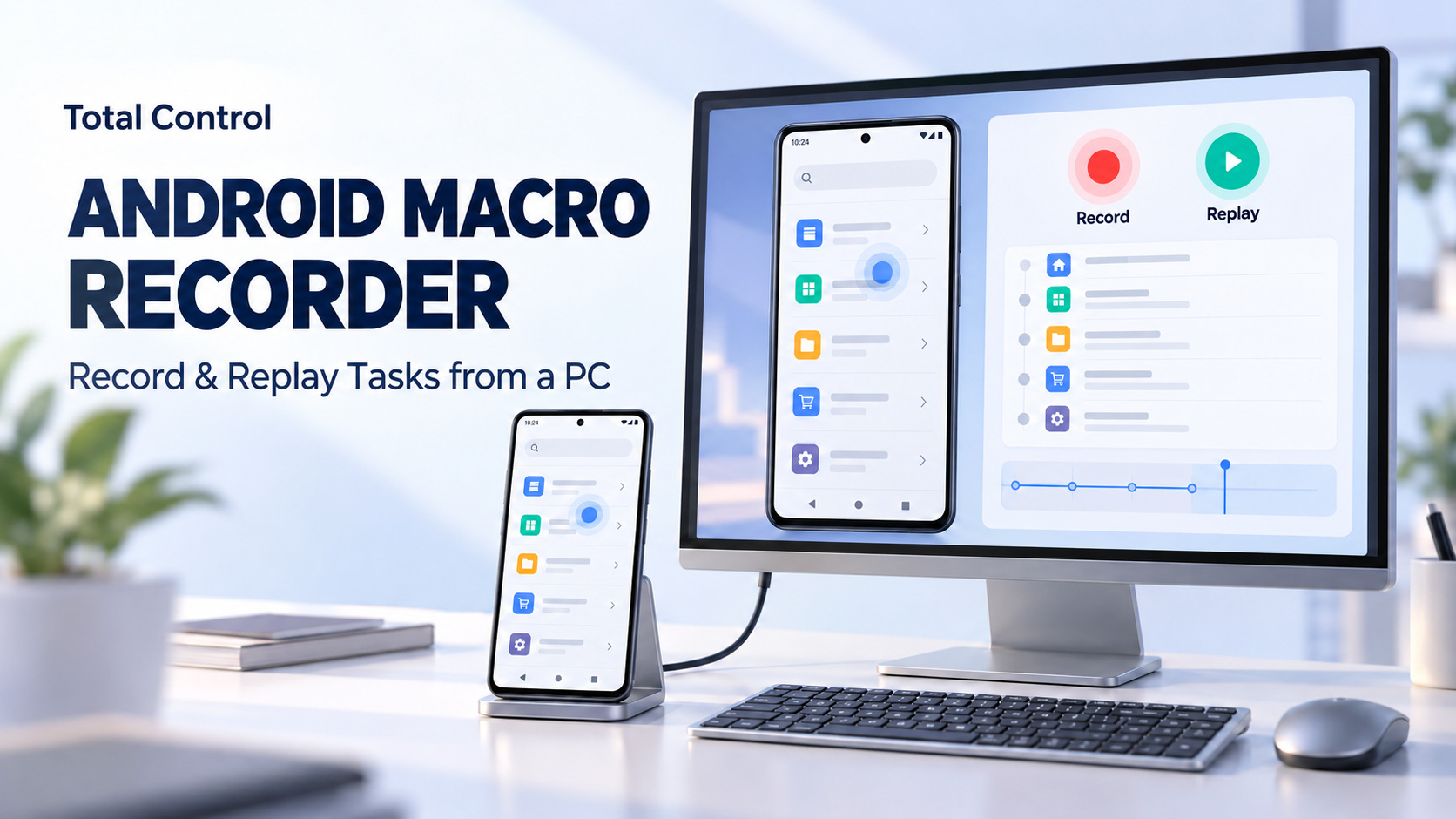
An Android macro recorder saves a sequence of taps, swipes, and pauses so you can repeat it later. With Total Control, you can record actions on a connected Android device from a Windows PC, review the action list, and replay the sequence. This helps with routine app navigation, demonstrations, and repeatable test steps.
What an Android macro recorder saves
A macro stores actions that can be performed again. A screen recording saves a video for viewing. Choose a macro when you need to repeat a task, and a video when you need to show someone what happened.
For example, a short macro could open a menu, tap a section, wait for it to load, and swipe through a list. A coordinate-based recording uses screen positions, so the app should start in the same state each time.
Why use Total Control to record Android tasks
Repeating a sequence manually means remembering every tap and pause. Total Control lets you keep that sequence as a reusable recording while the app continues running on your Android device.
- Work from a larger screen. View the phone on your PC and operate it with your mouse and keyboard while keeping instructions or test notes nearby.
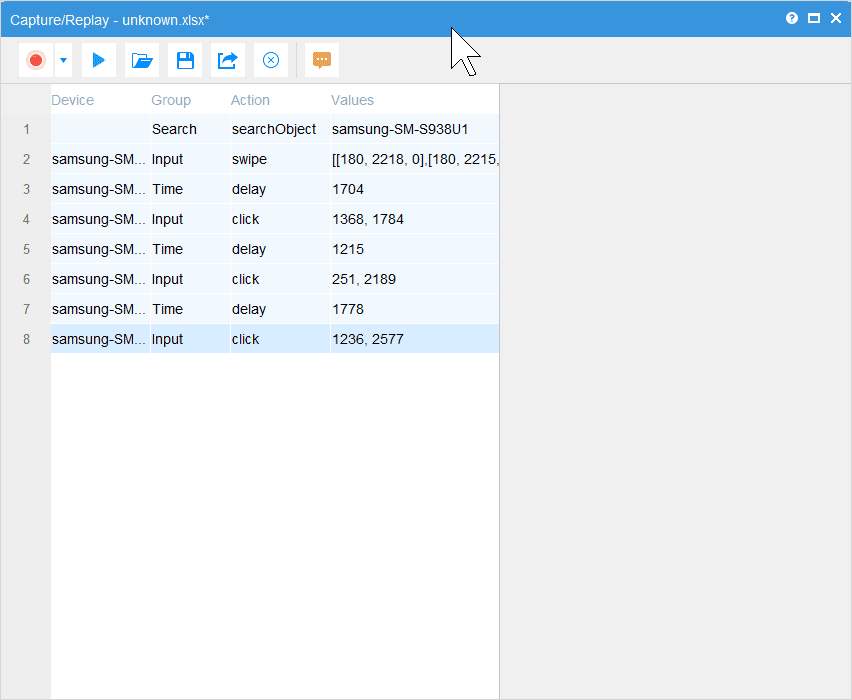
- Review the recorded actions. Capture/Replay displays an action list you can inspect and edit. This makes it easier to locate an unnecessary action or a delay that needs adjusting.
- Reuse a familiar workflow. Save a short sequence and replay it for the next demonstration or test, reducing repeated manual input.
- Keep device work in one place. Total Control also provides multi-device management and scripting, giving you options as your work grows beyond one recording.
How to record Android taps and swipes with Total Control
1 Prepare a short task
Connect your Android device to Total Control and confirm that you can operate its screen. For initial setup, follow the Total Control Getting Started guide. Open the app you want to use and choose a short, repeatable sequence with a clear starting screen.
2 Open Capture/Replay
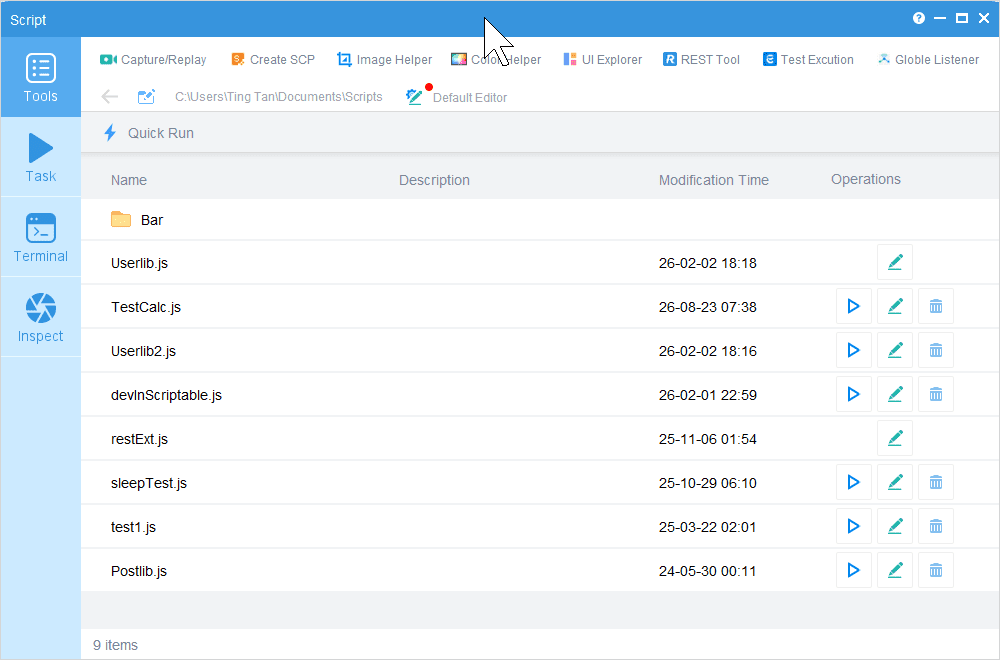
Click Script in the Main Window, then select Capture/Replay in the Script Window. The tool records device operations into an editable list. You can find an overview of these controls in the Script Window documentation.
3 Record the actions
Use the red recording control and confirm the recording settings if prompted. Perform the clicks and swipes in the mirrored device window, allowing each page to load before continuing. Stop recording when the sequence is complete.
4 Review and save the recording
Check the recorded actions and delays. Remove accidental actions and adjust waits where needed. Save the recording with a name that describes its purpose, such as Open settings and review display options.
5 Return to the starting screen and replay
Put the app back on the screen where recording began, then use the blue play control to replay the sequence. Watch the first run. If an action misses its target, correct that step or its timing before reusing the recording.
Keep the first macro small. A sequence that opens one menu and returns to its starting screen is easier to check than a recording that crosses several apps.
Make your Android macro more reliable
A saved sequence works best when its starting conditions remain consistent. If replay behaves differently from recording, check the point where the two runs first diverge.
| What happens | What to check |
|---|---|
| The first tap opens the wrong page | Return to the original starting screen and scroll position. |
| A tap happens before a page is ready | Increase the delay before that action. |
| The macro taps beside a button | Check orientation, display scaling, and whether the app layout changed. |
| Replay works once but fails on the next run | Reset the app to the same starting state before replaying. |
| A popup interrupts the sequence | Resolve the popup and retest. A variable workflow may need scripted checks. |
After an app update, replay the recording once under observation. A moved button or changed navigation flow may require an edit or a new recording.
When the workflow needs to respond to the screen
A coordinate-based macro repeats positions and timing. A task with changing layouts or unexpected dialogs may need to check the current screen before taking the next action.
Total Control offers FindNode for locating Android UI elements using queries. UI Explorer helps inspect available elements, including their text and resource IDs. This gives a script a way to locate a matching button before clicking it. It depends on the app exposing suitable UI elements and on the query matching the intended control.
Start with Capture/Replay for a stable sequence. If the task needs conditions or recovery steps, explore the UI Explorer guide and Total Control scripting tools.
Working with more than one Android device
Total Control combines recording with a workspace for managing multiple phones. For script-based workflows, the Task window lets you select target devices, set iterations, and review execution logs.
That can help a team organize repeated test runs from one PC. Before extending a workflow to another phone, check its app version, screen layout, and starting state. A coordinate recording should not be assumed to work unchanged across different devices.