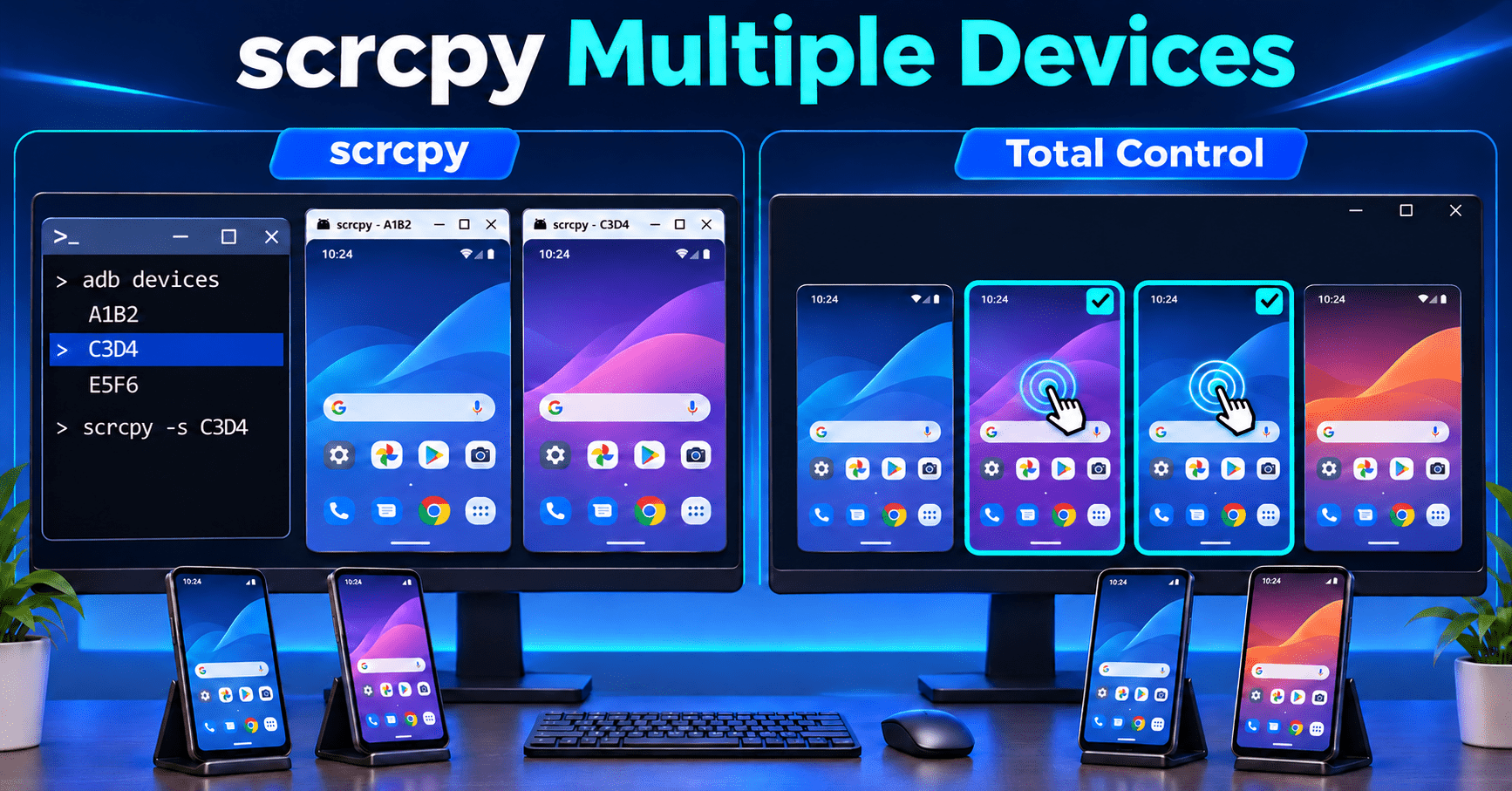
To select a specific device in scrcpy, run adb devices, copy the target phone’s identifier, and launch scrcpy -s DEVICE_SERIAL. To control several phones, open a separate scrcpy session for each identifier. This guide starts with device selection, then shows multiple windows and Total Control’s visual selection and group-control workflow.
How to Select a Specific Device in scrcpy
With several phones connected, choose the target before launching its screen. Selecting one device is different from controlling a group.
Step 1: Prepare scrcpy and your phones
Download and extract scrcpy for Windows. Enable USB Debugging on each phone, connect the phones to your PC by USB, and accept the debugging authorization prompts.
Open the extracted scrcpy folder in File Explorer, type cmd in the address bar, and press Enter. The examples below use Windows Command Prompt.
Step 2: Find the device identifier
adb devicesExample output, with placeholder identifiers:
List of devices attached
PHONE_A    device
PHONE_B    device
Use the identifier in the first column for a phone listed as device. Replace PHONE_A and PHONE_B below with your actual Serial Numbers; they are not device names to type literally.
For additional device details, run adb devices -l. The Android ADB guide explains the identifiers and connection states.
Step 3: Start scrcpy for the chosen phone
scrcpy -s PHONE_AThe equivalent long form is:
scrcpy --serial=PHONE_AUse either command, not both. To choose the other phone, substitute its identifier. These selectors are documented in the official scrcpy device-selection guide.
Choose a USB or network device
| Target | Command | Condition |
|---|---|---|
| A specific device | scrcpy -s DEVICE_SERIAL | Use its exact identifier from adb devices |
| The USB-connected device | scrcpy -d | Exactly one USB device is connected |
| The TCP/IP-connected device | scrcpy -e | Exactly one TCP/IP device is connected |
With two USB phones, use -s rather than -d. The same distinction applies to multiple network devices and -e.
For an already connected network device, use the address and port shown by adb devices, for example:
scrcpy -s 192.168.1.50:5555Replace this example with your listed identifier. This selects an existing ADB connection; it does not enable or pair wireless debugging.
When scrcpy cannot select the device
- Multiple devices: specify the intended identifier with
-s. - Unauthorized: unlock the phone and approve the USB debugging prompt for your trusted PC.
- Offline or missing: restore the ADB connection first; changing the selector will not repair it.
See the official scrcpy troubleshooting guide for authorization and detection problems.
How to Use scrcpy with Multiple Devices
Once you can select each phone, launch one scrcpy session per device.
Open a separate window for each selected phone
In Windows Command Prompt, replace PHONE_A and PHONE_B with the actual Serial Numbers, then run:
start "" scrcpy.exe -s PHONE_A --window-title="Phone A"
start "" scrcpy.exe -s PHONE_B --window-title="Phone B"
The -s option selects the phone; --window-title only labels its window. Add another command for each additional phone. These start commands are for Command Prompt, not PowerShell.
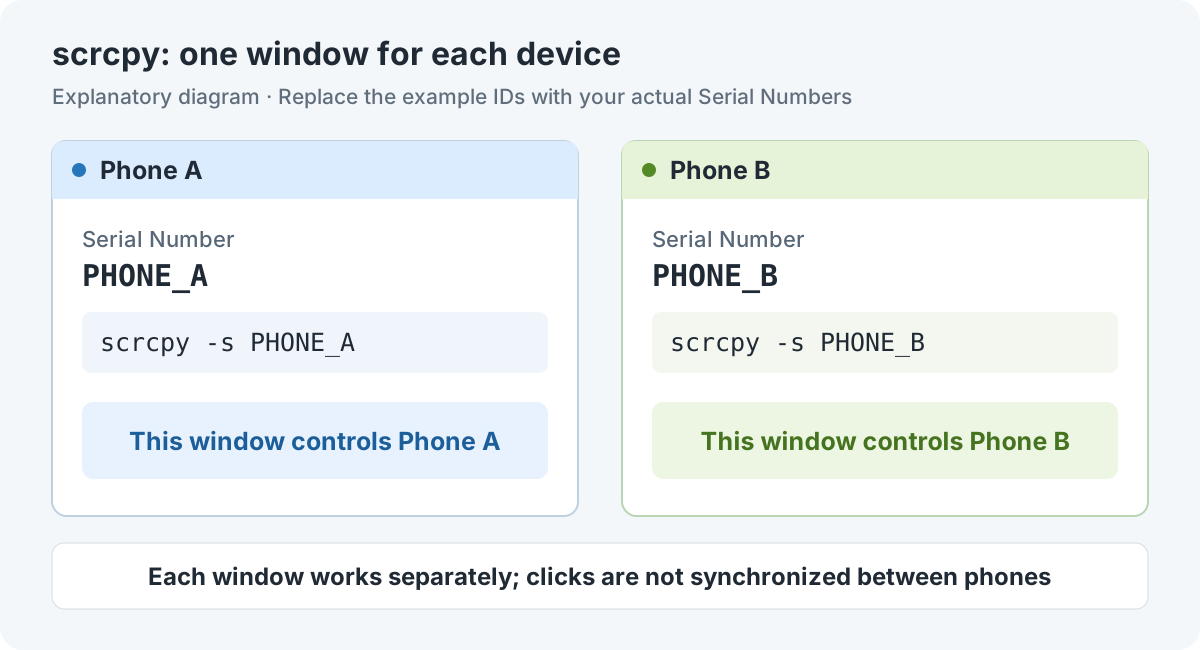
Figure 1: A scrcpy multiple Android devices setup, with one window per phone. This is an explanatory diagram; replace the example IDs with your actual Serial Numbers.
This lets scrcpy control multiple devices in separate windows. Click a window to operate the corresponding phone. For independent control, this may be all you need. For visual device selection and shared actions, the next sections show a different workflow in Total Control.
How Can You Simplify Repeated Actions Across More Phones?
Once the screens are open, you may need ten phones to open the same app, enter the same text, and tap the same button. Separate scrcpy windows do not automatically synchronize those actions. A short task can become a sequence of window changes, repeated typing, and checks to confirm which phones you have finished.
If that becomes your daily routine, Total Control is a scrcpy alternative for managing and operating multiple devices together. Its MDCC (Multi-Device Control Center) combines a device overview with built-in synchronization and Device Groups. You can select the phones for a task, send shared input from the main device, and check the results in the same interface.
The practical benefit is less repeated work: enter shared text once, reuse a saved device selection, and see which phone needs your attention. These everyday controls are available through the interface, without writing a synchronization script.
| Everyday task | Standard scrcpy multi-window workflow | With Total Control |
|---|---|---|
| Check progress across phones | Find and inspect the relevant device windows | View screens together in MDCC and open the phone that needs attention |
| Enter the same text or repeat a tap | Usually repeat the action in each window | Send Mouse or Keyboard actions to the selected devices |
| Work with the same set of phones again | Identify the relevant windows for each task | Recall a saved Device Group |
| Tap a button at different screen positions | Operate each window separately | Use Obj when the app exposes recognizable UI elements |
| Open the same app across a group | Open it in each device window | Use a configured Fn shortcut with synchronization enabled |
This comparison covers the standard scrcpy multi-window workflow; additional scripts or third-party tools may offer other options. MDCC is a Professional feature, and the number of supported devices depends on your license. See the Total Control feature overview.
Select Phones Visually and Run Multi-Device Tasks with Total Control
1. Choose the main phone from the device overview
After connecting your phones in Total Control, open MDCC. The main device appears on the left and the other screens on the right. Click a smaller screen to bring that phone into the main view, without entering a Serial Number in a launch command.
Keep synchronization off when operating just that phone. Clicking a screen chooses the main device; checking device boxes selects the phones that will receive synchronized actions.
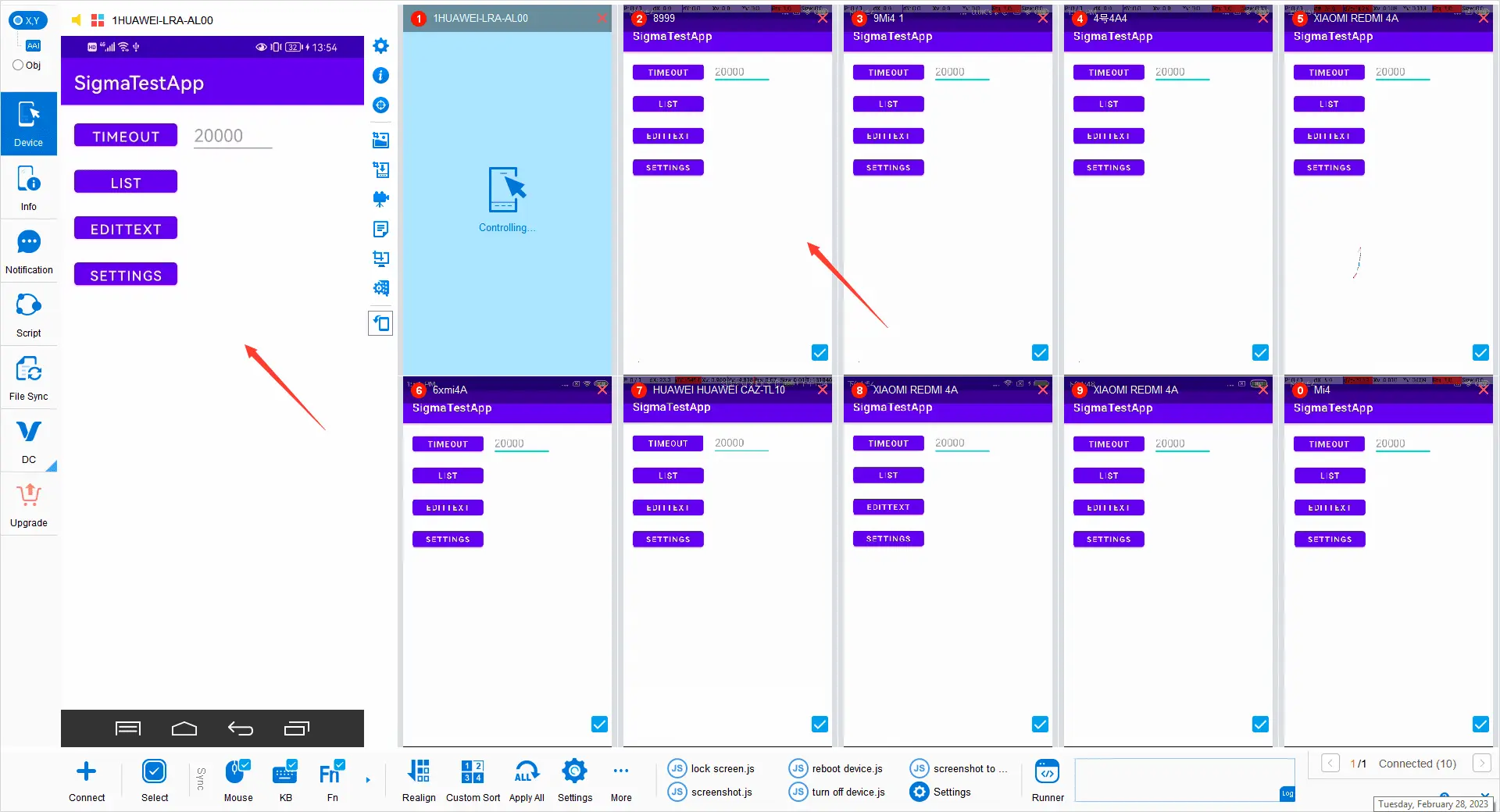
Figure 2: The main device and device overview in MDCC. Source: Total Control official guide.
For example, nine test phones may have reached the app’s home screen while one still shows a confirmation dialog. The shared overview helps you spot that difference. Turn off synchronization before handling that phone individually, then resume the group task when it is ready.
Why it helps: you can focus on exceptions instead of repeatedly searching through desktop windows to check every phone.
2. Select the phones that should receive shared input
- Check the boxes on the target device thumbnails, or recall a saved Device Group.
- Confirm that the selected phones are on corresponding app screens.
- Enable only the required
Mouse,Keyboard, or configuredFnsynchronization, then operate the main device.
You choose which input types to share, so you can synchronize typing without sharing every mouse action. Start with a small selection before applying an operation to a larger group.
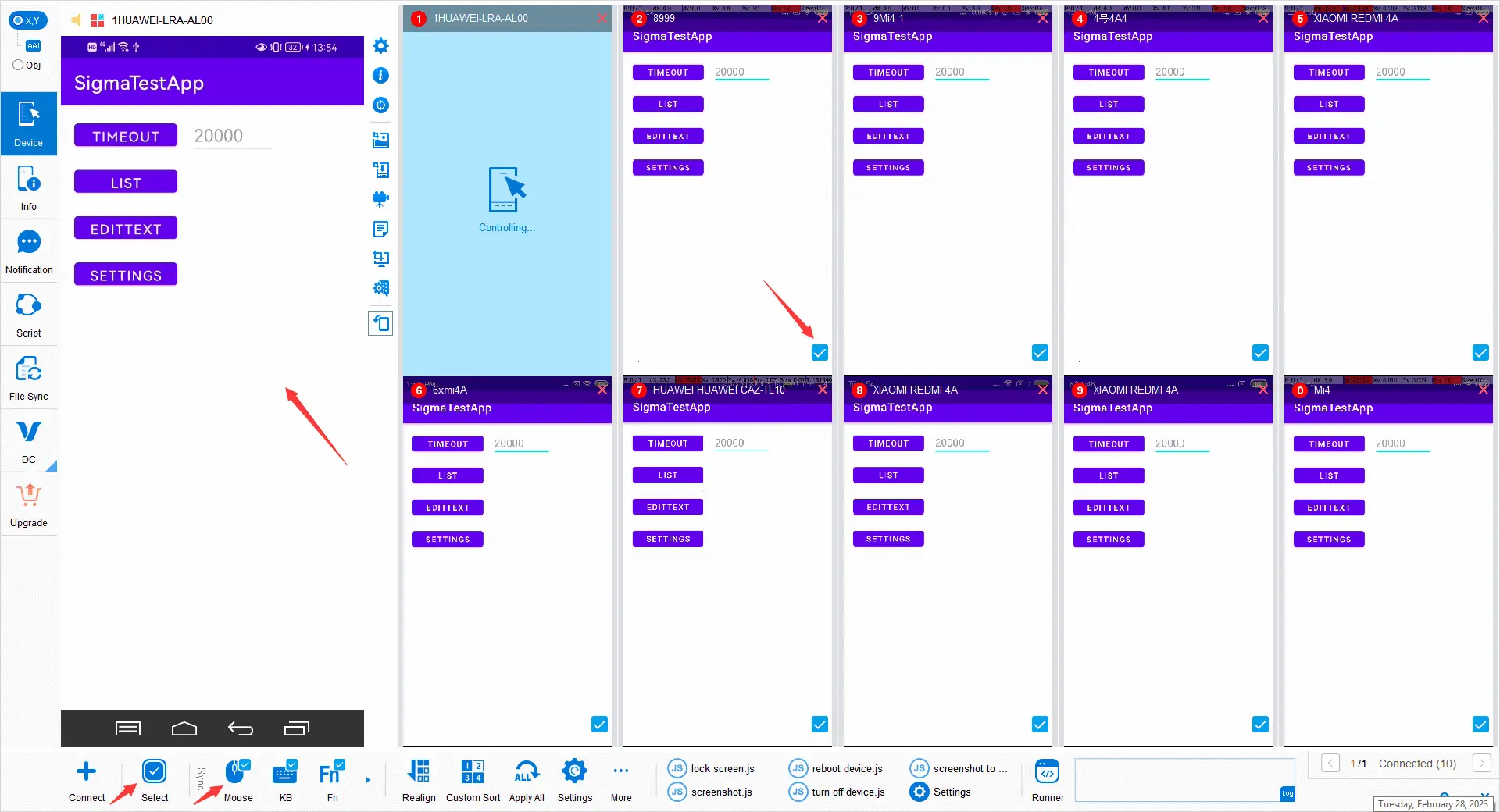
Figure 3: Select devices and synchronization types. KB in the screenshot refers to Keyboard. Source: Total Control official guide.
Imagine ten phones need the same search term or sample form entry. With the phones on the corresponding input screen, enter the text once through Keyboard synchronization. Use Mouse synchronization for shared taps when the interfaces are ready, then review the results in MDCC.
Why it helps: the repeated input is handled as a group task. You can carry out the common actions through the interface without building a custom script.
3. Reuse Device Groups for recurring tasks
When you work with the same phones regularly, save their selection as a Device Group. You can recall that group for the next task and update its membership when the devices change. See the official Device Grouping guide.
For example, keep the phones used for app testing in one group and those used for demonstrations in another. Select the group you need before synchronizing input, rather than identifying each phone again.
Why it helps: routine work starts with a familiar selection, and the intended devices are easier to keep separate from phones assigned to other tasks.
4. Handle different screen layouts with X,Y and Obj
X,Y synchronizes screen coordinates and suits phones with matching interface layouts. Obj targets recognizable UI elements, such as the same button appearing at different positions on different phones.
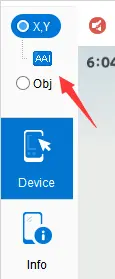
Figure 4: X,Y and Obj synchronization modes. Source: Total Control official guide.
For example, a confirmation button may sit lower on a taller phone. When that button is recognizable, Obj can target the button itself without relying on an identical screen position across devices.
Why it helps: you have a way to synchronize suitable app actions across mixed screen sizes. Obj depends on recognizable UI elements, so first check that the target can be identified and that each phone is on the corresponding page.
5. Launch the same app across a selected group
With an Fn shortcut configured for an app on the current main device, enable Fn synchronization to launch that app on the selected phones. The app should already be installed on those devices. The official MDCC guide explains the shortcut setup.
Why it helps: starting a test or demonstration does not require finding and opening the same app in each phone window. App launch, shared input, and visual checks can all happen in MDCC.
Example: Prepare Ten Phones for an App Demonstration
Suppose your demo phones already have the same app installed. Recall their Device Group and use a configured Fn shortcut to open it across the group. Once the phones reach the matching input page, enter the sample text through Keyboard synchronization and perform the shared actions you need.
Watch the screens in MDCC as you go. If one phone needs a separate response, disable synchronization and handle it individually before continuing.
In this example, you reuse the device selection, avoid entering the same text ten separate times, and keep the results visible together. That is where Total Control’s multi-device workflow becomes useful in everyday work.
FAQ
How do I select a specific device in scrcpy?
Run adb devices, copy the intended device identifier, and use scrcpy -s DEVICE_SERIAL. Replace DEVICE_SERIAL with that identifier. See the scrcpy selection documentation.
Can scrcpy choose one phone without disconnecting the others?
Yes. Use -s to target one connected device while leaving the others connected. To open another phone too, launch a separate session with its identifier, as shown in the multiple-window example.
Does Total Control have a beginner’s guide?
Yes. Total Control Getting Started includes illustrated instructions for MDCC, synchronization, and other features.
Can Total Control synchronize only some of my phones?
Yes. Select only the devices you want to use in MDCC, then enable Mouse, Keyboard, or Fn synchronization. You can also select an existing Device Group.
Can Total Control synchronize phones with different resolutions?
Choose the mode that fits the app interface. X,Y uses coordinates and works best with matching layouts. Obj targets recognizable UI elements when their positions differ. Check that the target element is recognized before using Obj.
Why are my devices visible in Total Control but not synchronizing?
Check that the target devices are selected and the relevant Mouse, Keyboard, or Fn option is enabled. Confirm that the phones are on corresponding screens and that no popup blocks the action. See the MDCC guide for details.
Which Total Control edition includes MDCC?
MDCC is a Professional feature. The number of available devices depends on your license. Check the Total Control official features and edition details before choosing a plan.
Make Everyday Multi-Device Tasks Easier
If your routine involves entering the same text, opening the same app, or checking the same steps across several phones, explore Total Control. Its shared overview, saved Device Groups, and synchronized input help turn repeated phone-by-phone work into a manageable group task. Start with the Getting Started guide.
For more about managing phones together, read How to Control Multiple Android Devices from One PC. For a broader tool comparison, see our scrcpy alternative guide.