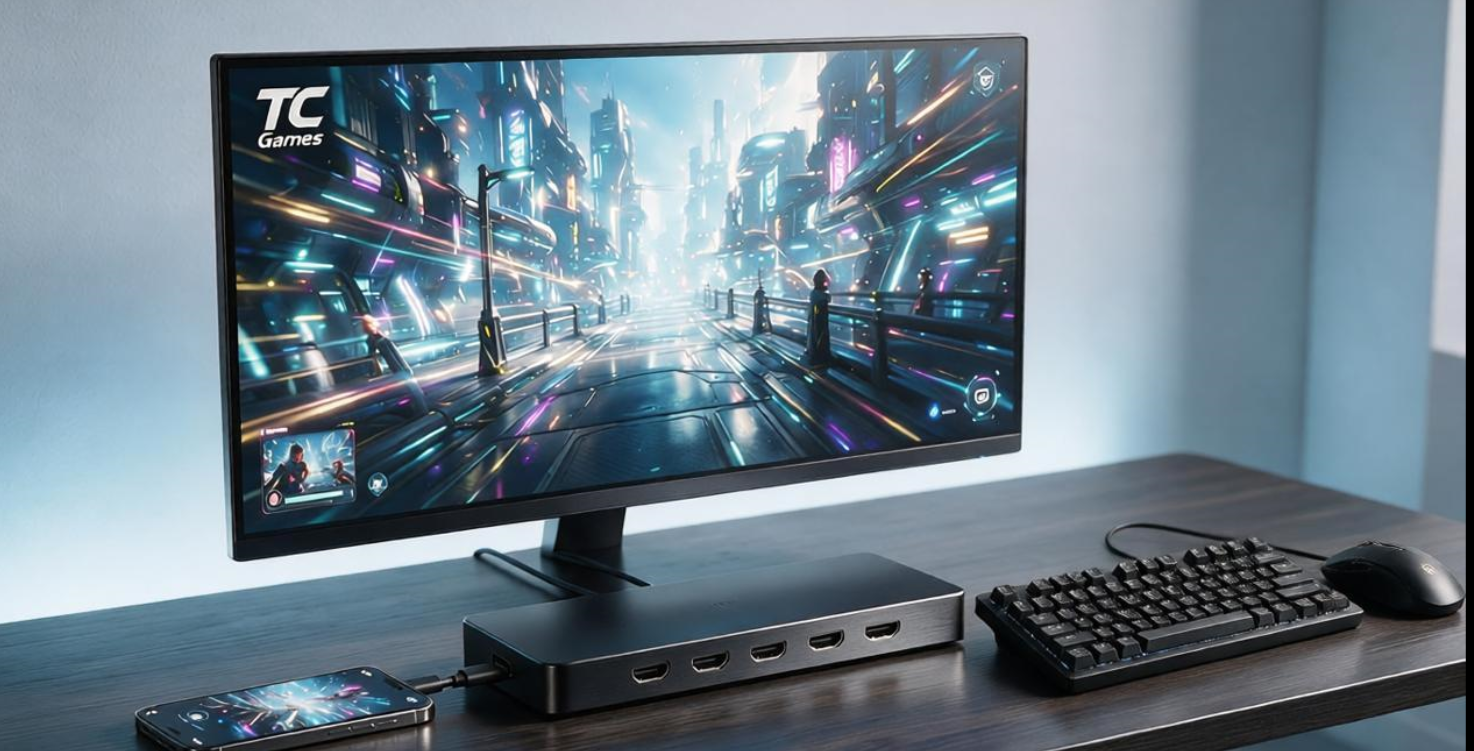
Using an HDMI docking station in combination with TC Games screen mirroring offers lower latency and higher image quality compared to standard wireless mirroring. This setup is ideal for mobile gamers who want a smooth, keyboard-and-mouse control experience. Below is a complete guide covering the necessary preparations, step-by-step connection instructions, and important considerations.
Required Equipment
To successfully set up this configuration, ensure you have the following hardware and software ready:
1. Core Hardware: An Android phone that supports HDMI/MHL video output (RedMagic and Samsung series are recommended; devices with a Snapdragon 8 Gen 2 processor or better will provide the best experience).
2. Docking Station: A Type-C to HDMI docking station (ideally one that supports high refresh rates and includes an independent power supply and an Ethernet port), plus a standard HDMI cable.
3. Peripherals: A monitor or TV with an HDMI port, and a Windows PC with internet access.
4. Software: Download and install the official TC Games software on your PC.
Step-by-Step Connection Guide
Follow these steps to quickly complete the screen mirroring setup:
1. Initial USB Connection
On your phone, go to “Settings → About Device” and tap the “Build Number” 4–8 times to enable “Developer Options.” Then, turn on “USB Debugging.” (For devices like Xiaomi phones, you may also need to enable “Install via USB” and “USB Debugging (Security Settings).”) Connect your phone to the PC using its original USB data cable and launch the TC Games PC software. The software will automatically prompt you to install the TC Games app on your phone. Once installed, verify that your phone screen appears on your PC, then disconnect the USB cable.
2. Physical Connection via HDMI Docking Station
Plug the HDMI docking station into your phone’s Type-C port. Use an HDMI cable to connect the docking station to the HDMI input port on your external monitor or TV. Power on the external display and switch it to the correct HDMI input source; your phone’s screen will then be mirrored directly to the external display via the HDMI connection. 3. LAN/Wi-Fi Pairing (or Connection via Docking Station Ethernet Port)
Ensure both your phone and computer are connected to the same 5G Wi-Fi network. Locate your phone’s IP address within its Wi-Fi/WLAN settings. In the TC Games desktop application, click the “HDMI Connection” option on the main interface, enter the IP address you just retrieved into the pop-up box, and click “Confirm” to initiate the connection.
5. Configuring Keyboard and Mouse Controls
Once connected, your phone’s screen will be mirrored on both your computer monitor and the external HDMI display. Launch the game on your computer, download the preset key mapping for that specific game from the TC Games key-mapping center, adjust the layout as needed, and save your settings. Next, select “Mouse – Display” and “Mouse – Lock” from the software toolbar and switch to full-screen mode. You can now control the game directly on the external HDMI display using your computer’s keyboard and mouse.
Important Tips to Avoid Common Issues
To ensure a stable and smooth screen-mirroring experience, keep the following points in mind:
1. Verify Phone Compatibility: Check with your phone manufacturer’s customer support to confirm that your specific model supports HDMI/DP video output. Some older Android devices lack this feature and cannot be used for screen mirroring via an HDMI docking station.
2. Ensure Network Stability: Both your phone and computer must be connected to the same 5G Wi-Fi network. Avoid using 2.4G Wi-Fi, as it is more prone to connection drops and increased input latency.
3. Choosing a Docking Station: Avoid cheap, unbranded docking stations. Opt for models that feature an independent power supply and support high-refresh-rate transmission to prevent screen flickering or rapid battery drain caused by insufficient power.
4. Cooling and Frame Rate Optimization: For extended gaming sessions, use a phone cooling fan (clip-on cooler) to keep the device temperature down. This prevents performance throttling—such as frame rate drops or stuttering—caused by overheating, allowing you to take full advantage of the high-refresh-rate capabilities of HDMI screen mirroring. 5. Audio Output Notes: Once connected to an HDMI docking station, the phone’s audio will, by default, be transmitted via the HDMI cable to the external display’s speakers. If you prefer to use headphones, you can plug them directly into the 3.5mm audio jack on the docking station.