Are you fed up with these frustrating mobile gaming moments?
- The phone screen is too small; you misclick a skill during a team fight and get instantly eliminated by the enemy right after activating your ultimate.
- Your fingers block your view of the screen, causing you to miss three enemies camping in a blind spot.
- Emulators have poor compatibility; new hit games often flag your device as unsupported, leaving you wasting half an hour just trying to get in.
Today, were introducing a game-changing tool that solves all these pain points: TC Games. It requires no emulator; instead, it casts your Android phone’s high-definition screen directly to your PC. You can control mobile games using a keyboard and mouse—just like a PC game—enjoying smooth, responsive gameplay on a large screen for the ultimate experience.
1. No Emulator Overhead: Transform Mobile Games into PC-Style Experiences
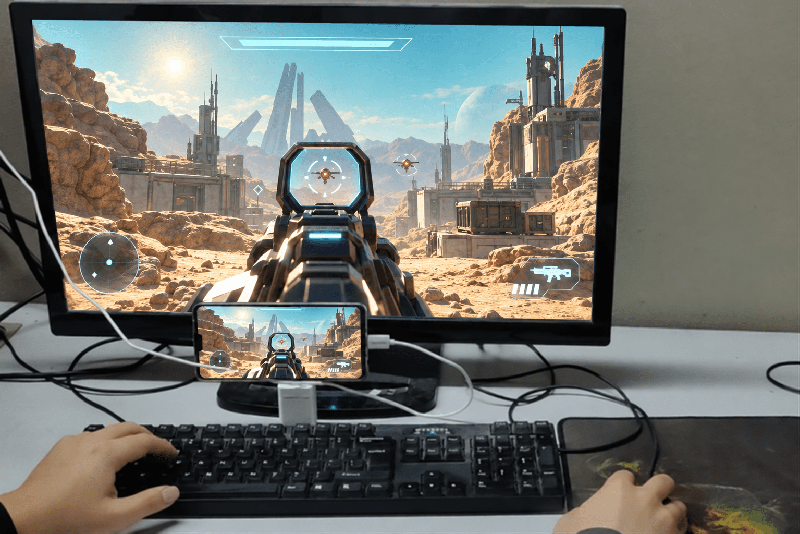
Unlike standard Android emulators, TC Games doesn’t create a virtual mobile system on your PC. Its core function is to connect directly to your actual Android phone, syncing the real-time display to your computer screen while all game processing happens on your phone itself. This offers several tangible benefits:
- Superior Compatibility: If a mobile game runs on your phone, you can play it directly via TC Games. You won’t face common emulator issues like unsupported games, crashes, or risks of account bans. You can play new releases immediately without waiting for emulator updates.
- Low PC Resource Usage: As long as your PC can run the operating system, it can handle the screen casting smoothly. Unlike emulators, it doesn’t hog CPU or memory; you can stream or record gameplay without experiencing lag.
- Native Mobile Experience: Your game accounts, save files, and skins remain intact. There’s no need to re-download installation packages—simply connect and pick up right where you left off, with no hassle regarding data migration.
2. Flexible Connection Options: Connect However You Like
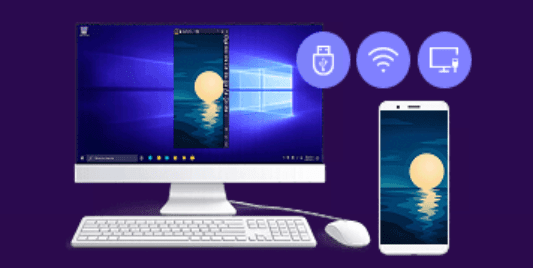
TC Games places no restrictions on how you connect; it supports USB, Wi-Fi, and HDMI modes, allowing you to choose the best solution for any scenario:
- For your first time, a wired USB connection is recommended. Simply plug in the data cable and enable USB debugging on your phone; the PC software will automatically push the companion mobile app to your device. Once recognized, screen mirroring starts immediately with virtually imperceptible latency—perfect for responsive gameplay in competitive mobile titles.
- For daily use when you don’t want the hassle of cables, opt for a wireless Wi-Fi connection. Connect both your phone and PC to the same local network and scan the QR code on the PC screen to pair instantly. Enjoy the freedom of controlling your game while lounging in your chair, unencumbered by wires.
- If you demand ultimate image quality, use an HDMI connection. With the appropriate adapter, you can output ultra-high-definition visuals, making skill details and distant enemies crystal clear.
3. Customizable Keyboard & Mouse Controls: Smoother Than PC Games
Many players worry that setting up keyboard and mouse controls for mobile games is difficult, but TC Games makes it effortless.
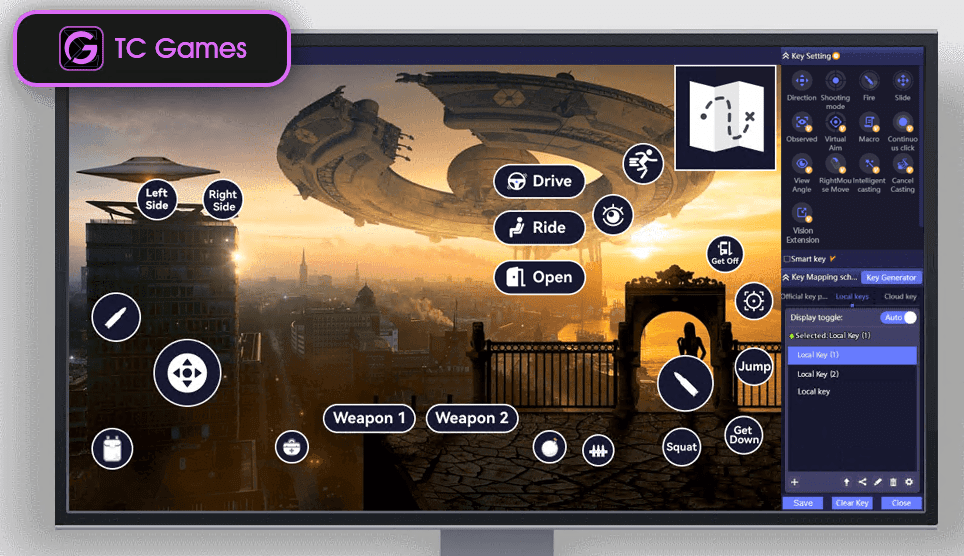
The built-in “Key Mapping Center” offers official presets for almost all popular mobile games; simply download and use them immediately—no need for tedious manual configuration.
If you prefer a setup tailored to your habits, you can freely drag and drop keys: map WASD for movement, bind the left mouse button to fire and the right to aim down sights (ADS), and assign skills to number keys—fully replicating the control logic of PC FPS and MOBA games.
Advanced features cater to hardcore players, including support for macros, key combinations, and customizable side mouse buttons. You can also adjust mouse acceleration and polling rates for silky-smooth camera movement without stuttering.
In WASD joystick mode, you can even toggle options like “Shift” for sprinting or stealth walking, offering a level of precision far superior to touchscreen controls.
Actions that are often imprecise on a touchscreen—such as recoil control, instant gear swapping, and chaining combos—become much more reliable with keyboard and mouse controls, significantly boosting your ranking efficiency.
4. High-Definition Quality & Practical Features: Great for Streaming and Recording
Regarding screen mirroring performance, the free version supports frame rates up to 60 FPS and adjustable resolutions ranging from 480P to HD, fully meeting daily gaming needs.
Upgrading to VIP unlocks a premium experience: support for up to 1080P resolution and frame rates exceeding 70 FPS. Combined with high-precision encoding and motion image enhancement, dynamic scenes—such as combat or traversing game maps—remain crisp and blur-free.
Users can also manually adjust brightness, saturation, and contrast, and even enable a “remove black bars” feature; in full-screen landscape mode, the image fills the entire display, eliminating wasted space.
Beyond casual gaming, it is an excellent tool for mobile game streamers: the built-in “Audio Transmission” feature syncs game audio directly to the PC for playback, eliminating the need for extra audio cables.
The software includes an HD screen recorder that captures gameplay directly in MP4 format, making it incredibly convenient to create gaming content. It integrates seamlessly with streaming software like OBS; simply add a “Window Capture” source to broadcast the mirrored screen—ensuring easy setup and clear image quality.
Players who “grind” across multiple accounts (multi-instance farming) also enjoy exclusive benefits: the VIP version supports synchronized control across multiple devices.
You can connect several phones at once, and actions performed on one device are mirrored on the others simultaneously.
This doubles efficiency by removing the need to constantly switch windows and tap each device individually.
5. Get Started in Three Steps: Easy Enough for Beginners to Master in 5 Minutes
Many people worry that setting up screen mirroring is complicated, but the workflow for TC Games is so simple that even complete beginners can learn it quickly:
- Download the installer from the official website and choose either “Quick Install” or “Custom Install.” When you connect your phone via USB for the first time, the software automatically pushes the corresponding mobile app to your phone.
- Enable “Developer Options” and “USB Debugging” on your phone. Once connected to the PC, the software automatically detects the device, and screen mirroring begins within seconds.
- Launch your desired mobile game, download the preset key mapping from the Key Mapping Center, fine-tune the alignment with the on-screen buttons, and click “Save” to start playing immediately using your keyboard and mouse. Starting today, say goodbye to small screens and the hassles of emulators. Upgrade your mobile gaming experience with TC Games to enjoy the smooth, responsive feel of a PC game—complete with a large, high-definition display and precise keyboard-and-mouse controls. Whether you’re climbing the ranks or recording footage for a stream, you’ll enjoy a far more immersive and satisfying gaming experience.