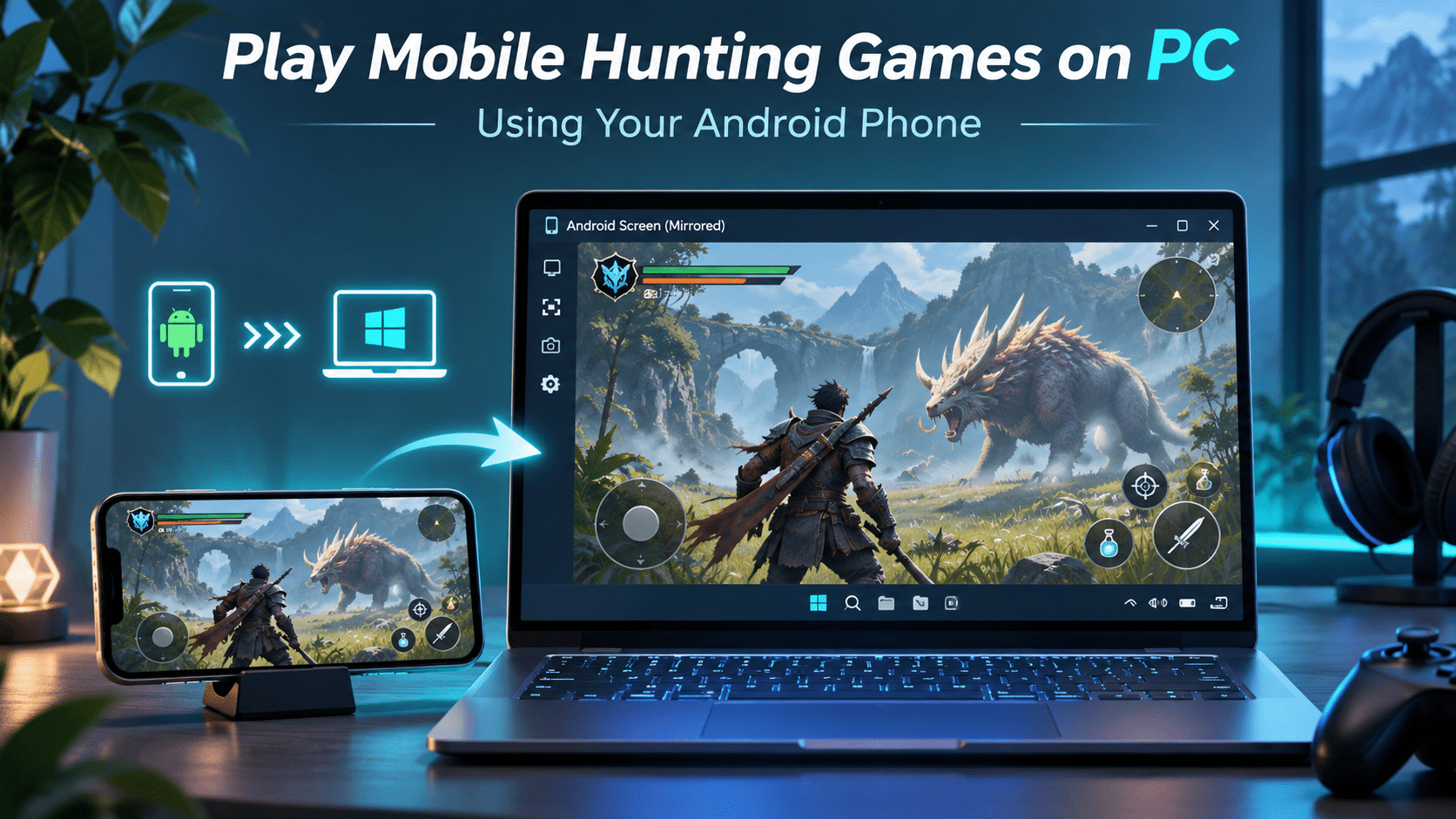
To play Monster Hunter Outlanders on a PC screen without an emulator, you can run the game on your Android phone and mirror its screen to Windows. Your phone still runs the game; the computer provides a larger display and, with compatible software, another way to control it. Players have already shared this approach using USB mirroring and a controller.
TC Games offers a way to play mobile games on PC without an emulator using a connected Android phone, with customizable keyboard and mouse controls. This guide explains how to set up that workflow, what to test, and where its limitations differ from running a game directly on a PC.
This is not a native PC version. Monster Hunter Outlanders’ official launch information lists Android and iOS as its supported platforms. Connecting your phone does not turn the mobile game into a Windows application.
Why Players Are Looking for a No-Emulator Option
An emulator is not the only way to bring Monster Hunter Outlanders to a larger screen. By connecting your Android phone to a PC over USB and mirroring its display, you can keep the game running on your phone while viewing the action on your monitor. A compatible controller can provide gameplay input without relying entirely on touchscreen controls.
However, a larger display does not automatically mean a better experience. Image clarity, input delay, and menu navigation all matter, and some menus or tutorial sequences may still require touch input. Test both gameplay and navigation to make sure your setup delivers a clear picture, responsive controls, and a stable connection.
Choose Your Controls: Controller or Keyboard and Mouse
For a controller-first setup, Monster Hunter Outlanders officially supports controllers. You can investigate pairing a compatible controller with the phone while mirroring its display. The community example used this arrangement, although some commenters still needed touch input for parts of the interface.
For a keyboard-and-mouse setup, TC Games provides configurable controls that translate PC input into mobile interactions. Its purpose is different from simply displaying the phone screen: you can map keys to movement and on-screen actions rather than use the mouse for every tap.
Compatibility note: TC Games documents general Android mirroring and key-mapping capabilities. The documentation reviewed does not confirm a dedicated, tested Monster Hunter Outlanders profile or publisher approval. Validate the setup on your phone and current game version before relying on it.
What You Need Before Connecting
Prepare an Android phone that can already run Monster Hunter Outlanders, a Windows PC with TC Games installed, and a reliable USB data cable.
Start by opening the game directly on your phone. Complete its downloads and check that movement, camera controls, and a short gameplay session work normally. This gives you a baseline: you can then distinguish a game-performance problem from a mirroring problem.
For the initial connection, use USB rather than changing the phone, network, graphics settings, and controls all at once. TC Games documents USB setup and recommends a data-capable cable, with additional permissions required on some phone brands.
How to Set Up Monster Hunter Outlanders on a PC Screen with TC Games
Step 1: Connect Your Android Phone
Install TC Games from its official website and open it on Windows.
For the standard USB-debugging connection:
- Enable Developer Options and USB debugging on the phone.
- Connect the phone to the PC with a USB data cable.
- Approve the debugging authorization request on your trusted computer.
- Follow the TC Games prompts to install or authorize its mobile component.
- Connect the detected device.
Some phones, including certain Xiaomi models, require additional USB installation or debugging security settings. Follow the TC Games USB connection guide and the instructions shown for your device rather than enabling unrelated options.
Step 2: Open the Game and Check Basic Control
Launch Monster Hunter Outlanders on the connected phone and confirm that its screen appears in TC Games.
Before configuring keyboard shortcuts, test a simple menu interaction with the mouse. Use a connection mode that supports control: TC Games also documents a live-screencasting mode that displays the screen without keyboard and mouse control.
Keep the phone within reach during setup. It remains your fallback for permissions, unexpected prompts, or interactions that do not work through the PC.
If your phone is not detected, the screen stays black, or mouse input does not work, use the TC Games connection troubleshooting guide to check the connection mode, USB cable, permissions, and other common causes before configuring game controls.
Step 3: Configure Keyboard and Mouse Mapping
Open the Key Mapping Center and check for a configuration suitable for your game and screen layout. Do not assume that a dedicated Outlanders preset is available.
Follow the TC Games key-mapping tutorial to customize keyboard and mouse controls and align them with the actual buttons shown in the game. An incorrectly positioned mapping may trigger the wrong action or do nothing.
The following is a suggested starting layout, not official Monster Hunter Outlanders PC controls:
| On-Screen Control | Suggested PC Input | What to Check |
|---|---|---|
| Movement joystick | W, A, S, D | Forward movement, diagonals, and stopping |
| Primary attack button | Left mouse button | Tap and hold behavior |
| Dodge or evasion button, where available | Space | Whether the input reaches the intended button |
| Secondary action or skill | E or R | Match the action displayed for your current setup |
| Item button | Q | Verify the selected item before using it |
| Camera swipe area | Mouse movement or drag | Camera direction, sensitivity, and cursor switching |
Start with movement, camera control, and one attack. Add the remaining bindings only after those work consistently.
Avoid mapping every visible button immediately. A smaller working layout is easier to troubleshoot than a complicated one with several overlapping inputs.
Step 4: Test Menus as Well as Combat
Check the inventory, map, dialogue choices, and tutorial prompts—not just movement and attacks.
Keep a convenient way to return to a visible mouse cursor when navigating menus. TC Games documents a cursor-visibility toggle for its key-mapping workflow, with a configurable shortcut.
Then run a short gameplay test. Check whether you can move while turning the camera, whether held inputs release correctly, and whether changing screens leaves any controls stuck. Adjust one binding at a time.
How to Improve Picture Quality Without Making Controls Sluggish
Compare the Phone Screen with the PC Image
First identify where the visual problem begins.
If the image already looks soft on the phone, increasing the mirroring quality cannot recreate detail the game did not render. If the phone looks clear but the PC image looks worse, investigate the screen-transfer settings.
TC Games provides resolution, bitrate, image-quality, and decoding options, with some features dependent on the edition. Use the TC Games screen quality and frame-rate settings guide to identify the relevant controls. Adjust them gradually rather than maximizing everything at once, particularly if higher image-quality settings introduce delay or freezing.
A useful test is to compare the same scene while standing still, then rotate the camera. Choose settings that remain readable during movement—not just those that produce the sharpest still image.
Separate Game Lag from Mirroring Delay
Watch both screens during the same action.
If the game slows down on the phone too, investigate the phone’s game settings and temperature first. If the phone responds promptly but the PC display falls behind, focus on the mirroring connection and display settings.
TC Games’ documentation recommends reducing demanding image settings when delay or freezing occurs and lowering the streaming frame rate when heat or power consumption becomes excessive. It also offers hardware and software decoding options.
Treat these as troubleshooting variables, not universal fixes. Change one setting, repeat the same test, and keep the result that feels more responsive.
Do Not Confuse Streaming FPS with Game FPS
A higher frame-rate option in the mirroring software does not guarantee that Monster Hunter Outlanders is producing that many frames. The game, phone, connection, and display all affect the result. TC Games’ setup guide specifically distinguishes the game’s frame-rate settings from the mirroring configuration.
Aim for a stable, responsive session rather than the highest number available in a settings menu.
TC Games or scrcpy: Which Fits This Setup?
The Reddit example used scrcpy, a free, open-source tool for displaying and controlling Android devices over USB or TCP/IP. It is a reasonable option to investigate for a mirroring-focused setup, particularly when a controller connected to the phone already handles your gameplay.
TC Games is more relevant when your priority is a graphical interface for mapping keyboard and mouse inputs to mobile controls. The choice is therefore less about replacing one mirroring app with another and more about how you intend to play.
Neither approach should be described as a guaranteed performance upgrade over playing directly on the phone.
Check the Game’s Rules Before Using External Controls
A setup working technically does not establish that the publisher permits it. Monster Hunter Outlanders’ user agreement restricts unauthorized third-party programs, bots, automated control, and other forms of interference with the game.
Check the current rules or ask game support about your intended mirroring and input method. Do not assume that avoiding an emulator guarantees account safety.
Keep modified game clients, automated hunting, and combat macros out of this setup. The goal here is to change your display and input arrangement—not automate gameplay or bypass restrictions.
Frequently Asked Questions
Can I play Monster Hunter Outlanders on PC without an Android phone?
Not with the method described here. TC Games mirrors a real Android device, so the phone must remain connected and continue running the game. This is not a standalone Windows installation.
Does Monster Hunter Outlanders have native keyboard and mouse support?
The official launch information confirms controller support, but it does not establish native PC keyboard-and-mouse controls. TC Games key mapping is a separate input-translation method, not proof of native game support.
Why do mapped keys stop matching the game’s buttons?
Check whether the in-game control layout or display configuration changed. TC Games’ guide instructs users to align mappings with the displayed controls. Recheck those positions before rebuilding the entire configuration.
Will a powerful PC fix poor performance on my phone?
Do not expect that outcome from mirroring. This setup keeps the game running on Android rather than transferring it to the PC’s graphics hardware. Establish acceptable gameplay on the phone first, then evaluate the additional display and input connection.
Can I use a controller instead of configuring keyboard mappings?
Monster Hunter Outlanders officially supports controllers. A controller connected to the Android phone, combined with screen mirroring, is an alternative worth evaluating. Confirm your controller’s compatibility and test menu navigation as well as gameplay.
To explore a keyboard-and-mouse setup for Monster Hunter Outlanders, start with TC Games and one USB-connected Android phone. Confirm that the input method is permitted, test basic controls, and fine-tune the layout before committing to longer hunts.