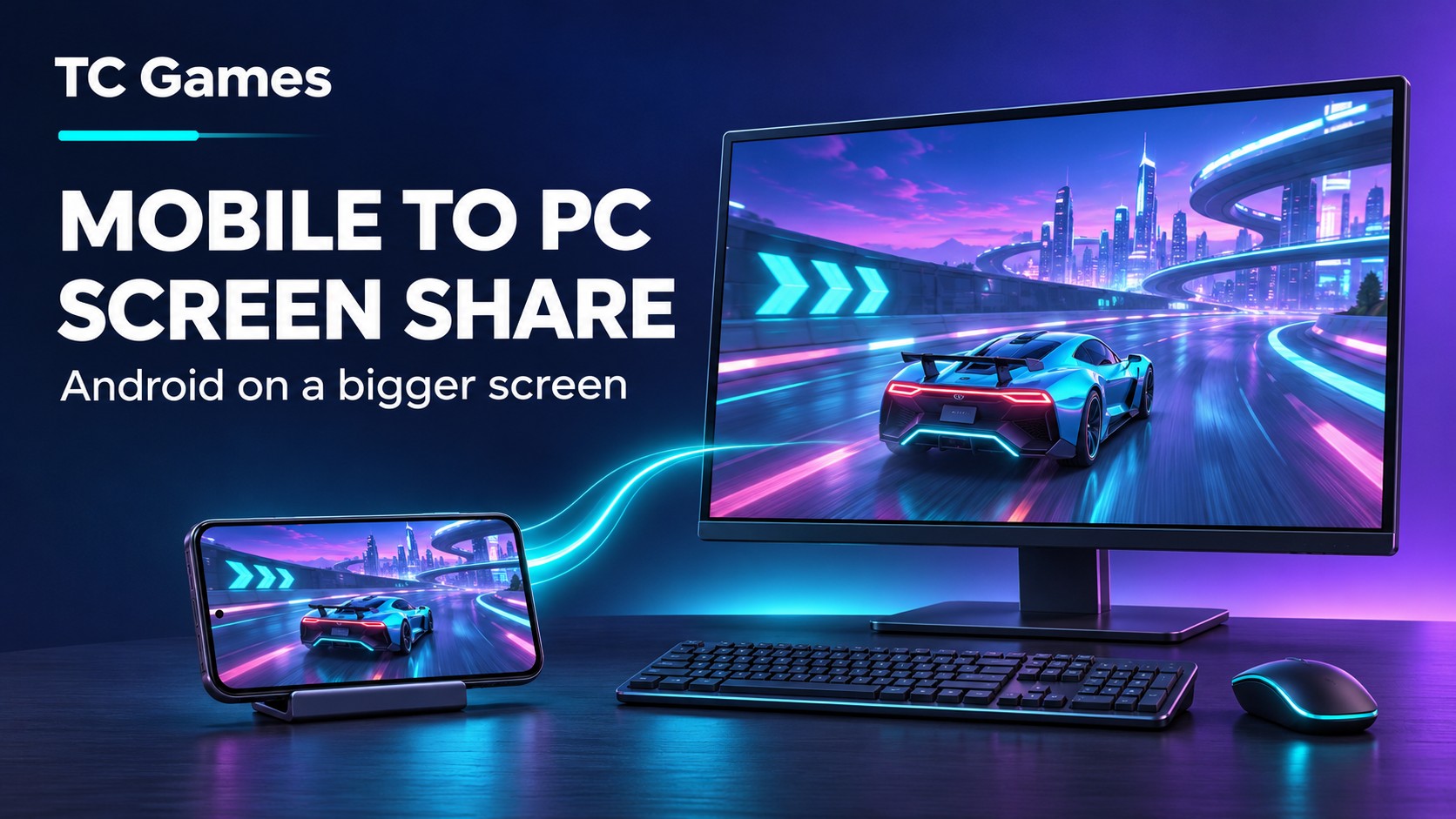
A mobile to PC screen share setup lets you bring the Android screen you already use onto a larger Windows display. You can follow a game more comfortably, show an app to someone beside you, or work with mobile content while sitting at your computer.
TC Games connects your real Android phone to a Windows PC and provides screen mirroring with keyboard and mouse control for supported apps and games. The app continues running on the phone, so there is no Android emulator to configure on your computer.
What you can do with your phone on a PC screen
Think about the task you want to complete after the screen appears. Watching a phone display, typing into an app, and playing a mobile game involve different controls. TC Games brings these activities into the same desktop setup.
- See more comfortably on a larger display. Read menus and follow on-screen activity without holding the phone close to your face.
- Use your desk keyboard for text. When an app needs a search phrase or a message, PC text input can make longer entries more convenient.
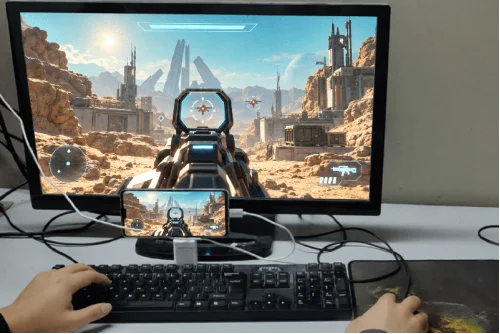
- Give mobile games familiar controls. Key Mapping lets you assign keyboard and mouse actions to supported game controls.
- Keep using your existing mobile installation. Open the app already on your phone instead of setting up another Android system on the PC.
For example, you could keep a game guide beside the mirrored window while checking an in-game menu. Or, when explaining an app to a friend, put the phone screen on your monitor so both of you can follow the same steps. These are practical reasons to share the screen even before you customize any game keys.
Choose viewing only or screen sharing with control
Select the connection mode that matches your purpose. A visible phone screen does not automatically mean mouse and keyboard input is enabled.
| What you want to do | Mode to select |
|---|---|
| Watch the phone screen while using the phone itself | Projection Only or the viewing-only screencasting mode |
| Click and type from the computer | Projection & Control |
| Use keyboard and mouse bindings in a supported game | Projection & Control, then configure Key Mapping |
For a first attempt, start with a normal app screen. Check that you can open a menu or select a text field before setting up game-specific controls. This separates a connection problem from a key layout problem.
How to set up mobile to PC screen share
Have your Android phone, a Windows PC, and a USB data cable ready. USB is a straightforward starting point because you can confirm the connection before adding network settings.
1 Install TC Games on Windows
Get the installer from the TC Games download page and complete installation. Open the PC client and keep your phone unlocked so you can respond to its setup prompts.
2 Enable USB debugging and connect the phone
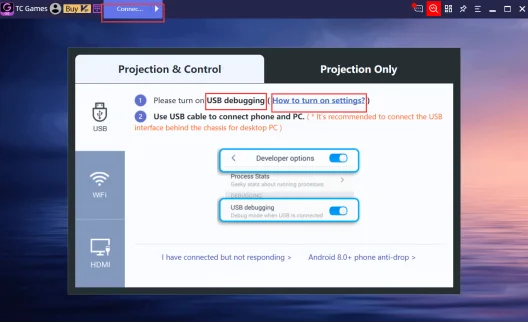
Enable USB debugging in Android Developer options, then connect the phone using a data-capable USB cable. Open Connection in TC Games. Follow the phone prompts to authorize access and install the companion mobile app when requested.
3 Connect and open your app
Click Connect when TC Games detects the device. Choose Projection & Control if you want PC input, then open the app on your phone and check its mirrored view. The Beginner’s Guide provides the full connection walkthrough and brand-specific guidance.
4 Add game controls when you need them
For a supported game, open Key Mapping Center and apply an available layout. Check that the key markers line up with the game’s buttons, adjust them if needed, and save.
For example, you might use movement keys and assign one frequently used action to a nearby key. Start with those essentials, try them, and add more bindings as needed. A custom layout should fit both your habits and the game’s current interface. Only use mapped controls in games that permit them.
Make the shared screen useful for everyday tasks
Once connected, choose a window size that makes the app easy to read while leaving room for anything else you need on the PC. For a walkthrough, open the relevant phone screen before you begin explaining it. For gaming, check the main controls before entering a longer session.
TC Games also includes a ScreenShot function, and its feature documentation lists Record Video as a VIP feature for saving MP4 recordings. These can help when you want to keep an image of a setting or make a short demonstration. Check the current feature details for your edition.
A short practice recording is useful before creating a tutorial: check that the text is readable, your actions are easy to follow, and the app is showing what you intended. If you plan to show the recording to others, close unrelated chats and notifications first.
A few checks if sharing or control does not work
If TC Games does not detect the phone, check the cable first. Some USB cables charge a device but cannot carry data. Try another data cable or USB port, confirm USB debugging is enabled, and look for an unanswered authorization prompt.
If you can see the screen but cannot click, check the selected mode and phone permissions. For example, some Xiaomi models need USB Debugging (Security Settings) enabled for input. The TC Games FAQ covers these model-specific checks.
If a game key misses its target, compare the marker with the actual button position. A moved button or changed layout may need a matching adjustment in Key Mapping. If the image is slow or freezes, try a less demanding image-quality setting and check whether the app is also struggling on the phone.