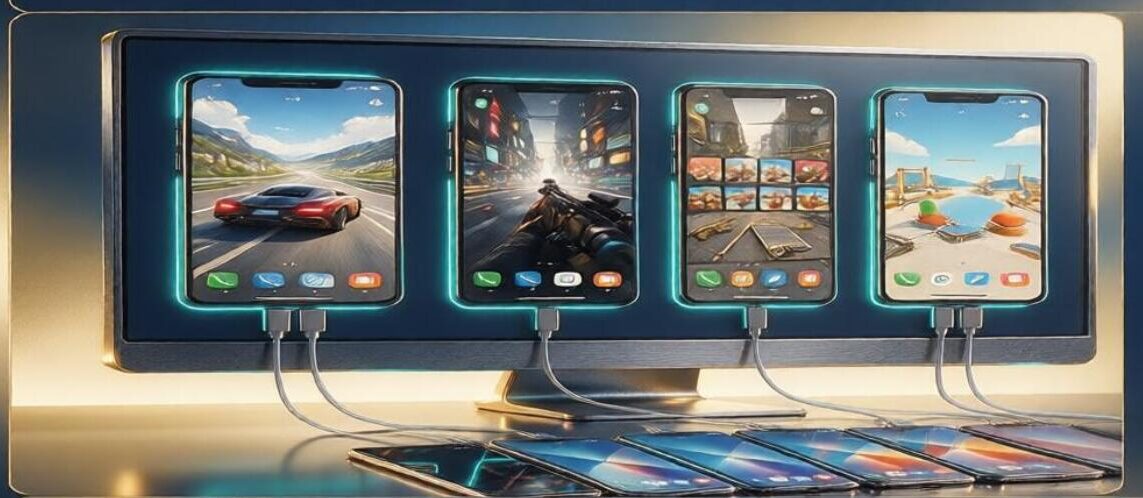
If you need to manage multiple mobile game accounts simultaneously, the multi-device screen mirroring feature in TC Games is highly practical. You can connect several Android phones to a single computer, with each device appearing in its own independent, controllable window. Many users are unsure how to arrange these windows or configure individual settings for each; this guide explains how to do so.
Connecting Multiple Devices
The VIP version supports connecting up to 5 Android phones to your computer simultaneously. The connection process is the same as for a single device: pair each phone individually via USB or Wi-Fi and add them to TC Games one by one. Each phone gets its own dedicated mirroring window, ensuring they remain independent of one another. Since each window corresponds to a specific account and retains the phone’s native operating system, you can freely drag, resize, maximize, or minimize these windows.
Independent Window Settings: Customizing Quality and Frame Rates
A particularly useful feature is the ability to configure settings for each window individually. For instance, you can set your primary window—used for active gameplay—to 1080p resolution at 120 FPS with a high bitrate. Meanwhile, for secondary windows used merely for “AFK” (idle) tasks, you can lower the frame rate and bitrate to reduce computer resource consumption, striking a balance between smooth performance and hardware load. You can also toggle audio for each window separately; if you don’t want the sound effects from multiple games overlapping, you can simply mute the secondary windows.
Screen-Off Control: Reducing Heat and Power Consumption
Every connected device supports “screen-off” control. Once mirrored, you can turn off the phone’s physical display while continuing to control it via your computer’s keyboard and mouse. When running tasks for long periods, keeping the screen off significantly lowers power consumption and heat generation, extending the lifespan of your phone and preventing performance throttling or lag caused by overheating during extended screen-on time.
Independent Key Mapping for Each Window
Key mapping schemes are saved independently for every window. This means you can load different control configurations for different games or accounts. For example, if you are playing a strategy game in one window and a card game in another, your key bindings won’t conflict. Once configured, these settings are saved, allowing you to load them instantly the next time you open the app.
By organizing your windows effectively and customizing settings for each, you can monitor and control all your accounts from your computer—eliminating the need to constantly pick up and switch between different phones. It makes managing multiple accounts far more centralized and convenient.