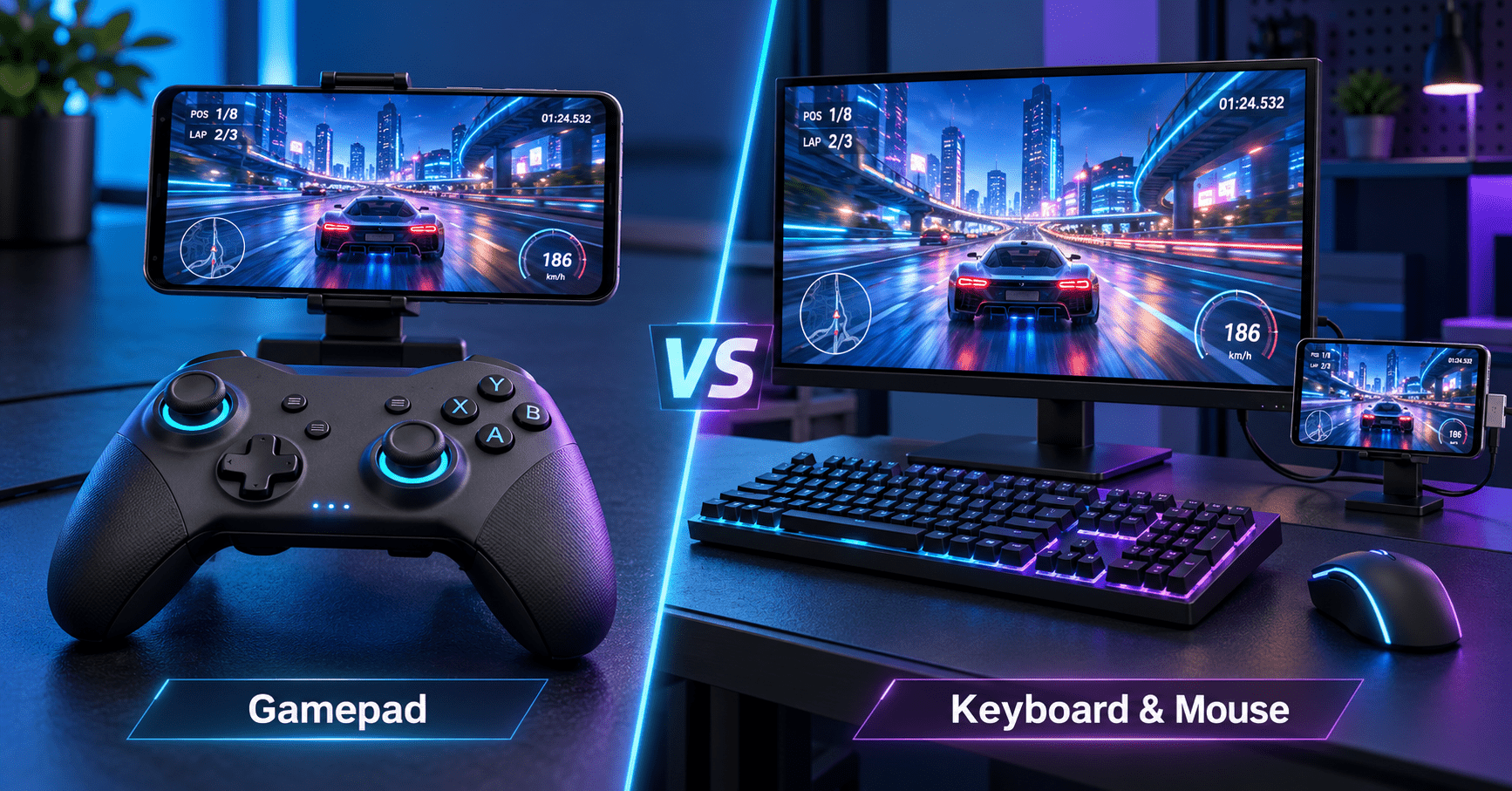
An Android game controller usually means a physical gamepad that connects to a phone through Bluetooth or USB. If you prefer playing at a desk, another option is to display your Android game on a Windows PC and use keyboard and mouse controls through TC Games.
The right setup depends on where you play, the controls your game supports, and whether you want a handheld or desktop experience.
What Is an Android Game Controller?
An Android game controller provides physical inputs such as buttons, triggers, and analog sticks for games on an Android device.
Common designs include:
- Bluetooth gamepads: Wireless controllers used with a phone on a stand or in a holder.
- USB controllers: Wired controllers that require a compatible phone connection.
- Telescopic controllers: Controllers that hold the phone between two grips.
Connecting a gamepad and having it work correctly inside a game are separate requirements. Android provides controller input APIs, but developers must implement the relevant input handling in their games. developer.android.com
Before buying an Android gamepad, check the exact game and controller combination you intend to use.
When Should You Use a Gamepad?
A gamepad is a practical choice when you want to play directly on your phone with physical controls.
You Want a Portable Setup
A phone and compatible controller can suit travel, sofa gaming, or short sessions away from your computer.
Consider the complete arrangement: controller size, phone weight, grip comfort, and whether you need a separate stand. A setup that looks compact in a product photo may feel different after a longer session.
Your Game Supports the Controller
Native controller support can reduce setup work because the game handles controller input directly.
Check which actions work before committing to a controller. Gameplay, menus, inventory screens, and text entry may not all behave the same way.
Look for game-specific compatibility information rather than assuming that a controller advertised for Android supports every Android game.
You Prefer Sticks and Triggers
If analog sticks and triggers feel natural to you, a gamepad may be the most comfortable option.
Control preference matters more than the number of buttons on the device. Think about the actions you repeat most often and whether the layout makes them easy to reach.
When Should You Use a Keyboard and Mouse Instead?
A keyboard and mouse setup makes sense when you want to play Android games at a computer desk.
You may prefer it if you already use these controls for PC gaming, want a larger viewing area, or like assigning actions to specific keys.
For example, a desktop layout might assign movement to WASD and frequently used actions to nearby keys. The exact arrangement should follow the game’s controls and your own preferences.
TC Games supports configurable keyboard and mouse controls while displaying the Android game on your Windows PC. The game continues running on the connected phone.
A mapped setup still needs adjustment and testing. It does not guarantee identical behavior to a native PC game.
Android Game Controller vs. Keyboard and Mouse
| Consideration | Phone + physical gamepad | Phone + PC + TC Games |
|---|---|---|
| Playing location | Suits a handheld or phone stand setup | Suits a computer desk |
| Main display | Usually the phone screen | Mirrored gameplay on the PC |
| Input method | Sticks, triggers, and buttons | Keyboard and mouse mappings |
| Setup work | Check connection and game support | Connect the phone and configure mappings |
| Portability | Depends on the controller and phone arrangement | Requires access to a Windows PC |
| Compatibility check | Confirm support for the specific controller | Confirm phone compatibility, mapping behavior, and game rules |
| Best reason to choose it | You prefer physical handheld controls | You prefer a desktop display and input layout |
Choose around your usual gaming environment. A portable controller can be convenient away from home, while a desktop setup can be more suitable for sessions at your PC.
How TC Games Works with Your Android Phone
TC Games mirrors your Android phone’s screen to a Windows computer and provides keyboard and mouse controls for mobile gameplay. It offers ready-made keymaps for supported titles and customizable mappings. An Android emulator is not required.
Think of the setup in three parts:
- The phone runs the Android game.
- The PC display shows the mirrored gameplay.
- The keyboard and mouse provide your configured inputs.
Your phone’s performance remains relevant because it still runs the game. A larger monitor changes the viewing experience; it does not replace the phone’s processor.
How to Set Up Android Game Controls on PC
1. Connect the Phone
Install TC Games on your Windows PC, connect the phone, and follow the setup prompts.
For a first USB connection, enable USB debugging and use a cable that supports data transfer. Confirm that screen mirroring works before configuring game controls.
2. Choose a Key Mapping
Open your game and look for an appropriate recommended mapping or a matching option in the Key Mapping Center.
If a suitable mapping is unavailable, configure one for your layout. Available controls can depend on the software edition.
3. Align Mappings with the Game Interface
Check that mapped controls line up with the game’s on-screen buttons. TC Games’ guide specifically identifies alignment as necessary for correct operation.
If you change the game’s control layout later, check the mappings again.
4. Test Before a Match
Use a practice area to check movement, camera control, and frequently used actions. Adjust sensitivity gradually, then save the layout when it feels comfortable.
Detailed instructions are available in the TC Games setup and key mapping guide. Setup, Key Mapping & Controls
What to Check Before Choosing Either Setup
Start with the games you actually play.
For a physical controller, verify phone fit, connection compatibility, and game support. For a PC setup, verify device compatibility, connection stability, and the behavior of the controls you need.
Also check the publisher’s current rules. Software compatibility does not establish that an input method is permitted in every online game or competitive mode.
Finally, compare total setup costs. You may already own a keyboard, mouse, and PC, but still need to check which TC Games features are included in your chosen edition.
Frequently Asked Questions
Does every Android game support a gamepad?
No. Controller behavior depends on how the game handles external inputs. Check compatibility for the specific title and controller before purchasing. developer.android.com
Can I play Android games with a keyboard and mouse?
TC Games provides keyboard and mouse mapping for gameplay running on a connected Android phone. Results depend on the game, device, and mapping configuration. sigma-rt.com
Is TC Games an Android emulator?
No. TC Games displays and controls gameplay from a connected Android phone. The phone continues running the game. sigma-rt.com
Is a keyboard and mouse always better than an Android game controller?
No. A gamepad may suit portable play and your preferred control style. A keyboard and mouse setup may suit desktop sessions and custom key layouts.
Why do mapped keys stop matching the game’s buttons?
Check whether the in-game interface or control layout has changed. Reopen the mapping settings and realign the controls where necessary.