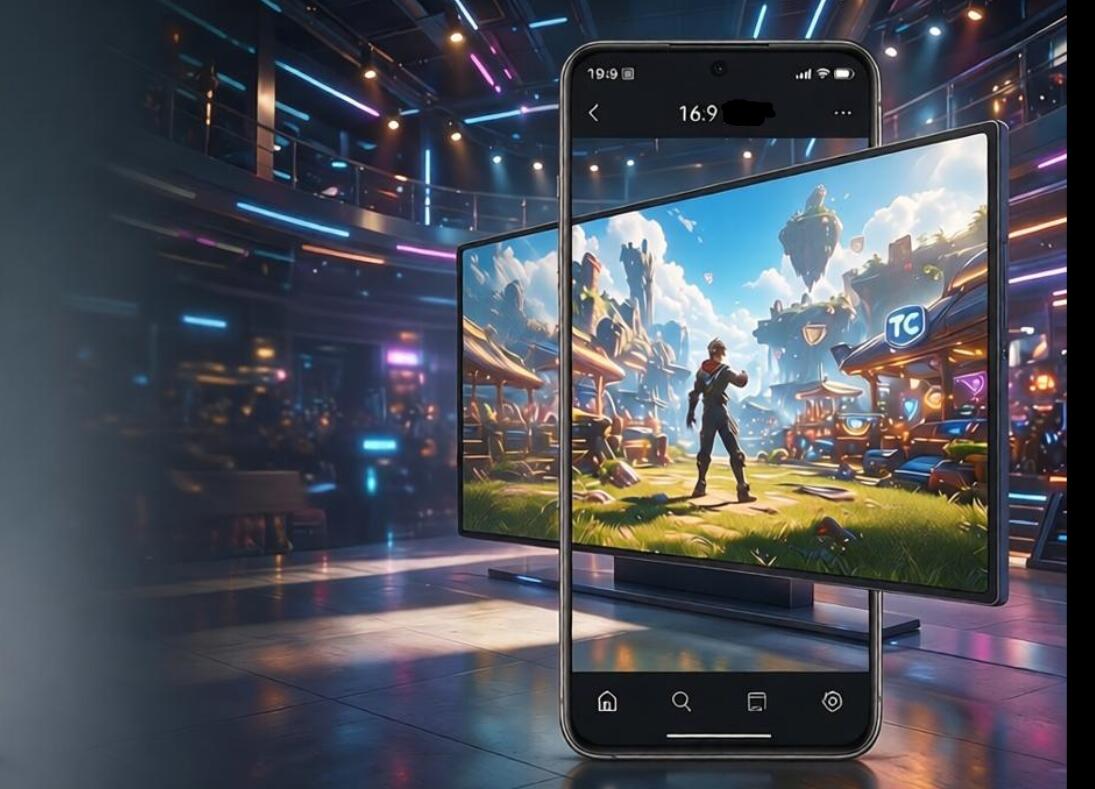
When using TC Games for screen mirroring, some users experience blurry visuals and significant motion blur, while others enjoy a crisp, fluid experience. These differences usually stem from settings related to image quality, frame rate, and bitrate. Many users overlook these options; this guide will help you understand these parameters so you can adjust them to your needs and achieve a better experience on a larger screen.
Frame Rate Settings: 60 FPS for Basic Fluidity, 120 FPS for Silky-Smooth High Refresh Rates
The free version supports up to 60 FPS, which is sufficient for daily entertainment, online classes, and casual gaming. The VIP version unlocks 120 FPS. Keep in mind that to achieve high frame rates, your phone—including the game itself, the display, and the connection method—must all support it. HDMI and USB connections are more reliable for maintaining high frame rates, whereas Wi-Fi performance can be limited by your router, often leading to fluctuations. For competitive games, prioritizing a higher frame rate makes movement feel more responsive and reduces motion blur.
Resolution and Bitrate: Defining Visual Clarity
Resolution options include adaptive, 720P, and 1080P. Bitrate is a setting frequently overlooked; a higher bitrate preserves more detail and prevents blur during fast-paced action. High bitrates are ideal for recording videos or live streaming. For routine tasks—such as running games in the background (AFK) or viewing text-heavy content—you can lower the bitrate to reduce transmission load and minimize lag. If you are using a large PC monitor, 1080P is recommended to ensure the image remains sharp.
Additional Visual Optimization Features
The software includes built-in tools for cropping and scaling, allowing you to adapt to different phone aspect ratios and minimize large black bars. There is also a “screen-off” control; as mentioned earlier, this allows you to turn off your phone’s display without interrupting the mirroring or your ability to control the game, while also helping to reduce device overheating. You can also enable image stabilization to mitigate minor jitter when using a Wi-Fi connection. Recommended Settings for Various Scenarios
Casual/Idle Gameplay, Online Classes, or Work: 60 fps + 720P, medium bitrate, prioritizing stability. Competitive Mobile Gaming or Real-time Play: USB connection, 120 fps + 1080P, high bitrate. Live Streaming or Recording High-Definition Content: HDMI connection preferred, 120 fps + 1080P, maximum bitrate; ensure unnecessary background software is closed.
Higher settings are not always better; if your hardware or network cannot keep up, pushing settings too high will only lead to lag. Tailor your settings based on your connection method and intended use to strike the perfect balance between clarity and fluidity, ensuring the best possible screen-casting experience.