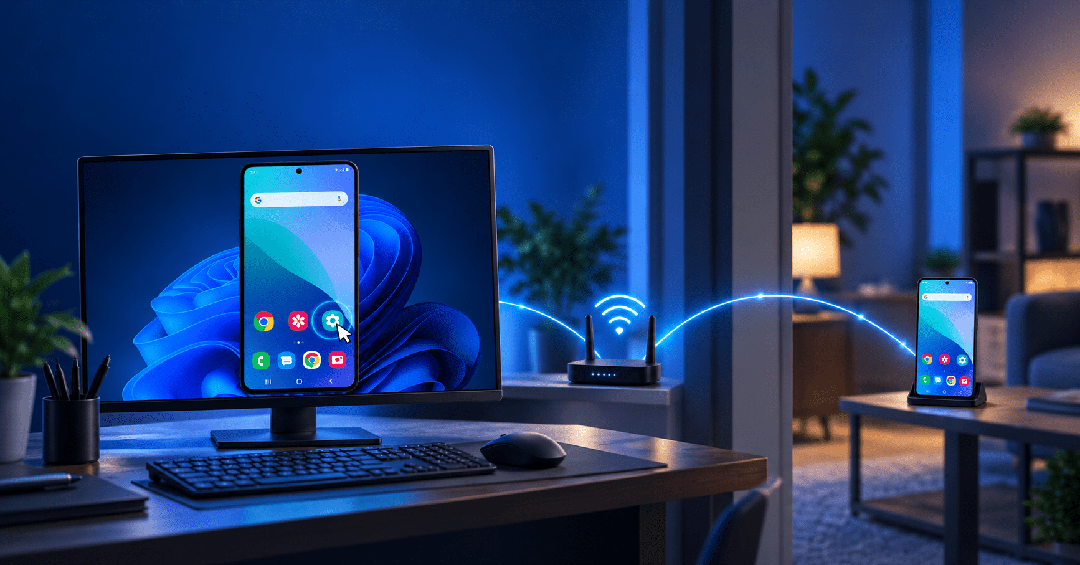
If you search for remote access Android phone, you may simply want to view your Android screen on a computer and control the phone with a mouse and keyboard.
This does not always mean accessing a phone over the public Internet.
With Total Control, an Android device can be accessed and controlled from a Windows PC in two main ways:
- USB connection
- TCP/Wi-Fi connection on the same local network
One limitation is important to understand from the beginning:
Total Control is not a cloud-based Internet remote access service. The Android phone must be connected through USB or be reachable from the PC on the same local network.
For phones located near your PC, test devices in an office, or multiple Android phones connected to the same network, these connection methods provide a practical way to control Android devices from Windows.
Why Access an Android Phone from a PC?
Occasionally checking one phone is easy.
But repeatedly switching between a Windows computer and an Android device can become inefficient when you need to type text, test apps, transfer files, or work with multiple physical phones.
After connecting an Android phone to Total Control, you can view the device screen on Windows and interact with it using your PC’s mouse and keyboard.
This goes beyond simple screen mirroring.
Screen mirroring mainly allows you to view the Android screen.
Android control from PC allows you to view the screen and interact with the device.
That difference becomes especially useful when the Android phone is part of a regular desktop workflow.
Method 1: Remote Access Android Phone via USB
If the Android phone is physically near the computer, USB is usually the most direct connection method.
For the first connection, Android USB debugging must be enabled so the computer can communicate with and control the device.
Step 1: Enable Developer Options and USB Debugging
The exact menu location varies between Android manufacturers, but the general process is:
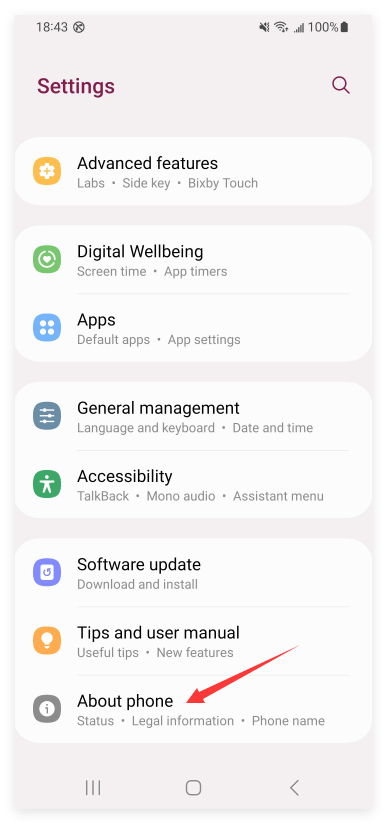
- Open Settings.
- Go to About phone.
- Find Build number or the corresponding software version field.
- Tap it repeatedly until Developer Options are enabled.
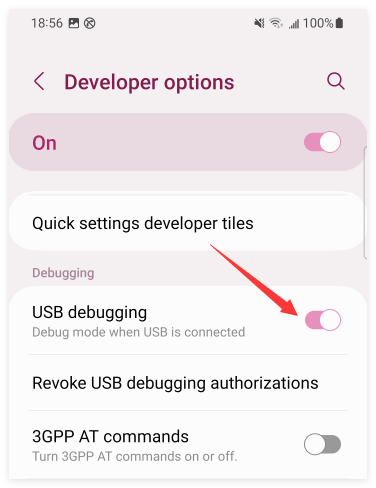
- Open Developer Options.
- Turn on USB debugging.
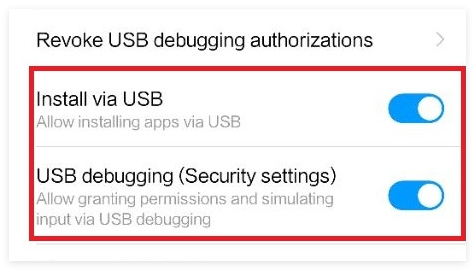
For some Xiaomi, Redmi, and vivo devices, additional developer settings such as USB installation and USB debugging (Security settings) may also need to be enabled.
Step 2: Connect the Android Phone with a USB Cable
Use a USB cable that supports data transfer, not a charge-only cable.
Connect the Android phone to the Windows PC while keeping the phone unlocked.
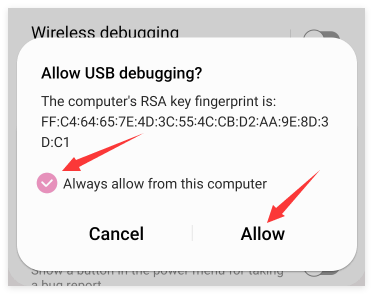
When Android displays:
Allow USB debugging?
select:
Always allow from this computer
and then tap:
Allow
This authorizes the Windows PC to communicate with the Android device.
Step 3: Connect the Device in Total Control
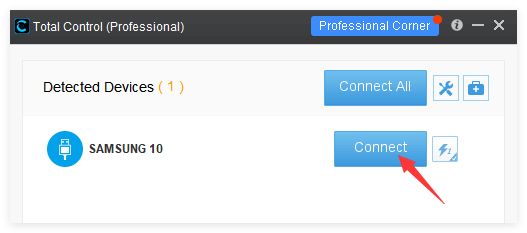
Open Total Control on the PC.
After a few seconds, the Android phone should appear in the device list.
Click:
Connect
Total Control will then open the Android device in a desktop window.
Step 4: Control Android from the PC
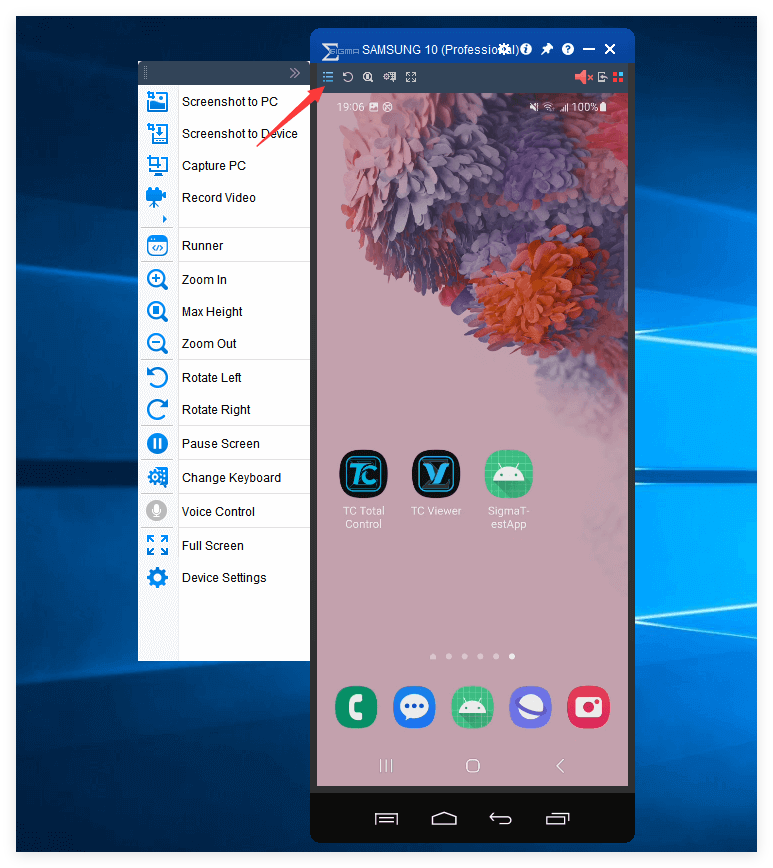
Once connected, you can interact with Android directly from Windows.
Depending on your workflow, you can use Total Control to:
- Click and swipe with the mouse
- Enter text with the PC keyboard
- View the Android screen
- Transfer files
- Install APK files
- Capture screenshots
- Record the device screen
For users who frequently work between a PC and Android device, this can reduce the need to constantly switch between physical screens.
Method 2: Access an Android Phone over the Same Wi-Fi Network
USB does not have to remain connected all the time.
After the required initial setup, Total Control can also connect to an Android phone over TCP/Wi-Fi.
There is one important requirement:
The Android phone and Windows PC must be on the same reachable local network.
For a normal TCP connection, the first connection—or a new connection after the device has restarted—typically requires USB setup first.
The general process is:
- Connect the Android phone through USB.
- Complete USB debugging authorization.
- Disconnect the USB cable.
- Connect the phone and PC to the same LAN or Wi-Fi network.
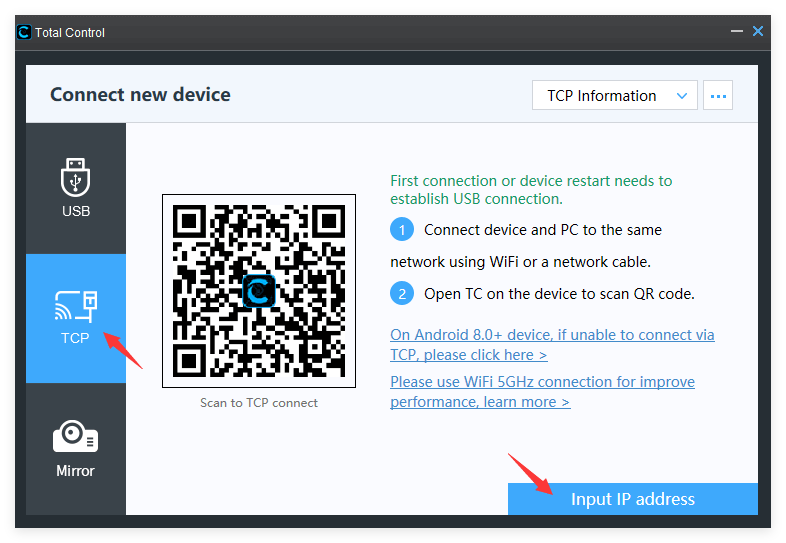
- Open the TCP connection option in Total Control.
- Scan the QR code or enter the Android device’s IP address.
- Establish the wireless connection.
Connect Using the Android Device IP Address
The Android side can display the device’s local IP address, for example:
192.168.50.122
The PC and Android device must be able to reach each other over the same local network.
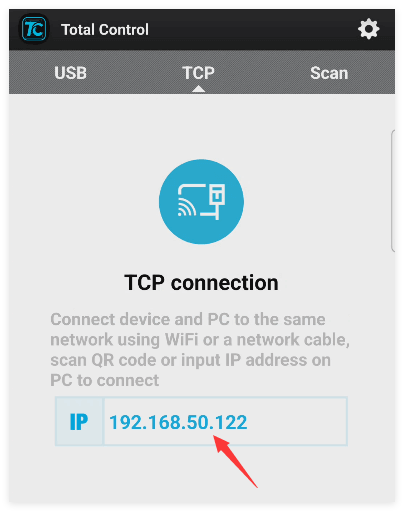
On the Windows PC, open the TCP connection interface in Total Control.
You can then either:
- Scan the QR code
- Enter the Android phone’s IP address manually
Once connected, the Android phone can be controlled without keeping the USB cable attached.
USB or Wi-Fi: Which Connection Should You Use?
Both methods allow you to control an Android phone from Windows, but they suit different situations.
| Feature | USB | Same LAN / Wi-Fi |
|---|---|---|
| USB cable required | Yes | Not after initial setup |
| Network required | No | Yes |
| Initial setup | USB | Usually starts with USB |
| Suitable for fixed desktop use | Yes | Yes |
| Wireless control | No | Yes |
| Internet remote access | No | No |
USB is generally the simplest choice when the phone remains close to the computer.
Wi-Fi/TCP is more convenient when you want the device to remain wireless while still operating within the same office, lab, or home network.
Remote Access Android Phone vs. Screen Mirroring
Screen mirroring and Android remote control are closely related, but they are not the same thing.
Screen mirroring focuses on:
Viewing the Android screen on a PC
Remote control focuses on:
Viewing and interacting with the Android device
If you only need to display a phone screen during a presentation or demonstration, a simple mirroring tool may be enough.
If you also need to click, type, transfer files, install apps, or repeatedly operate the device, PC-based Android control is more useful.
What If You Need to Access Multiple Android Phones?
Controlling one Android phone is relatively straightforward.
The challenge changes when several physical devices need to be managed from the same computer.
Total Control includes multi-device management features that allow multiple Android devices to be displayed and managed from one Windows PC.
This can be useful for scenarios such as:
- Android app testing
- Device labs
- Repetitive device operations
- Managing different Android models
- Multi-device workflows
- Scripted automation
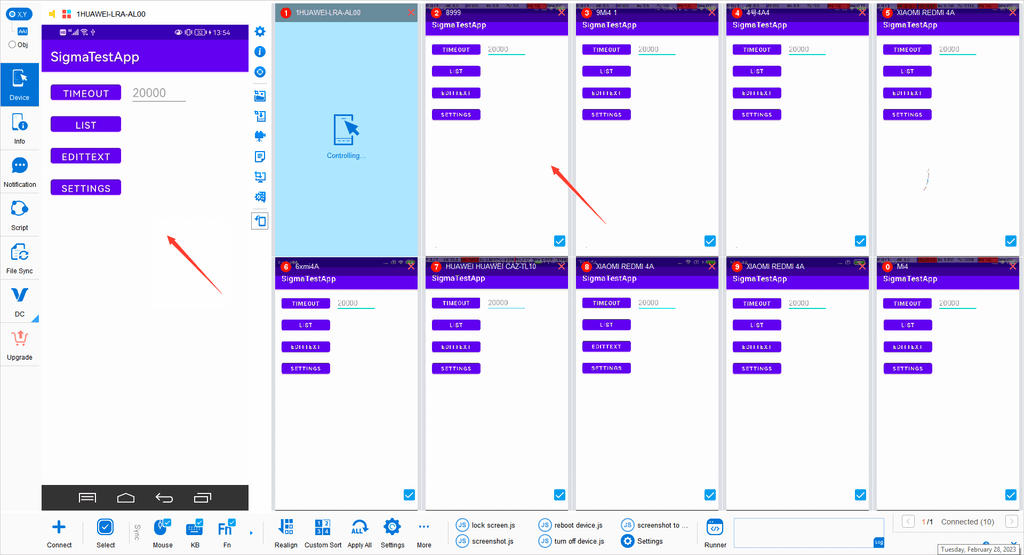
For users working with many devices, the main benefit is not simply opening more phone windows. It is reducing the amount of manual work required as the number of devices grows.
Important Limitation: Total Control Is Not Cloud Remote Access
The phrase remote access Android phone can also mean controlling a phone located in another city or network through the Internet.
That is not the normal connection model described in this article.
Total Control is designed for:
- USB-connected Android devices
- Android devices on the same local network
- Windows-to-Android control
- Multiple physical Android devices
- Local automation and device management
It is not designed as a cloud service for directly accessing an Android phone over the public Internet.
If your requirement is:
A PC in one location controlling an Android phone in another location over the Internet
you should look for a dedicated Internet or cloud remote-access solution.
Being clear about this limitation helps avoid choosing the wrong type of Android control software.
Who Is Total Control Suitable For?
Total Control makes more sense when:
- The Android phone is near the Windows PC
- Devices are connected through USB
- Phones and PCs are on the same LAN
- You want keyboard and mouse control
- You work with multiple physical Android devices
- You need file transfer or APK installation
- You may later use scripting or automation
If you only want to occasionally view one Android screen, a simpler screen-mirroring tool may already be enough.
The value of Total Control becomes more noticeable when Android control is part of a repeated or multi-device workflow.