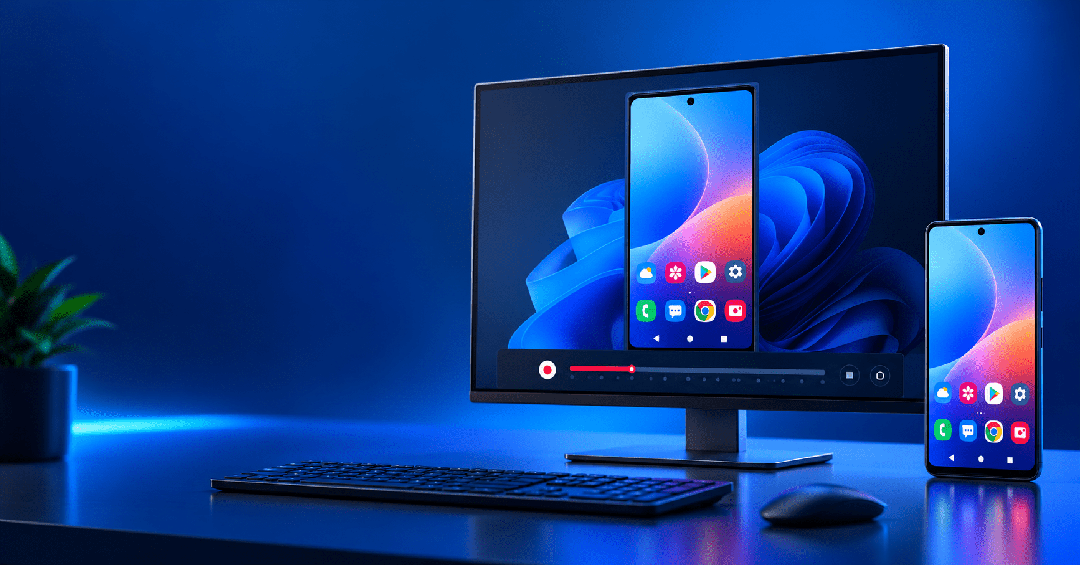
If you want to record Android screen on PC, there are two common approaches: record directly on the Android phone, or display the Android screen on Windows and record from the PC.
If the video will eventually be used on a computer—for example, for app tutorials, bug reports, product demos, or support documentation—recording directly from the PC can be more convenient.
Total Control can display and control a physical Android phone on Windows and includes a built-in Record Video feature. Once the phone is connected, you can start recording from the PC and save the video directly to Windows.
How to Record Android Screen on PC with Total Control
The process is simple.
First, connect your Android phone to Total Control. Once the phone screen appears in the Device Window, you can start recording directly from the PC.
- Open the menu in the Android Device Window.
- Click Record Video.
- Use the Android phone normally while Total Control records the screen.
- Stop the recording when finished.
- Open the recorded video directly on your Windows PC.
Step 1: Start Recording the Android Screen
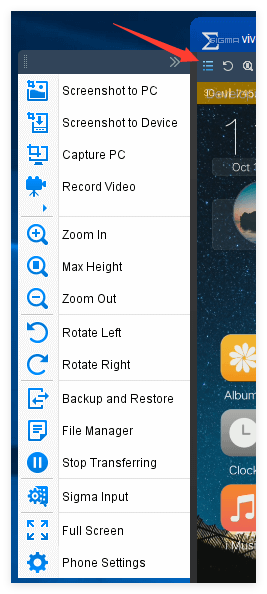
After the Android phone is connected, open the menu in the Total Control Device Window.
You will see options such as screenshots, file management, display controls, and:
Record Video
Click Record Video to start recording the Android screen. Total Control’s official Device Menu documentation lists Record Video as the option for recording the Android device screen.
Step 2: Record What You Do on Android
Once recording starts, you can continue using the Android phone normally.
For example, you can:
- Open apps
- Tap buttons
- Swipe through pages
- Enter text
- Demonstrate app features
- Reproduce a bug
- Record a complete workflow
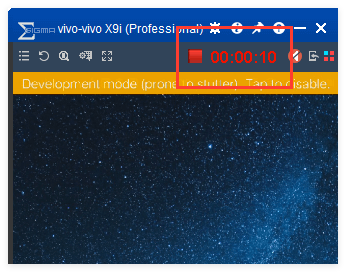
A recording timer appears in the Device Window while the recording is active, so you can see how long the session has been running. Total Control’s documentation confirms that a recording timer is displayed during video recording.
Step 3: Stop Recording and View the Video on PC
When you finish recording, stop the Record Video function.
The recorded video is saved on the PC, so you do not need to record on the phone first and then transfer the file to Windows.
This is useful when the recording will be used for:
- App tutorials
- Software testing
- Bug reports
- Product demonstrations
- Customer support
- YouTube videos
- Internal documentation
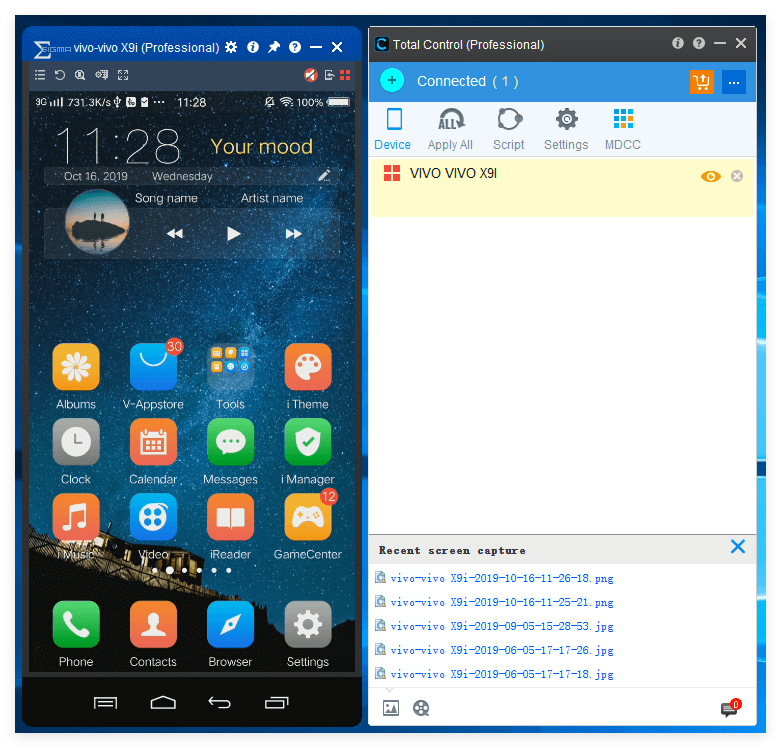
Total Control’s user guide states that recorded device videos can be viewed directly on the PC after recording.
Where Are Android Screen Recordings Saved?
If you record Android screens regularly, it is useful to set a dedicated save location.
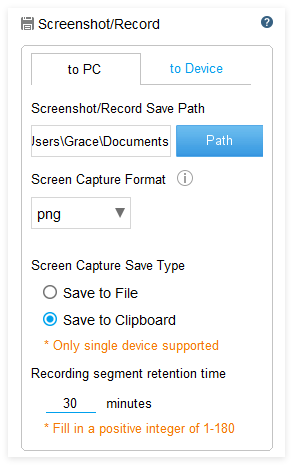
Total Control provides Screenshot / Record settings where you can manage the save path and recording-related options.
What Happens During a Longer Recording?
For longer recordings, Total Control can split the video into multiple segments based on the configured segment duration instead of creating one very large file.
According to the official documentation, recorded files can be divided into segments and named using device information, date, time, and segment number.
This can be useful for:
- Long testing sessions
- Extended app demonstrations
- Continuous Android operation recording
- Easier file management
The current documentation also notes that recording mode limits the frame rate to up to 30 FPS.
For app tutorials, software testing, and workflow recording, 30 FPS is generally sufficient. If your main goal is high-frame-rate game capture, a dedicated game recorder may be more appropriate.(Video Recording)
Can Total Control Record Android Audio?
Total Control’s Record Video options include selectable audio sources.
The current official documentation lists sources such as microphone, line-in, and THA for mixing audio into the recorded video.
If audio is important to your recording, it is a good idea to make a short test recording first to confirm that the selected audio source works as expected.
Record Android Screen on PC vs. Recording Directly on the Phone
Both methods are useful, but they fit different situations.
| Feature | Android Built-in Screen Recorder | Total Control PC Recording |
|---|---|---|
| Requires a PC | No | Yes |
| Video saved first on | Android phone | Windows PC |
| Control phone from PC while recording | No | Yes |
| Good for quick recordings | Yes | Yes |
| Good for app demos | Yes | More convenient |
| Good for bug reproduction | Yes | More convenient |
| Easy to edit on PC afterward | Requires file transfer | Already on PC |
If you only need a quick recording, Android’s built-in Screen Recorder is often the simplest choice.
If you are already controlling the Android phone from Windows and want the recording saved directly to the PC, Total Control can make the workflow more convenient.
When Is Recording Android Screen on a PC More Useful?
PC-based recording becomes more useful when Android screen recording is part of a larger desktop workflow.
For example:
App Demos
You can control the Android app with a mouse and keyboard while recording the entire demonstration.
Software Testing
Testers can reproduce an issue on a physical Android device and record the complete sequence leading up to the problem.
Tutorials
You can create Android tutorials directly from Windows and immediately continue editing or uploading the recording.
Customer Support
You can record step-by-step operations and share the video with users or support teams.
Device Management
If you already use Total Control to manage physical Android devices, screen recording becomes part of the same workflow instead of requiring a separate recording tool.
Total Control also includes multi-device control and automation features, but those are optional capabilities rather than requirements for basic screen recording.
Tips Before Recording Android Screen on PC
A few simple checks can make the recording process smoother.
Check the Save Location First
Before a long recording, confirm the save path in:
Settings → Screenshot / Record
This helps avoid spending time searching for the file afterward.
Make a Short Test Recording
Record 10–20 seconds first and check:
- Video quality
- Recording smoothness
- Save location
- Audio source
- Whether the content is framed correctly
Use the Right Tool for the Job
If you only need occasional screen recording, Android’s built-in recorder may be enough.
If you need to control the phone from Windows and save the recording directly to the PC, Total Control is more convenient.
If you need advanced production features such as multiple audio tracks, webcam overlays, or high-frame-rate game capture, a dedicated PC screen recorder may be a better fit.