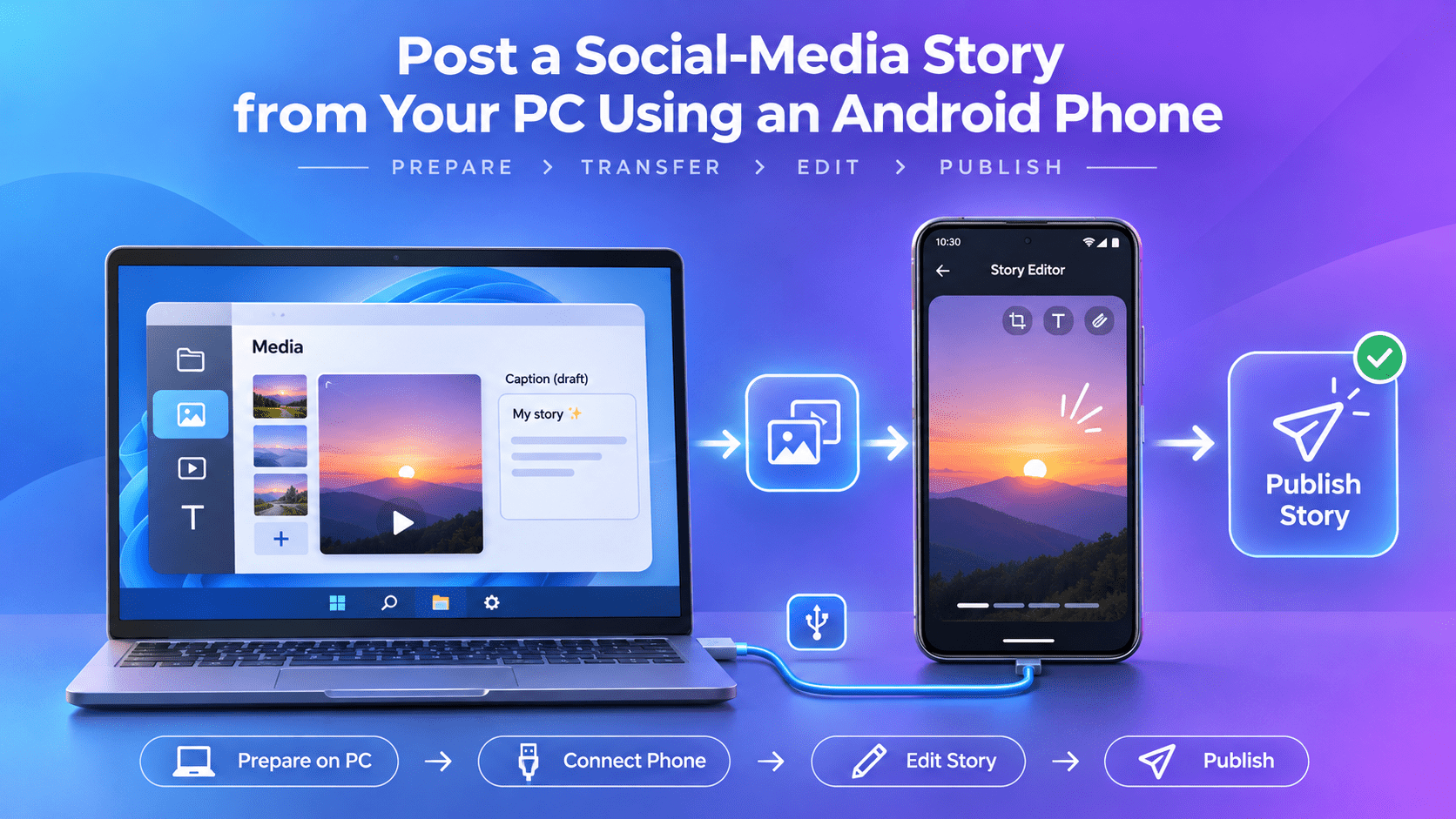
To post an Instagram Story from your PC using an Android phone, prepare the media on Windows, transfer it to the phone, and operate the Android app from your computer. Total Control provides the device window, mouse and keyboard input, and file-transfer tools needed for this type of phone-assisted workflow. Instagram itself still runs on the phone.
This approach is useful when your images, video files, and draft text are already on your computer but you want to finish the Story in the mobile app.
Setup note: The workflow below combines documented Total Control functions with Instagram’s mobile publishing process. Test it with one draft on your own device before using it for regular publishing; app controls and available features can differ.
What This PC-to-Instagram Workflow Actually Does
There are three separate parts to the process:
| Stage | Where It Happens | What You Do |
|---|---|---|
| Prepare | Windows | Organize the image, video, and accompanying text |
| Transfer | PC to Android | Copy the finished media file to the phone |
| Publish | Instagram on Android | Select the media, review the Story, and share it |
The distinction matters: transferring an image does not publish it. You still choose the account, complete the mobile editing process, and confirm the final action.
If your existing Meta Business Suite setup already provides the publishing tools you need, using it directly may be simpler. Meta has documented desktop Story publishing and scheduling through Business Suite. The connected-phone approach is for people who specifically want to work in the Android app from their desk.
Before You Start
Prepare a Windows PC with Total Control, a compatible Android phone with Instagram installed, and a USB data cable. Sign in to the Instagram account you are authorized to manage.
Keep one finished image or short video ready for the first test. Avoid beginning with a large campaign or several accounts: first confirm that file transfer, media selection, and basic input work correctly.
You can review how to control an Android phone with your PC mouse and keyboard before starting. The mirrored Device Window is where you will interact with the phone.
How to Post an Instagram Story from PC with Total Control
Step 1: Prepare the Final Media on Windows
Choose the exact file you intend to publish and open it on your PC.
Check the image for spelling errors, outdated prices, and content too close to the edges. For video, review the beginning, ending, and audio.
Use a descriptive filename, such as product-launch-story-final.png, so you can distinguish it from older drafts after transferring it.
Keep any additional Story text in a separate note. This makes it easier to revise without repeatedly changing the original media.
Step 2: Connect Your Android Phone
Open Total Control and connect the phone.
For the documented USB-debugging setup, follow the device-specific instructions to enable debugging, authorize the trusted computer, and complete the required mobile-side installation. The Total Control connection guide explains the connection process.
Once the Android screen appears, test a simple action such as opening an app. Confirm that you have interactive control rather than only a view of the phone screen.
Step 3: Transfer the Story File to Android
Open File Manager from the Total Control Device Menu. It provides access to Android files and supports transfers between the phone and Windows.
Copy the finished media into an appropriate shared folder on the phone. Use the file-transfer controls available in your installed version, and wait for the transfer to finish.
For more detail, refer to the device file-management tools.
Before opening Instagram, locate the transferred file on Android and preview it. This separates a transfer problem from a publishing problem.
Step 4: Open Instagram’s Story Editor
In the mirrored phone window, open Instagram and confirm the active account.
Open Story creation, then use the gallery or media picker to select the transferred photo or video. Instagram’s mobile Story workflow allows you to choose media and review it before sharing. Follow the controls displayed in your app rather than relying on a fixed button position.
Check that you selected the final file—not an earlier version with a similar thumbnail.
Step 5: Add Text and Available Story Features
Review the media inside the Story editor before adding anything else.
Use the app’s text tool for any final wording. Where the field accepts input, the PC keyboard can help you enter or revise text through Total Control.
Add only the stickers and other options available to your account. Instagram provides native Story stickers, but they remain Instagram features—not features supplied by the mirroring software.
For a gesture that does not behave correctly through the PC, complete that adjustment directly on the phone. Do not assume that every touch interaction will translate identically to mouse input.
Step 6: Review and Publish Manually
Before sharing, verify the account, audience, crop, text placement, and any interactive elements.
Then use the publishing control shown in Instagram. Wait for the app to complete the operation and open the published Story to check the result.
Avoid repeatedly clicking Share while the first attempt is still processing. Confirm whether the Story was published before trying again.
Troubleshooting the Most Common Problems
The File Transferred, but Instagram Does Not Show It
First open the file on the phone outside Instagram.
If it cannot be opened there, check the transfer and the exported file. If it opens normally, reopen Instagram’s media picker and check the selected folder and the app’s access to that media.
Test with one ordinary image before troubleshooting a more complicated video.
The Phone Screen Appears, but Clicks Do Not Work
Test input outside Instagram, such as opening Android Settings.
If control fails everywhere, check the Total Control connection and permissions. If control works elsewhere but a specific Instagram gesture fails, try that action directly on the phone.
This helps you identify whether the issue is general device control or one app interaction.
The Story Looks Different from the Original File
Compare three stages: the original file on Windows, the transferred file on Android, and the preview inside Instagram.
If the first two match, review the crop and placement in the Story editor. Avoid changing your transfer settings when the difference appeared only after editing.
Publishing Does Not Finish
Try the same action directly in Instagram on the phone. Check the app’s error message and confirm that the phone has a working internet connection.
The USB connection to your PC and the app’s ability to upload are separate things to investigate.
Frequently Asked Questions
Can I upload an Instagram Story from PC without an emulator?
This workflow uses a physical Android phone rather than an emulator. Total Control displays and controls the connected device; the mobile app remains the publishing interface.
Do I still need my Android phone connected?
Yes, while you are using Total Control to operate it. Preparing media on Windows and controlling the Android app are separate steps.
Can I add music or stickers through this method?
Use the options that Instagram makes available on your phone. Do not expect the PC connection to unlock missing features. Instagram’s own Story tools provide those editing functions.
Does transferring a file automatically post it?
No. In this workflow, transfer only prepares the media on Android. You select it, review the Story, and publish manually.
Keep Preparation on PC and Publishing Under Your Control
The practical benefit is being able to prepare files on Windows, check the phone interface, and finish the publishing process without repeatedly switching workspaces.
Start with Total Control, one Android phone, and one test image. Verify the complete workflow before using it for your next campaign.