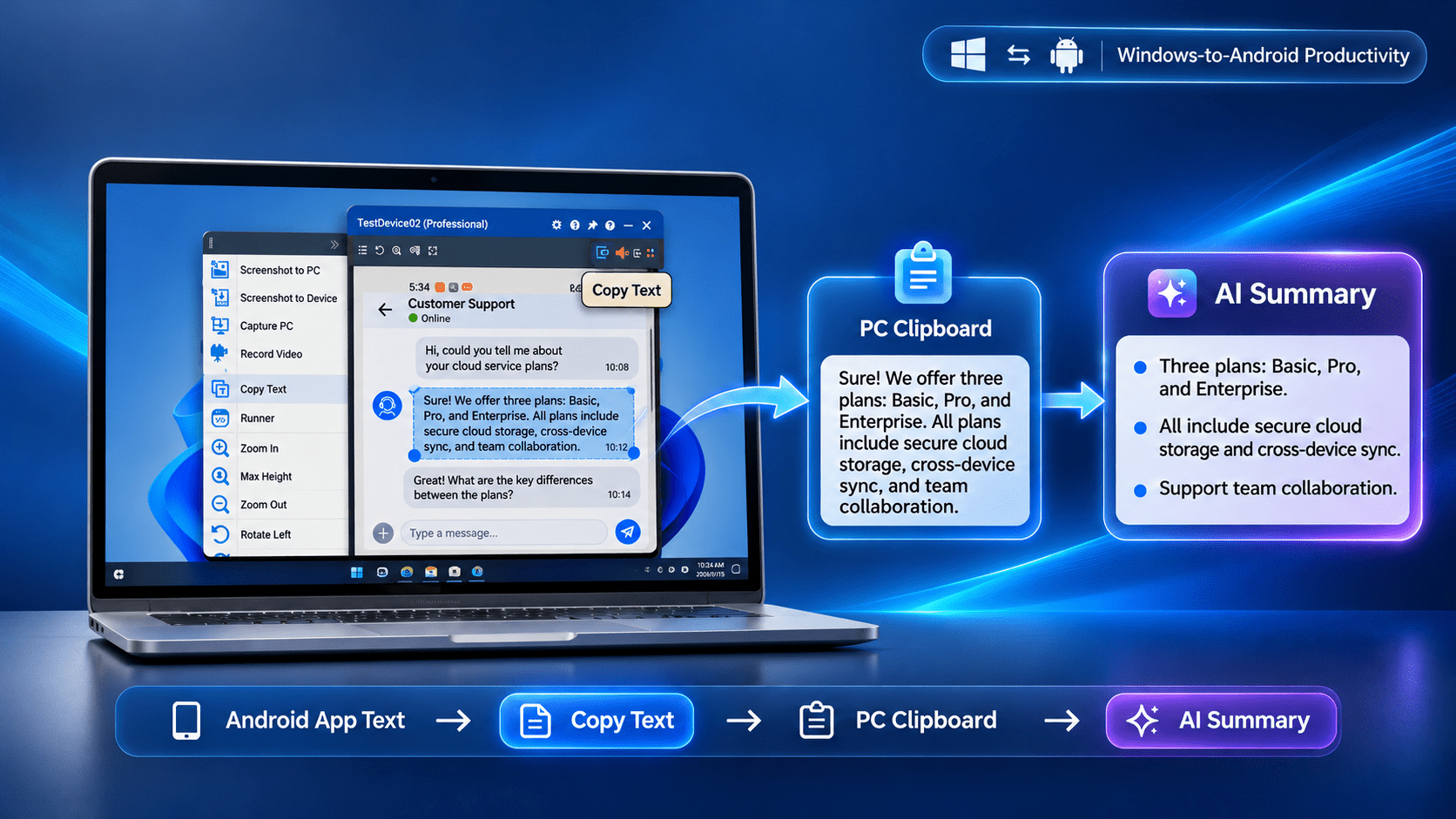
If you need to copy text from Android apps and work with it on a PC, the basic workflow is simple: get the text into the Windows clipboard, then paste it into your notes, documents, search tools, or an AI assistant for summarization.
The difficult part is that Android apps do not all handle text the same way. Some let you long-press and copy normally. Others display text as UI elements without providing an obvious Copy command. In those cases, a PC-based Android control tool that can identify text in the app interface can provide another option.
Total Control supports both conventional Android-to-Windows clipboard transfer and a Copy Text feature that uses FindNode to identify text-bearing UI elements on the current Android screen. Clicking a detected element copies its text to the Windows clipboard.
That makes it useful for workflows where you want to collect information from Android apps and then summarize, reorganize, compare, or analyze it on a computer.
Why Copy Android App Text to a PC?
Reading on a phone is convenient. Working with larger amounts of text usually is not.
You may find useful information inside:
- Messaging apps
- Customer-support apps
- E-commerce applications
- Research applications
- Social media apps
- Internal business apps
- News and content apps
- Testing builds
- Android-only tools
Once that text reaches Windows, you can work with it more efficiently.
For example:
Android App
↓
Copy Text
↓
Windows Clipboard
↓
AI Assistant
↓
Summary / Notes / Comparison
Typical uses include:
- Summarizing a long conversation
- Extracting key points from an app page
- Turning customer messages into short notes
- Comparing text from several screens
- Rewriting text into another format
- Translating copied content
- Creating structured meeting or research notes
- Collecting test results from Android applications
The key requirement is getting the text from the Android interface into a form Windows can use.
Three Ways to Copy Text from Android Apps to Your PC
There is no single method that works best for every Android app.
| Method | How It Works | Best For | Main Limitation |
|---|---|---|---|
| Normal Android Copy | Select text in the app and use Copy | Apps with selectable text | Some apps do not allow normal text selection |
| Clipboard Sync | Copy on Android and synchronize the clipboard to Windows | Frequent phone-to-PC copying | Still depends on the app exposing a copyable selection |
| UI Element Copy | Identify a text-bearing Android UI node and copy its text | Text visible as Android UI elements | Does not work when the text is unavailable as an accessible UI node |
The third method is particularly useful when your goal is not merely to share the phone clipboard, but to extract text from an Android app interface.
Method 1: Use the App’s Normal Copy Function
Start with Android’s normal text-selection behavior.
If an application supports selectable text:
- Open the Android app.
- Long-press the text.
- Adjust the selection handles.
- Tap Copy.
- Transfer or synchronize the Android clipboard to the PC.
- Paste the text into the destination application.
This is the simplest approach because the app itself provides the text selection.
It works well for:
- Messages
- Articles
- Notes
- Text fields
- Search results
- Web content
The problem is that not every Android interface exposes text through a normal long-press selection menu.
Some applications display labels, values, status messages, menu items, or other text that can be read on screen but cannot easily be selected.
That is where UI-element extraction becomes useful.
Method 2: Copy Android Clipboard Text to Windows
If you frequently move text between Android and Windows, clipboard synchronization removes some of the manual steps.
Total Control supports Android-to-Windows clipboard transfer. After text is copied on Android, it can be pasted into Windows. Its system settings also include Clipboard Auto Sync to PC, which can automatically move copied Android text into the Windows clipboard.
A normal workflow becomes:
Select Text on Android
↓
Copy
↓
Windows Clipboard
↓
Ctrl + V on PC
This is useful when you repeatedly copy:
- Chat messages
- URLs
- Product descriptions
- User feedback
- Search results
- Notes
- Error messages
- App-generated text
Once the text is in the Windows clipboard, you can paste it directly into an AI tool.
Method 3: Use Total Control Copy Text for Android UI Elements
This is the more interesting method for apps where normal text selection is inconvenient.
Total Control’s Device Menu contains a Copy Text function. According to its current documentation, the feature uses FindNode to identify Android UI elements containing text. You can then click a detected element to copy that text directly to the Windows clipboard.
The workflow is:
Open Android App
↓
Choose Copy Text
↓
Detect Text-Bearing UI Elements
↓
Click the Required Element
↓
Text Goes to Windows Clipboard
↓
Paste into AI Tool
This means you do not necessarily have to long-press the text inside Android first.
Example
Suppose an Android business app shows:
Order Status

Payment Confirmed

Expected Delivery:
November 6
If these values are exposed as Android UI nodes, Copy Text can identify the text-bearing elements.
You could select:
Payment Confirmedand paste it directly into Windows.
Or collect several pieces of information and ask an AI assistant to turn them into a concise status summary.
How to Copy Android App Text with Total Control
Step 1: Connect the Android Device
Install Total Control on Windows and connect the Android phone.
Once connected, the Android screen appears inside a Device Window on the PC.
Total Control can control real Android devices using the computer mouse and keyboard and provides integrated clipboard and device tools.
Step 2: Open the Android App
Use the Android device normally or operate it from the PC.
Navigate to the page containing the text you want.
For example:
Customer Service App
↓
Conversation
↓
Customer Message
Step 3: Open Copy Text
Open the Total Control Device Menu and choose Copy Text.
The function examines the current Android UI and identifies nodes containing text.
Step 4: Select the Text Element
Click the text-bearing element you want.
Instead of performing a normal Android long-press selection, Total Control retrieves the text associated with that UI node.
Step 5: Paste into Windows
Switch to a Windows application and press:
Ctrl + VYou can paste the text into:
- ChatGPT or another AI assistant
- Microsoft Word
- Notepad
- Excel
- A CRM
- An email
- A translation tool
- A ticketing system
- Your own internal software
The Android text is now part of your normal PC workflow.
Using Copied Android Text for AI Summaries
Once the text is on the PC, AI summarization becomes straightforward.
For example, suppose you copy several customer messages:
I installed the update yesterday.
The device now disconnects every few minutes.
USB charging still works.
The problem only started after updating.
You could paste them into an AI assistant and request:
Summarize this customer issue in three bullet points and identify the main troubleshooting clue.The result might organize the information into:
- Issue began after a software update.
- USB connection disconnects repeatedly while charging remains functional.
- The update or data connection should be investigated first.
The value is not only shorter text. AI can transform copied app information into a format that is easier to work with.
Useful AI Workflows After Copying Android Text
Summarize Long Messages
A long customer conversation can be reduced to:
- Main problem
- Steps already attempted
- Current status
- Required next action
This can be especially useful for support teams handling information inside mobile-only applications.
Extract Action Items
Paste copied text and ask:
Extract all actions, owners, and deadlines from this text.This turns unstructured app content into a more operational format.
Translate and Summarize Together
For multilingual content:
Translate this into English, then summarize the three most important points.This reduces the need to copy text through multiple applications.
Convert Text into a Table
If an Android app contains several product or order details, an AI tool can restructure them:
Convert the following information into a table with columns for product, status, quantity, and notes.Compare Information from Multiple Screens
You can copy text from several Android screens and ask AI to identify differences.
For example:
Device A:
Version 12.1
Status: Connected

Device B:
Version 12.0
Status: Offline

Device C:
Version 12.1
Status: Connected
Then ask:
Identify which device differs from the others and summarize the likely issue.This type of workflow is particularly helpful when the Android app is the source of the information but the PC is where you want to analyze it.
Copying Text from Apps That Do Not Offer a Copy Button
A common frustration is an Android app that displays readable text but does not provide a normal selection menu.
This can happen with:
- Status labels
- Application menus
- Button labels
- Dialog messages
- Custom application interfaces
- Dashboard values
- Some list items
If the displayed content is exposed as an Android UI element containing text, Total Control’s Copy Text feature can retrieve it through FindNode.
That is different from OCR.
UI Text Extraction
The software reads text associated with an Android UI node.
Conceptually:
Android UI
↓
Text Node
↓
FindNode
↓
Text
OCR
OCR analyzes pixels in an image and tries to recognize characters:
Screenshot
↓
Image
↓
OCR
↓
Recognized Text
UI-node extraction is preferable when the Android application exposes reliable text information because the software is retrieving structured interface data rather than interpreting pixels.
What Text Can Total Control Copy?
Current Total Control documentation describes several related clipboard workflows:
- Copy plain text from Android to Windows.
- Copy text or HTML-formatted text in supported editions.
- Use Copy Text to copy text from an Android node into Windows.
- Automatically synchronize Android clipboard text to the PC.
These solve different problems.
Normal Clipboard Copy
Use this when Android already lets you select and copy the text.
Clipboard Auto Sync
Use this when you frequently copy Android text and want it to appear on the PC without repeatedly confirming the transfer.
Copy Text from UI Nodes
Use this when the desired text is represented by an Android UI element and normal selection is inconvenient or unavailable.
Copy Text vs Screenshot-to-AI
Another option is to take a screenshot of the Android screen and give that image to an AI system that can read images.
That can work, but copying actual text has several advantages.
| Method | Advantages | Limitations |
|---|---|---|
| Copy Text | Editable, searchable, easy to paste, precise when UI text is available | Requires accessible text or clipboard data |
| Screenshot | Captures the complete visual context | AI or OCR must recognize the text from pixels |
| Manual Typing | Works almost anywhere | Slow and prone to transcription errors |
For summarization, actual copied text is generally the cleaner input.
Screenshots are more useful when the meaning depends on visual layout, charts, images, or text that is not exposed through Android UI nodes.
What If Copy Text Cannot Detect the Content?
Not every visible word on an Android screen is necessarily available as a normal Android UI node.
For example, text may be:
- Rendered inside an image
- Drawn directly onto a canvas
- Part of a game interface
- Embedded in video
- Protected by the application
- Rendered through a custom component that exposes little useful UI information
In those cases, UI-node extraction may not return the desired text.
Possible alternatives include:
- Try the app’s native Copy command.
- Use Android clipboard synchronization.
- Capture the screen and use image-based text recognition.
- Check whether another page in the application exposes the same information as selectable text.
The important distinction is that visible text and accessible UI text are not always the same thing.
Copy Text from Multiple Android Devices
The workflow becomes more useful when information is distributed across several Android phones.
Total Control is designed for multi-device management as well as individual Android control. It supports multiple device windows and synchronized operations, with automation capabilities available for larger workflows.
For example:
Phone 1 → Customer Message A
Phone 2 → Customer Message B
Phone 3 → Customer Message C
            ↓
        Windows PC
            ↓
       AI Summary
A support or testing team could collect relevant text from several physical devices and consolidate it on Windows for analysis.
For repetitive extraction, manual Copy Text may eventually be replaced by FindNode and scripting.
From Manual Copy Text to Automated Text Extraction
Total Control’s Copy Text feature uses the same general UI-node concept that makes FindNode useful for Android automation.
A manual workflow might be:
Open App
↓
Click Copy Text
↓
Select UI Element
↓
Paste into Windows
A more advanced workflow can become:
Open App
↓
Find Target UI Node
↓
Read Text
↓
Process Result
↓
Continue Automation
Total Control also provides JavaScript and REST API automation features, allowing UI-element operations to become part of larger workflows.
That means the same concept can scale from occasional manual copying to structured automation.
For users interested specifically in UI-element automation, a separate guide on Android UI Automation with FindNode is the more relevant next step rather than expanding a clipboard workflow into a full automation tutorial.
Privacy Considerations Before Sending Copied Text to AI
Copying text to a PC does not automatically mean that every piece of copied content should be sent to an external AI service.
Before submitting Android app text to an AI tool, check whether it contains:
- Passwords
- Authentication codes
- Personal customer information
- Financial information
- Confidential company data
- Private conversations
- Internal documents
- Information restricted by your organization’s policies
For sensitive workflows, follow your company’s data-handling requirements and the privacy terms of the AI service you use.
This is particularly important for customer-support, enterprise, healthcare, financial, and internal business applications.
A Practical Workflow for Android App Text and AI
For occasional use, this is a simple workflow:
- Connect the Android device to Total Control.
- Open the target Android application.
- Try normal Android text selection first.
- If the text is not easily selectable, use Copy Text.
- Click the UI element containing the required text.
- Paste it into a Windows application.
- Remove any sensitive information that should not be shared.
- Paste the remaining content into your AI tool.
- Ask for a specific transformation rather than only saying “summarize.”
- Review the AI output against the original text.
Useful prompts include:
Summarize this in five bullet points.Identify the main problem, evidence, and next action.Convert this information into a structured table.Extract names, dates, status, and action items.Summarize this customer conversation for a support ticket.The quality of the AI result usually improves when the request specifies exactly what information you need.
Frequently Asked Questions
How can I copy text from an Android app to my PC?
If the app supports text selection, copy the text normally and synchronize or transfer the Android clipboard to Windows. With Total Control, you can also use Copy Text to select text-bearing Android UI elements and copy their content to the Windows clipboard.
Can I copy text from an Android app that does not have a Copy button?
Sometimes. If the visible text is exposed as an Android UI node, Total Control’s Copy Text feature can identify the element and copy its text to Windows. If the content is rendered only as pixels or an image, a screenshot and OCR-style approach may be necessary.
Can Android clipboard text automatically sync to Windows?
Yes. Total Control provides a Clipboard Auto Sync to PC setting for automatically transferring copied Android text into the Windows clipboard.
Is copying UI text the same as OCR?
No. UI-element extraction reads text exposed by the Android interface hierarchy. OCR recognizes characters from an image. UI-node extraction can provide cleaner text when the application exposes the required UI information.
Can I paste copied Android text directly into ChatGPT or another AI tool?
Yes. Once the text is in the Windows clipboard, it can be pasted into any Windows application or browser text field. Before sending sensitive content to an AI service, review applicable privacy and data-handling requirements.
Can I extract text from several Android devices?
Yes. Total Control can manage multiple Android devices from Windows. Manual copying can be combined with its multi-device environment, while repetitive text extraction can be developed further using FindNode and automation features.