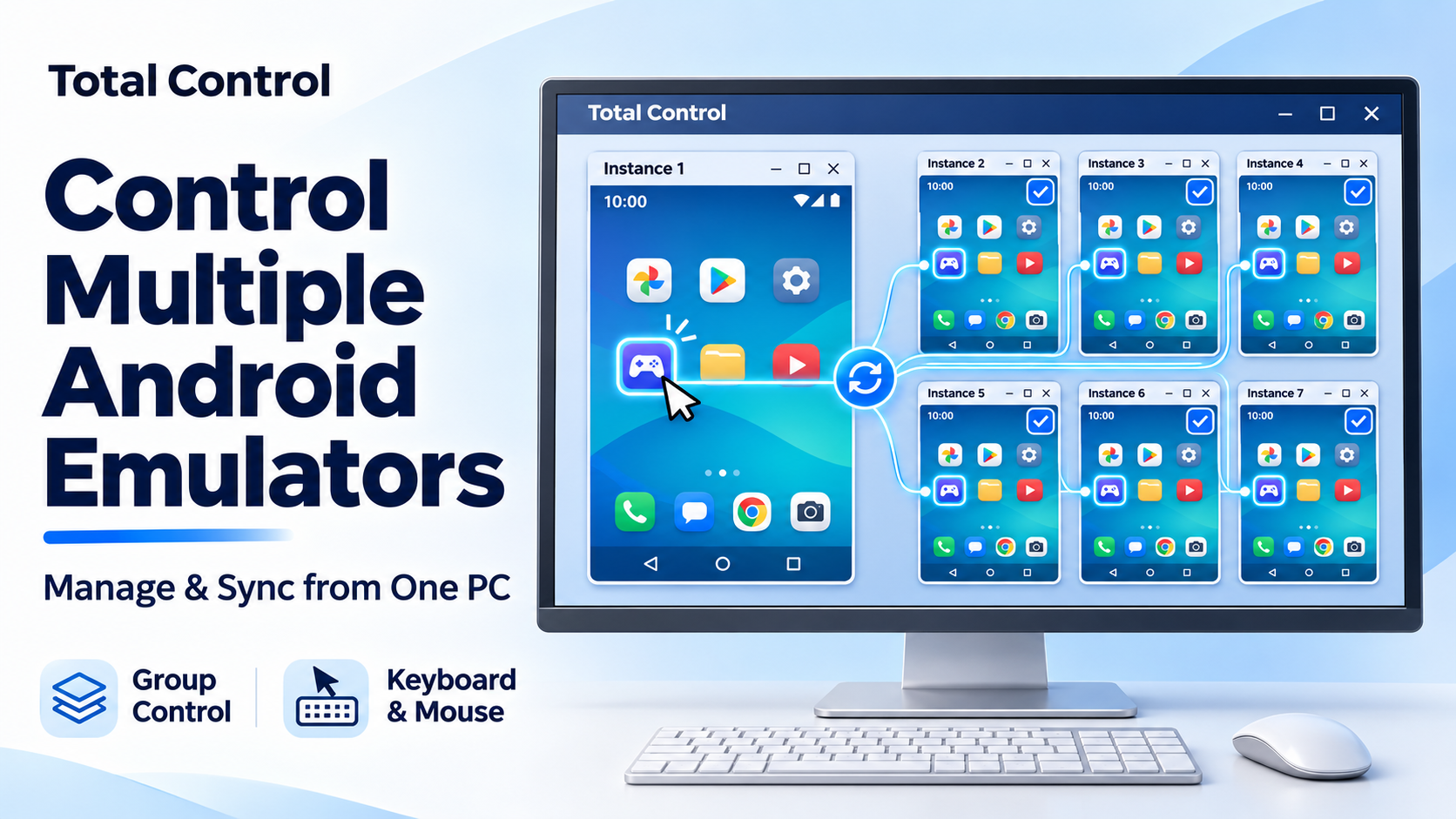
To control multiple Android emulators from one PC, you can connect supported instances to Total Control, view them in Multi-Device Control Center, and synchronize mouse or keyboard input to selected instances. Your emulator continues running the Android environments, while Total Control gives you a shared workspace for operating them.
This is useful when several instances need the same search query, navigation steps, or app setup. Instead of repeating the task in each window, you can perform it on a main instance and check the results across the others.
Why use Total Control to manage multiple Android emulators
Emulator instance managers handle creating and launching virtual Android devices. Total Control adds a central workspace for the Android screens you connect, with controls for choosing which ones receive your input.
Keep the screens visible in one place
Multi-Device Control Center, or MDCC, displays a larger main screen beside smaller device screens. You can inspect the group without bringing each emulator window to the front. Selecting another screen makes it the main device when you need a closer look.
Repeat an action across selected instances
Mouse and Keyboard synchronization help you control multiple emulator instances during repetitive tasks. For example, enter the same test phrase in several copies of an app, or navigate through matching settings pages. You choose the receiving instances and which input types to synchronize.
Organize instances by the work they need
Give connected devices descriptive names and save selections as groups. A group might contain instances running one app version or prepared for one demonstration. Selecting the saved group helps you avoid choosing every instance again when you return to that task.
The practical benefit is fewer repeated clicks and less window switching, while still being able to inspect each screen and handle exceptions separately.
How to control multiple Android emulators with Total Control
Start with two running instances on your Windows PC. The MDCC workflow below uses Total Control Professional; choose a license with enough device capacity for your planned setup.
1. Prepare your emulator instances
The official emulator connection guide covers LDPlayer, BlueStacks, and MuMuPlayer. Apply the relevant settings to each instance and restart it when required.
| Emulator | Setup in the official guide |
| LDPlayer | Select Phone display mode, enable Network bridging, and enable local connection under ADB debugging. |
| BlueStacks | Select Portrait display mode and enable Android Debug Bridge in Advanced settings. Run it on the same PC as Total Control. |
| MuMuPlayer | Select Mobile mode and restart the instance. Run it on the same PC as Total Control. |
Use each instance’s actual IP address and connection port. The numbers in tutorial screenshots are examples. For LDPlayer with network bridging, each instance needs its own local IP address.
2. Add each instance to Total Control
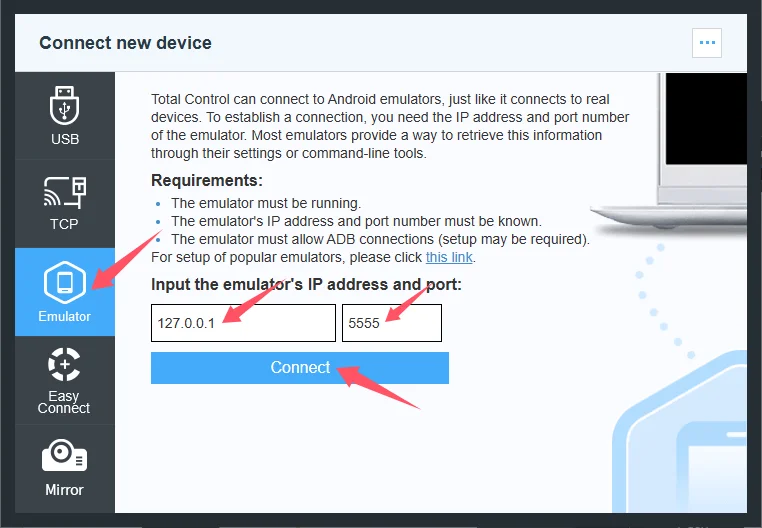
Open Connection Help, choose Emulator, enter the instance’s IP address and port, and click Connect. Complete any authorization prompt inside the emulator, then connect its entry in the Connection Window. Repeat for the remaining instances.
3. Open Multi-Device Control Center
Click MDCC in the main Total Control window. Connected instances appear in the workspace. Choose the main instance and open the app page you want to use on each member of the group.
How to sync multiple Android emulators
In MDCC, select the receiving instances and enable Mouse, Keyboard, or Fn synchronization as needed. Mouse covers pointer actions, Keyboard covers typing, and Fn covers configured function-key shortcuts. Operate the main instance and watch the selected screens respond
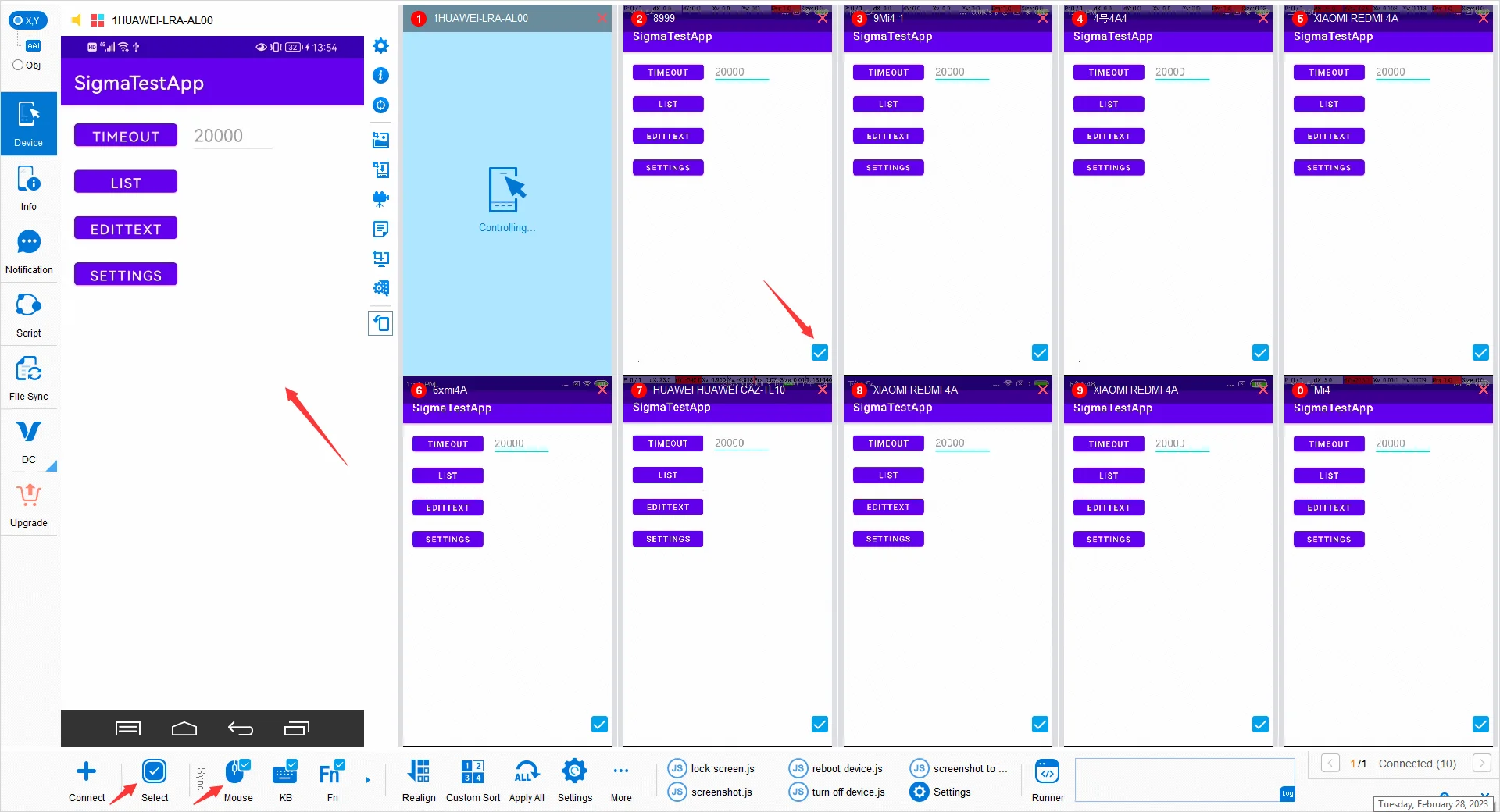
For a first test, open the same app page on both instances. Select the second instance, enable Mouse synchronization, and click a simple navigation button on the main screen. Confirm both reached the expected page before adding more instances or enabling Keyboard synchronization.
X,Y mode synchronizes by screen coordinates and suits matching resolutions and layouts. For interfaces with different button positions, Obj mode uses UI elements through FindNode. Its success depends on the app exposing suitable elements, so check it with your actual app before using it across a group.
If one instance shows a pop-up or loads more slowly, pause synchronization and bring it back to the same page. Sending the same input does not guarantee that every app is ready for the next action.
A practical example with three instances
Suppose you are checking a search screen in three copies of an Android app. Connect the instances, give them recognizable names, and open the same search page on each one.
Select the instances in MDCC and enable the input types you need. Type the test phrase once on the main instance, submit the search, and compare the results on the other screens. If one screen needs closer inspection, turn synchronization off and work with that instance individually.
You have reduced the repeated input while keeping the final checks visible. The same approach can help with app demonstrations or a shared sequence of settings changes.