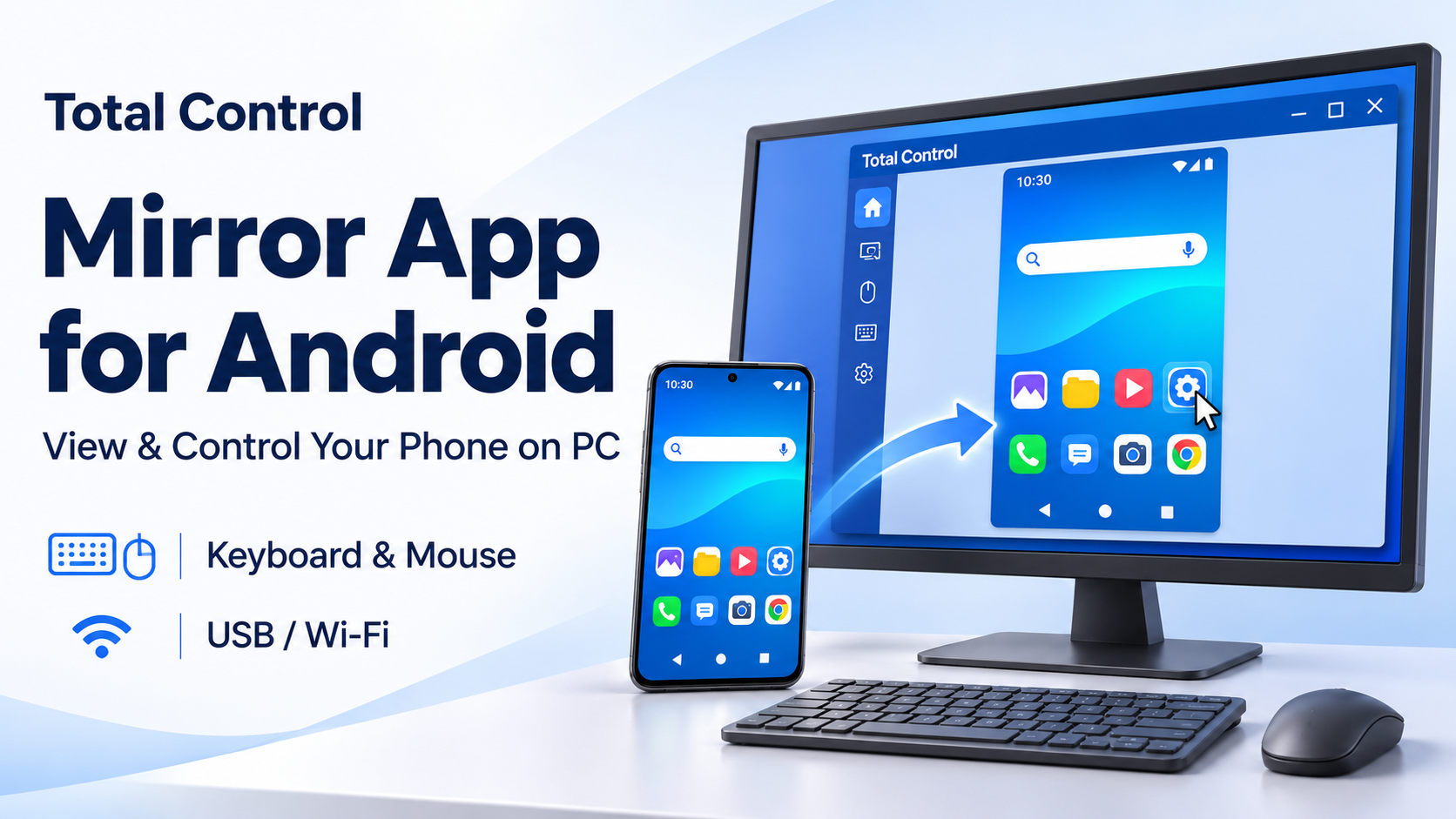
Looking for a mirror app for Android that lets you work from your computer? Total Control displays your Android phone on a Windows PC and lets you operate it with a mouse and keyboard. You can open mobile apps, enter text, and keep your phone screen beside your desktop work.
This guide focuses on mirroring Android to a Windows computer. If your goal is to use a mobile app while working at your desk, the ability to interact with the screen is just as useful as seeing it.
What makes a mirror app for Android useful on a PC?
Picture a simple task: you have written a message on your computer, but need to enter it in a mobile app. A mirrored image helps you see the app. Mouse control and text input let you finish the task without repeatedly picking up your phone.
Total Control combines these functions in a desktop workspace. Apps continue running on your connected Android phone, while you view and operate them from Windows.
How Total Control makes everyday phone tasks easier
Use your keyboard for longer text
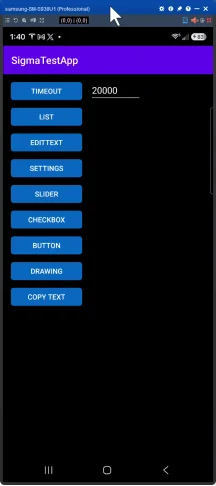
Typing an address, detailed reply, or search query is often more comfortable with a computer keyboard. Total Control supports PC keyboard input through Sigma Keyboard, so you can enter text in the active Android input field.
You can also copy text on Windows and paste it into Android. For example, prepare a response in a desktop document, copy it, click the message field in the mirrored app, and paste. This removes the extra step of sending the text to yourself before using it on the phone.
Keep your phone beside the work you are doing
In Windows Desktop Mode, each connected phone appears in its own Device Window. Move and resize it beside a browser, spreadsheet, or document. The Always on Top option can keep the phone visible while you work in another application.
This is useful when comparing a mobile page with a desktop reference or checking app content while writing instructions. You can click controls and drag to swipe directly in the mirrored screen.
Capture a mobile workflow as you demonstrate it
Total Control includes screenshot and screen recording tools. If you are explaining where to find a setting, you can operate the phone from your PC and capture the relevant screen or sequence for a guide. Check the edition details if recording limits or watermarks matter to your work.
How to mirror Android to PC with Total Control
For a first connection with keyboard and mouse control, start with a USB data cable. You do not need to write commands or scripts.
1. Install Total Control on Windows
Download the installer from the official Total Control website, install it, and open the program.
2. Enable USB debugging on your phone
Open Developer options in Android Settings and enable USB debugging. If Developer options is hidden, follow the instructions for your phone brand in the Total Control getting-started guide.
3. Connect the phone and approve the prompt
Connect the phone to your PC with the USB cable. Unlock it and approve the USB debugging request for your trusted computer. Total Control pushes the matching Android app to the device; complete any installation or permission prompts shown.
4. Click Connect and use the Device Window
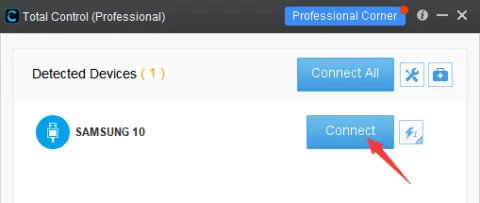
When your phone appears in Total Control, click Connect. Open an app in the Device Window, click a button with the mouse, and try entering text in a normal input field.
If you choose Quick Mirroring instead, remember that this mode is for viewing the screen and does not support controlling the phone from the PC. Use the control-capable connection workflow above when you need keyboard and mouse input.
Can you mirror Android wirelessly?
Yes. Total Control supports connections over a local network. For the USB-debugging workflow described above, establish the USB connection first, then disconnect the cable and keep your phone and PC on the same network.
On the PC, open Connection Help and select TCP. You can scan the displayed QR code with the Total Control Android app, or use Input IP address to enter the phone’s address. The wireless connection guide shows both methods. This connection method requires USB setup again after the phone restarts.
Wireless mirroring gives you more freedom to place the phone on your desk. If the display becomes less responsive, try USB to see whether the wireless connection is contributing to the delay.
What if you need more than one Android screen?
Total Control can also display and control multiple Android devices. You can keep individual Device Windows open, while the Professional version offers Multi-Device Control Center for working with devices together.
For example, a tester can keep two phone screens visible while checking the same app layout. Device limits and synchronization options vary by license, so review the Total Control features and edition details before choosing a plan.
Frequently asked questions
Is Total Control a free mirror app for Android?
Total Control Lite is free for non-commercial use. Professional features and higher device limits require an appropriate paid license. Check the official features page for the options that match your use.
Does Total Control require rooting the phone?
No. The USB connection workflow uses USB debugging and the required device permissions; it does not require rooting your Android phone.
Why can I see the screen but not control it?
First check whether you selected Quick Mirroring, which is view-only. For a control-capable connection, confirm that Control is enabled in Total Control and that you have completed the phone’s permission prompts.
Can Total Control play Android audio on the PC?
Total Control supports software audio transmission from Android 10 and later. Some apps do not support this feature, so check the app you intend to use rather than assuming all phone audio will play on the PC.
Where can I find help connecting my phone?
Use the official Total Control guide for illustrated setup instructions. If the phone is not detected, check that the cable supports data, USB debugging is enabled, and the authorization prompt has been accepted.
Try your everyday Android task on a larger screen
The value of a mirror app for Android becomes clear when you use it for a task you already do: writing a message, checking a mobile page, or demonstrating an app.
Download Total Control, connect one phone, and try that task from your Windows PC. Start with viewing, clicking, and typing; explore multi-device tools when your work calls for them.
Suggested Internal Links
Total Control / Download Total Control — Product overview and download
Total Control getting-started guide — Illustrated first-time setup
Device Window — Desktop controls and display options
wireless connection guide — QR-code and IP-address connection methods
Total Control features and edition details — Features and license differences
Recommended CTA
Download Total Control and try mirroring one Android phone to your Windows PC.