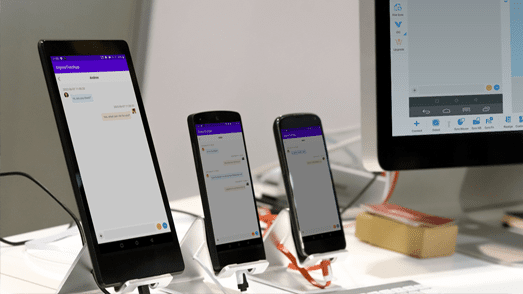
Batch controlling multiple Android phones means connecting several physical Android devices to one Windows computer and operating them from a centralized interface. Instead of handling every phone separately, you can select a group of devices and synchronize mouse clicks, keyboard input, shortcuts, file transfers, or automated scripts across them.
This type of setup is useful for legitimate high-volume workflows such as e-commerce operations, application testing, device labs, content publishing, demonstrations, repetitive data entry, and other tasks that need the same operation performed across many real Android devices.
Total Control is designed specifically for this type of multi-device workflow. Depending on the license and available PC resources, it supports environments ranging from a few phones to as many as 100 Android devices, with centralized control through its Multi-Device Control Center (MDCC).
Automation should still follow the rules of the applications and platforms being operated. Batch control should not be used for fake engagement, spam, fraudulent activity, or other behavior prohibited by a platform.
What Is Batch or Group Control of Android Phones?
Normal Android screen mirroring usually focuses on one device:
PC
↓
Android Phone
A multi-device environment looks more like this:
                    ┌─ Phone 1
                    ├─ Phone 2
Windows PC ──────── ├─ Phone 3
                    ├─ Phone 4
                    └─ ...
The computer becomes the central control point.
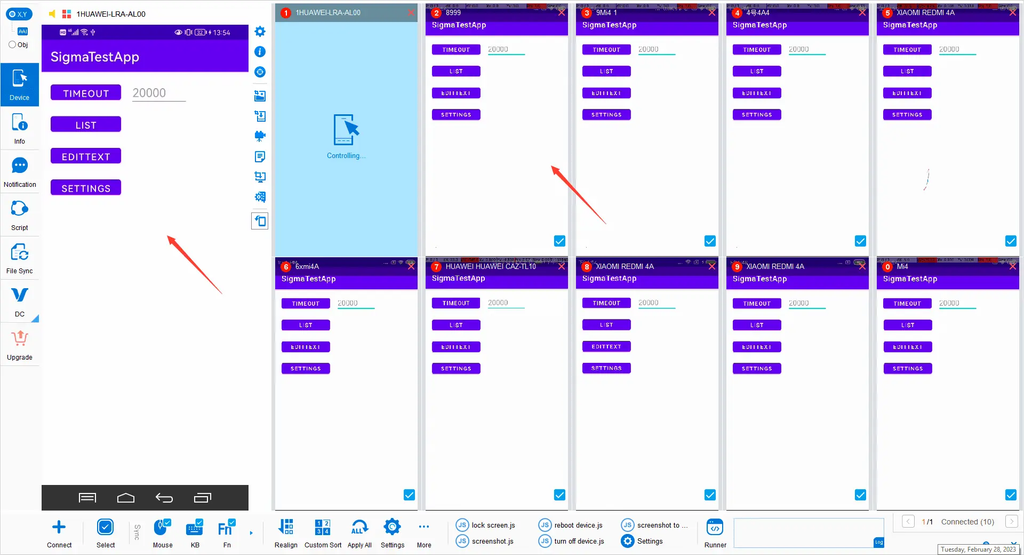
With Total Control MDCC, one Android device acts as the main device, while selected secondary devices can receive synchronized operations. Mouse, keyboard, and Fn shortcut actions performed on the main device can be sent to the selected group.
This makes group control very different from simply opening several independent phone windows.
What Can You Do with Multi-Device Android Control?
A multi-phone environment can combine manual batch operations with automation.
Total Control currently supports capabilities including:
- Mouse synchronization
- Keyboard synchronization
- Fn shortcut synchronization
- Multiple-device selection and grouping
- Coordinate-based synchronization
- UI-element-based synchronization
- Batch file transfer
- Batch APK installation
- Screen recording
- Operation recording and playback workflows
- JavaScript automation
- REST API automation
- FindNode UI-element automation
This allows you to start manually and gradually automate repetitive parts of the workflow.
Common Use Cases for Batch Android Phone Control
E-Commerce Operations
Teams that operate legitimate stores or product catalogs may need to repeat similar actions across multiple test, operational, or demonstration devices.
Instead of manually handling each phone, selected operations can be synchronized across a device group.
For workflows that require different information on each phone, scripting or API-based automation may be more appropriate than simple mouse synchronization.
Content Publishing and Social Media Operations
Multi-device control can reduce repetitive manual work when teams manage content across physical Android devices.
For example, operators may need to:
- Open the same application
- Navigate to the same screen
- Transfer media files
- Enter text
- Check application status
- Run approved publishing workflows
Platform rules still apply. Automation should not be used to manufacture fake likes, followers, comments, views, or other artificial engagement.
Android Application Testing
Multi-device control is particularly useful for QA.
A test team can connect real phones from different manufacturers or Android versions and repeat the same application flow across them.
Total Control also supports object-based synchronization with FindNode, allowing operations to target corresponding Android UI elements instead of relying only on identical screen coordinates.
Device Labs
A local Android device lab may contain 10, 20, 30, 50, or more phones connected to one or several PCs.
In this environment, centralized functions such as:
- Device grouping
- Reboot
- Wake or black screen
- Screenshot
- File synchronization
- Application installation
- Script execution
become much more useful than manually operating every device.
Hardware You Need for Multiple Android Phones
The computer configuration should be selected according to the number of devices rather than assuming every setup requires the same high-end PC.
For example, Total Control’s current hardware guides provide different recommendations depending on device count.
For a 30-device configuration, the official guide recommends approximately:
| Component | Example Recommendation |
|---|---|
| CPU | Intel i5-10400 series or above |
| Memory | 8 GB or more |
| Motherboard | ASUS ATX motherboard with USB 3.0 / 3.1 |
| Operating System | Windows 10 recommended |
| Hub | Three powered 10-port hubs |
| Hub Power | 120 W per 10-port hub in the documented configuration |
The guide specifically notes that sufficient hub power is important and recommends more than 12 W of power per connected device for that configuration.
Smaller installations require less hardware. For example, the official 10-device guide lists an Intel i3-series CPU and 4 GB or more memory as a starting point, while the 20-device guide raises the recommendation to 8 GB and an ASUS ATX motherboard with USB 3.x connectivity.
Do You Need an i7 and 16 GB of RAM?
Not necessarily.
An i7 processor and 16 GB or more memory can provide additional headroom, particularly if you are running many devices, higher display quality, scripts, browsers, and other software at the same time.
But the required specification depends on device count and workload.
The better rule is:
Scale the PC configuration with the number of phones and the complexity of the automation.
Choosing USB Hubs
The USB hub is one of the most important parts of a large Android device setup.
Cheap unpowered hubs may work with a few phones but become unstable as more devices are added.
For a multi-device installation, use:
- Externally powered USB hubs
- Sufficient power capacity per port
- Reliable USB controllers
- Quality data cables
- Multiple host USB controllers when scaling to large device counts
Insufficient hub power can cause Android devices to disconnect when load increases. Total Control’s 30-device reference setup uses 120 W 10-port hubs and explicitly warns about insufficient per-device power.
Choosing USB Cables
Not every USB cable is suitable for a multi-phone installation.
Use cables that:
- Support data, not charging only
- Have reliable connectors
- Are not unnecessarily long
- Maintain stable data communication
- Provide sufficient charging capability
A cable that works for charging can still fail during continuous Android screen transmission and control.
For large deployments, using the same cable model also makes troubleshooting easier.
Should All Phones Be the Same Model?
Using identical Android phones can simplify deployment because the devices typically share:
- Screen resolution
- Android configuration
- USB behavior
- Application layout
- Performance characteristics
However, identical phones are not required.
Total Control supports two MDCC synchronization methods:
X,Y mode synchronizes by screen coordinate and works best when device resolution and layout are similar.
Obj mode uses UI elements, allowing corresponding controls to be located on devices with different screen sizes or resolutions.
For mixed Android models, object-based synchronization can therefore be more useful than blindly duplicating coordinates.
How to Connect the First Android Phone
The normal starting point is USB.
Step 1: Install Total Control
Download and install Total Control on the Windows PC.
Total Control currently supports Windows and provides both Windows Desktop Mode for individual device windows and MDCC for centralized multi-device management.
Step 2: Enable Developer Options
On the Android phone, enable Developer Options.
The exact menu varies by manufacturer, but it is commonly enabled by opening the device’s About Phone page and tapping the build number several times.
Step 3: Enable USB Debugging
Enable USB debugging in Developer Options.
Some Android manufacturers may require additional security or USB-debugging permissions before computer input can be injected correctly.
Follow the device-specific prompts if Total Control displays additional setup instructions.
Step 4: Connect the Phone with USB
Connect the Android phone to the PC with a data-capable USB cable.
Total Control should detect supported devices and display them in the connection interface. The official guide recommends using a rear motherboard USB port on a desktop PC when connecting directly.
Step 5: Approve Android Authorization
Android may display a USB debugging authorization prompt.
Approve the computer if it is trusted.
Additional installation or authorization prompts may appear depending on the device and Android version.
Step 6: Verify Mouse Control
After the connection succeeds, the Android screen appears on the computer.
Use the mouse to:
- Click
- Swipe
- Scroll
- Open applications
If the phone responds correctly, the first device is ready.
Connect the Remaining Android Phones
Once the first device works correctly, add the remaining devices gradually.
A good deployment process is:
Connect Device 1
↓
Verify Control
↓
Connect Device 2
↓
Verify Control
↓
Continue Adding Devices
Avoid plugging dozens of unknown devices into the system at once during initial setup.
Adding phones in stages makes it easier to identify:
- Bad USB cables
- Weak hub ports
- Driver issues
- Device-specific permission problems
- Insufficient USB power
Once every individual phone is stable, you can move to batch control.
How to Batch Control Multiple Phones with MDCC
Total Control’s Multi-Device Control Center provides a consolidated interface for multiple Android phones.
The large screen on the left is the current main device. Other devices appear as smaller screens, and clicking a secondary screen can switch it into the main-device position.
Step 1: Open MDCC
Open the Multi-Device Control Center after the phones are connected.
Devices already connected in Windows Desktop Mode can automatically appear in MDCC.
Step 2: Select the Phones to Control
Select individual phones or a predefined device group.
You do not have to synchronize every connected phone.
For example:
Connected Devices: 30

Group A: 10 phones
Group B: 10 phones
Group C: 10 phones
You can operate only the group required for the current task.
Step 3: Enable Synchronization
Choose the operations you want to synchronize:
- Mouse
- Keyboard
- Fn
The selected actions performed on the main device are then synchronized to the selected secondary devices.
Coordinate Mode vs Object Mode
Total Control provides two useful approaches to synchronized multi-device operations.
X,Y Coordinate Mode
The same screen coordinates are sent to every selected device.
For example:
Main Device:
Click(500, 800)

↓ Sync ↓

Device 2:
Click(500, 800)

Device 3:
Click(500, 800)
This is simple and effective when devices use:
- The same model
- The same resolution
- The same orientation
- The same application layout
Object Mode
Object mode sends a query describing the UI element instead of the same coordinate.
Conceptually:
Find "Login"
↓
Click
Each device finds its own corresponding UI object.
This makes object-based synchronization more suitable for mixed resolutions and device models.
Batch File Transfer and APK Installation
One useful MDCC feature is file synchronization.
Total Control can send files to multiple selected Android devices at the same time.
For APK files, MDCC can also perform synchronized application installation. The official workflow is:
Open File Sync
↓
Add APK
↓
Enable Install APK
↓
Start Sync
This can be much faster than copying and installing the same application manually on every phone.
Record Operations and Turn Them into Automation
Manual synchronization is useful, but repetitive operations eventually become candidates for automation.
Total Control supports recording device operations and saving them for reuse. Its current documentation describes recording operations into an XLSX-based format and exporting recorded workflows to JavaScript or JSON.
This creates a natural progression:
Manual Operation
↓
Synchronized Operation
↓
Record Workflow
↓
Review Workflow
↓
Convert to Script
↓
Automatic Execution
Automate Multiple Phones with JavaScript
For more advanced tasks, Total Control provides a JavaScript API.
Scripts can control one device or a collection of devices, allowing developers to build group operations instead of manually repeating every action.
A simplified workflow might be:
Get Device Group
↓
Launch App
↓
Find UI Element
↓
Click
↓
Enter Text
↓
Read Result
↓
Continue Workflow
The JavaScript API can also be combined with FindNode for UI-element-based automation.
Using AI to Help Write Automation Scripts
AI coding assistants can help generate an initial script from documentation and a clearly described workflow.
For example, you might describe:
1. Open the target application.
2. Find the search box.
3. Enter a test keyword.
4. Tap Search.
5. Read the first result.
6. Repeat on the selected devices.
An AI tool can help translate that logic into an initial JavaScript or API workflow.
However, generated scripts should not simply be deployed to dozens of phones without review.
A safer process is:
Describe Workflow
↓
Generate Draft Script
↓
Review API Usage
↓
Test on 1 Device
↓
Test on 2–3 Devices
↓
Deploy to Device Group
This reduces the risk of an incorrect generated script repeating an unwanted action across every connected phone.
Can Multiple Phones Connect over Wi-Fi?
Yes.
Total Control supports both USB and TCP connections. The documented TCP workflow first uses USB to install and start the required mobile-side components. After the initial setup succeeds, the USB cable can be disconnected and the Android device and PC can communicate over the same local network.
The workflow is roughly:
First USB Connection
↓
Complete Device Setup
↓
Disconnect USB
↓
Phone + PC on Same LAN
↓
Connect via TCP/IP
The TC app displays the device IP address, which can then be entered in the Windows client. QR-code connection is also supported.
USB or Wi-Fi for Large Device Groups?
For fixed multi-device installations, USB generally provides easier troubleshooting and avoids introducing wireless-network congestion.
TCP/IP is useful when:
- Cables are inconvenient
- Devices need more physical mobility
- A stable local network is available
- The device has already completed its initial setup
The best choice depends on the number of devices and the network environment.
How to Make a Large Multi-Phone Setup More Stable
A reliable installation depends on more than software.
For larger groups, use the following approach:
- Use powered USB hubs. Do not rely on the PC port to power a large number of phones.
- Use data-quality USB cables. Replace suspicious cables before debugging the software.
- Add devices gradually. Confirm stability at 1, 5, 10, and then larger device counts.
- Use sufficient PC hardware. Increase CPU, memory, and graphics resources as device count grows.
- Reduce unnecessary display quality. Not every background device needs to render at maximum resolution.
- Group devices logically. Avoid selecting all devices when only one group needs the operation.
- Use object-based automation for mixed devices. Different resolutions make fixed coordinates less reliable.
- Test scripts on a small group first. A mistake synchronized to 50 phones is harder to recover from than a mistake on one test device.
Manual Batch Control vs Script Automation
These two approaches are complementary.
| Method | Best For | Advantage |
|---|---|---|
| Mouse / Keyboard Sync | Interactive repetitive tasks | Easy to start |
| File Sync | Distributing files and APKs | Centralized batch operation |
| Capture / Replay | Repeated known workflows | Reduces repeated manual input |
| JavaScript | Complex automation logic | Flexible and programmable |
| REST API | External system integration | Can integrate with other languages and services |
| FindNode / Object Mode | Mixed devices and UI automation | Less dependent on fixed coordinates |
A practical deployment often starts with synchronized mouse and keyboard operations and gradually moves repetitive sections into scripts.
Frequently Asked Questions
Can one PC control multiple Android phones?
Yes. Total Control supports centralized management of multiple physical Android devices from Windows. Depending on the license and hardware resources, configurations can scale from a few phones to as many as 100 devices. (Total Control Overview)
Can I control all phones with the same mouse and keyboard?
Yes. In MDCC, mouse and keyboard operations performed on the main device can be synchronized to selected secondary devices. (Total Control Guide)
Do all Android phones need to be the same model?
No. Identical devices can simplify coordinate-based synchronization, but Total Control also provides object-based synchronization designed to work across different resolutions and device sizes.
Can Total Control install an APK on multiple phones at once?
Yes. MDCC File Sync supports transferring files to multiple selected devices, and APK files can be installed as part of the synchronized file workflow.
Can multiple Android devices be automated with JavaScript?
Yes. Total Control’s JavaScript API provides interfaces for controlling individual devices and device arrays, making it possible to build group automation workflows. (Total Control JavaScript API)
Can Android phones connect wirelessly after USB setup?
Yes. Total Control supports TCP connections. Its documented workflow uses USB for the initial mobile-side setup, after which the device can connect through the same local network.
What hardware do I need for 30 Android phones?
Total Control’s current reference configuration recommends an Intel i5-10400-series processor or above, at least 8 GB of memory, an ASUS ATX motherboard with USB 3.x connectivity, and powered USB hubs. Actual requirements depend on workload and display settings. (Control 30 Devices)