If your Android phone runs a game comfortably but your laptop struggles with an emulator, you may already have the hardware you need for a larger screen. One way to play mobile games on a low end PC is to let your phone run the game and use the computer to display and control it.
TC Games mirrors a real Android device to Windows and offers keyboard and mouse control for compatible games. You keep using the mobile installation already on your phone, without creating a virtual Android system on the PC.
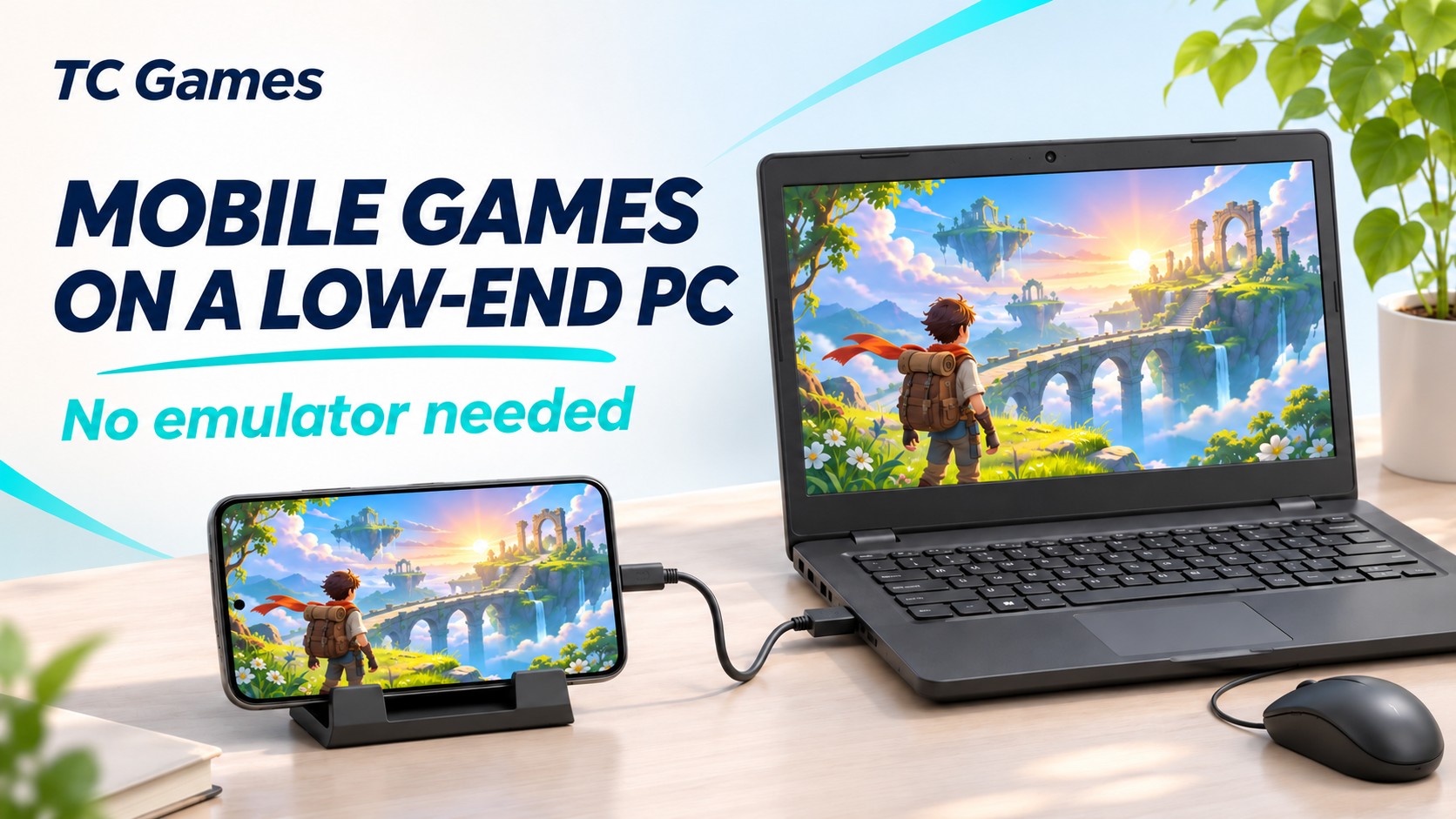
A phone and laptop setup illustrated for this guide. The game scene is conceptual artwork.
Why using your phone changes the PC workload
A local Android emulator runs a virtual device and the game on your computer. With TC Games, the phone continues running and rendering the game. The PC receives the screen stream, displays it, and sends supported input back to the phone.
This division can reduce the work your PC needs to handle compared with running that game in an emulator. The benefit depends on the phone, computer, game, and mirroring settings; it is not a fixed CPU or memory saving.
| Workload | Local Android emulator | Phone plus TC Games |
| Android and game processing | Handled on the PC | Handled on the phone |
| PC graphics work | Game graphics through the emulator | Decode and display the phone stream |
| Game installation | Inside the emulator | On the Android phone |
| Main performance limits | PC hardware, emulator setup, and game | Phone performance, connection, and PC decoding |
Your PC still needs resources to decode and show the video. Integrated graphics may be sufficient on a compatible system, but an old laptop is not guaranteed to handle every quality setting. The phone also does extra work to produce the mirrored stream.
What you gain with TC Games
For someone searching for Android games on low end PC, the practical advantage is making use of a capable phone already available. There is no second game installation to manage inside an emulator, and your existing mobile setup remains the one you play.
The larger display makes menus and game scenes easier to see at a desk. Key Mapping can place movement, actions, or camera controls on familiar keys in compatible games. Start with the controls you use most and adjust the layout to suit your hands.
Compatibility and permission are separate questions. Use mirroring and mapped controls only where the game’s current rules allow them.
Set up one phone before changing performance settings
Have a compatible Windows PC, an Android phone, a USB data cable, and the game installed on the phone. Play briefly on the phone first. If it already struggles, mirroring will not make the game itself faster.
1. Install TC Games on Windows. Get the installer from the official download page.
2. Connect over USB. For the documented USB workflow, enable USB debugging in Android Developer options, attach the data cable, and open Connection in TC Games.
3. Authorize the phone. Follow the device prompts, allow the companion app installation when requested, and click Connect after the phone is detected.
4. Check the mirrored view. Choose Projection & Control if you need PC input, then open a permitted game and confirm the picture is stable.
5. Set up basic keys. Use an available layout in Key Mapping Center or configure supported controls. Align the markers with the game’s buttons and save.
The TC Games Beginner’s Guide includes illustrated connection instructions. Start with USB to establish a consistent baseline before comparing Wi-Fi.
Start with settings your computer can maintain
Do not begin by maximizing resolution, frame rate, and image quality together. Choose a lower available resolution and a 30 FPS target as a starting trial if your client supports it. These are suggested settings, not measured performance results.
TC Games provides hardware and software Decoding Mode options. Try hardware decoding on a compatible GPU and driver, then compare the result. If it causes display problems, return to the working mode. The feature guide also documents image quality and frame-rate controls; availability varies by edition.

Raise one setting at a time while watching for stutter. Close unnecessary PC applications during the comparison and keep the phone ventilated. A demanding game still depends on the phone’s graphics performance and temperature, even when the PC is doing less work.
Compare resource use on your own hardware
A useful comparison needs the complete setup, not just a CPU percentage. Record your PC’s exact CPU, GPU, RAM, Windows version, phone model, game version, and TC Games version. Include the connection type, game graphics settings, mirroring resolution, decoding mode, and frame-rate target.
Use the same repeatable game scene for three checks: phone alone, phone with TC Games, and a local emulator if the game permits it. Keep graphics and frame-rate targets as similar as possible and document any differences. Phone-only play provides a baseline for the phone, not a PC workload measurement.
As a simple test plan, allow five minutes to warm up, observe each setup for ten minutes, and repeat three times. Record total PC CPU use and memory use, plus any consistent stutter. Compare the phone’s game FPS separately from the mirroring rate where reliable counters are available. A selected 60 FPS setting does not prove that 60 frames arrive every second.
Task Manager readings are useful for a basic comparison; periodic screenshots show samples, not a true continuous average. Keep the raw readings and describe the method when sharing results. Lower PC use alone does not establish lower power consumption across both devices.