Wireless screen mirroring lets you view your Android phone on a Windows PC while keeping the phone free from a data cable during use. You can place it on a stand, use the larger display, and keep your keyboard and mouse within reach.
TC Games combines Android screen mirroring with PC controls for supported games and apps. Your phone continues running the mobile software, so you do not need an Android emulator. For the standard Wi-Fi control method covered here, complete an initial USB connection before switching to wireless.
Why use TC Games for wireless screen mirroring
A larger display is useful when small menus, game controls, or app text are difficult to follow on a phone. TC Games adds ways to interact with that screen, which makes it useful at a desk even when you are not holding the device.
- Keep using the app installed on your phone. There is no separate Android environment to set up on the computer.
- Use a PC keyboard for text entry and a mouse for supported phone controls. This is convenient when a mobile app requires more than an occasional tap.
- Set up Key Mapping for compatible games. Assign familiar keys to on-screen actions and adjust their positions to match your layout.
- Place the phone where it fits your desk. After switching to Wi-Fi, a short data cable no longer determines its position.
For example, you might keep a mobile game open beside a guide on your PC, or show someone how an Android app works on a larger monitor. The mobile session stays on the phone; the PC provides the viewing and input workspace. Use mapped controls only where the game permits them.
What you need before connecting
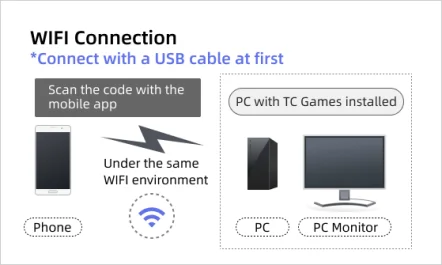
Prepare a Windows PC with TC Games installed, a supported Android phone, and a USB data cable for initial setup. For wireless use, both devices must be able to communicate on the same local network.
The PC can use Ethernet to the same router while the phone uses Wi-Fi. It does not need its own wireless adapter in that arrangement. The official network guide also describes a phone hotspot option. Start with your usual router if it is available.
How to set up wireless screen mirroring with TC Games
1 Complete the first USB connection
Download TC Games from the official website and install it on Windows. Enable USB debugging on Android, connect the data cable, and open Connection in TC Games. Approve the phone prompts and companion app installation, then click Connect when the device appears.
Wait until the phone is visible and responds to PC input. This gives you a working connection before changing to Wi-Fi. Follow any brand-specific permission instructions in the client.
2 Put the phone and PC on the same network
Connect both devices to the same router, using Wi-Fi for the phone and either Wi-Fi or Ethernet for the PC. A phone on mobile data and a computer on an unrelated network do not meet this requirement.
3 Open the WiFi connection screen and scan
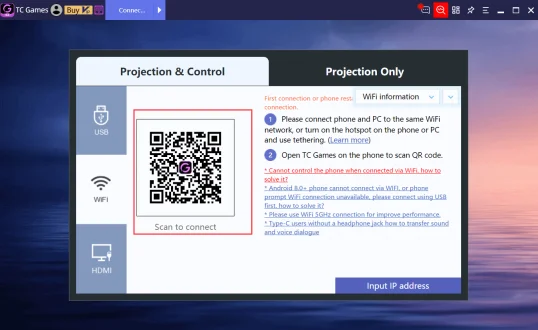
On the PC, open Connection and choose WiFi under Projection & Control. Open the TC Games app on your phone, tap Scan, and scan the QR code displayed by your own PC client. Follow the connection prompts.
4 Confirm the wireless session
Once the Wi-Fi connection is established, disconnect the USB data cable and check that the mirrored screen still updates and responds. The Beginner’s Guide illustrates the connection screens.
5 Set up the controls you actually use
For a supported game, open Key Mapping Center and choose an available layout that fits your device. Check where each marker sits: a movement key belongs over the movement control, while an action key should align with its corresponding button.
Start with a few essential actions, such as movement, camera control, and one frequently used button. Adjust the layout to your preferences and save it. Avoid adding every possible shortcut before you know the basic controls work. Available customization options depend on the game and TC Games edition.
Make wireless mirroring more comfortable to use
Wireless convenience depends on a stable connection. The TC Games guide recommends 5 GHz Wi-Fi when supported and favors wired connections when stability is the priority. Here, 5 GHz means a Wi-Fi frequency band, not a 5G mobile data plan.
If the picture freezes, reduce the image quality or other demanding display settings available in your edition. The feature documentation describes these controls. Change one setting at a time so you can tell whether it helps.
Also watch the phone itself. It still runs the game, so a hot or struggling phone can affect the experience even when the network is working. Wireless mirroring does not charge the battery; keep an eye on the remaining charge during longer sessions.
Choose Wi-Fi for flexible phone placement and everyday convenience. For a session where responsiveness matters more than removing the cable, try USB and compare the experience on your own setup. There is no single wireless delay figure that applies to every phone and network.
Troubleshoot the connection without starting over
| What you notice | What to check |
| The screen appears but clicks do nothing | Select Projection & Control. Live Screen Mirroring or Projection Only is for viewing. Also check the phone permissions required for control. |
| TC Games asks for USB setup again | Reconnect by USB and complete the authorization. A phone restart or a stopped background service may require initialization again. |
| Scanning does not connect | Check the shared network first. The client also provides an Input IP address option; find the phone address in its TC Games WiFi screen. |
| The screen stutters | Lower demanding image settings, check phone temperature, and try USB to help distinguish a wireless problem from a device problem. |
For model-specific settings and persistent connection errors, use the TC Games FAQ. A phone that displays correctly but ignores input needs a different check from a phone that cannot connect at all.