Phone mirroring to PC displays your Android phone’s screen on a computer while the game continues running on the phone. With TC Games, you can connect your device, view the game on a larger screen, and use keyboard and mouse controls through Key Mapping. You do not need an Android emulator.
Start with a USB connection, confirm that the phone screen appears, then apply a keymap for your game. This guide walks through that setup and explains when Wi-Fi may be useful.
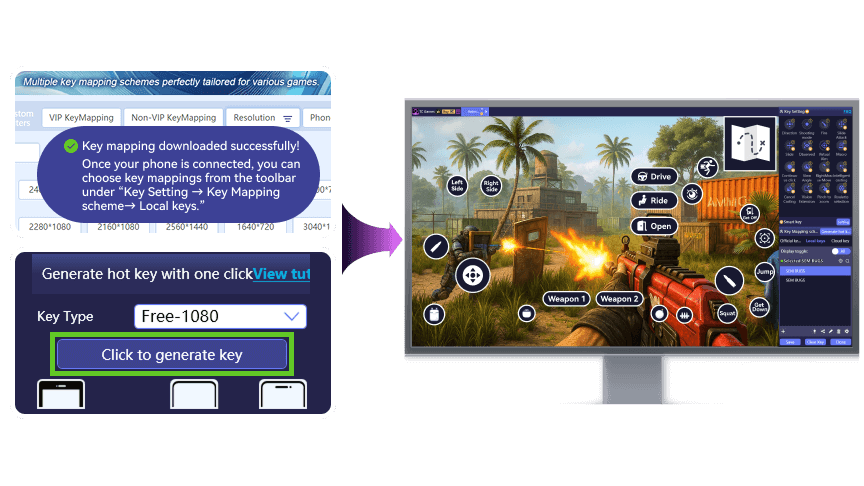
Figure 1. TC Games combines phone mirroring with configurable keyboard and mouse controls.
Why use TC Games for phone mirroring to PC
A larger display gives you more room to see the game interface, while mapped keys let you operate touch controls from your desk. TC Games combines screen mirroring for Android phone gaming with ready-made keymaps and customizable controls. Your existing game installation stays on the phone; the PC becomes your display and control workspace.
What you need before you start
- A Windows PC with TC Games installed.
- A supported Android phone with the game installed.
- A USB cable that supports data transfer.
- A keyboard and mouse for PC control.
Check the TC Games website for current compatibility and edition details. This walkthrough uses USB for the initial connection.
How to mirror your Android phone to PC with TC Games
1 Install and open TC Games
Download TC Games from the official website, install it on your Windows computer, and open it. Follow the sign-in prompts if shown.
2 Enable USB debugging on your phone
Open your phone’s Settings and find Build number, usually under About phone or Software information. Tap it seven times to enable Developer options. Then open Developer options and turn on USB debugging. Menu names and locations vary by phone brand.
3 Connect the phone to your PC
Connect the USB data cable and open Connection in TC Games. Choose Projection & Control for keyboard and mouse operation. Approve USB debugging and app-installation prompts on the phone when requested, then click Connect when TC Games detects your device.
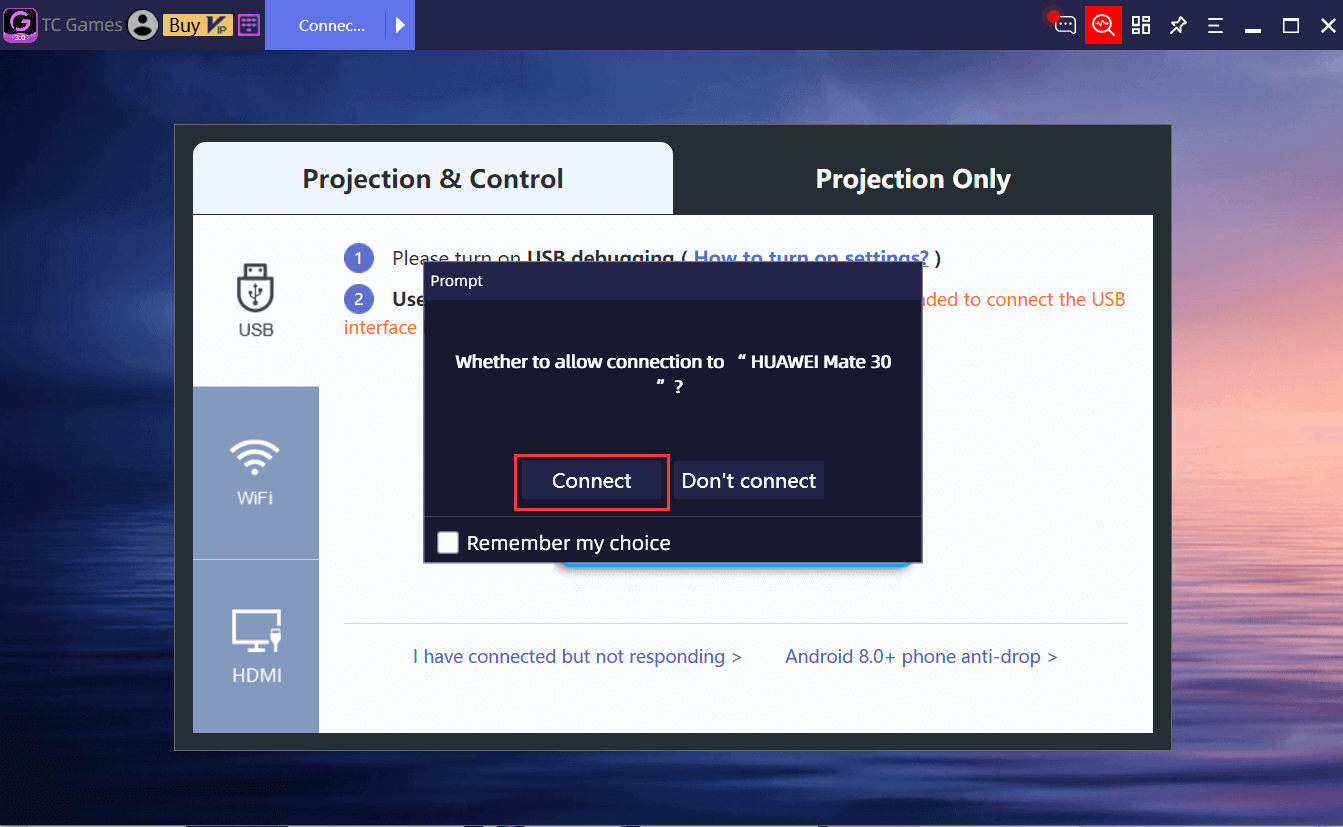
Figure 2. Select Projection & Control and connect the detected Android phone.
4 Open the game on the mirrored phone
Once connected, confirm that your Android screen appears in TC Games. Open the game and check that the picture updates normally. The game is still running on your phone, so keep the phone connected during play.
5 Apply and check your key mapping
Open the Key Mapping Center and look for a suitable layout for your game and phone resolution. Apply the downloaded keymap, then use Key Setting to align the mapped keys with the game’s on-screen buttons. Adjust the layout and save your changes.
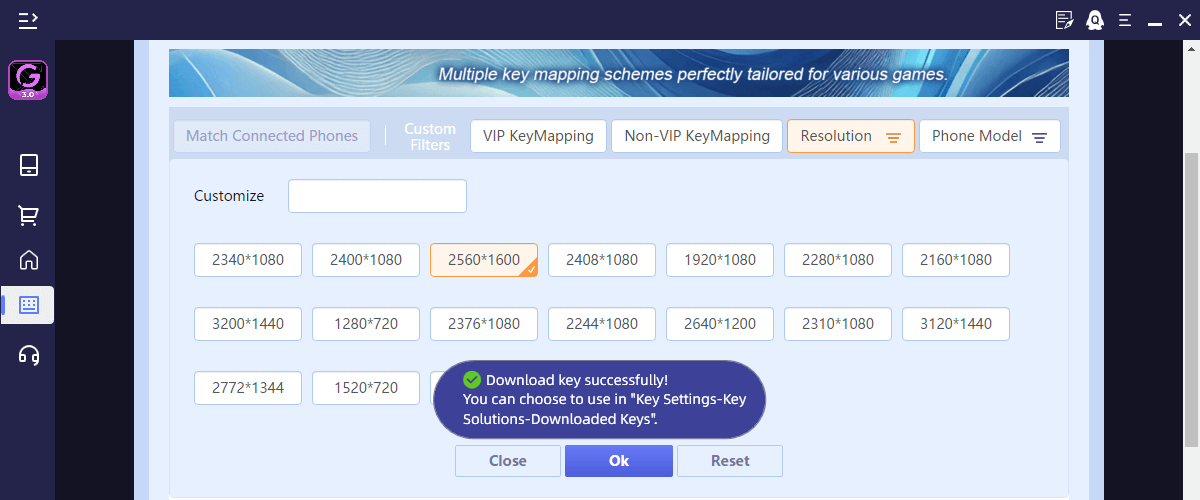
Figure 3. Choose an appropriate keymap and check its alignment with your game’s controls.
Test movement, camera control, and a few actions in a practice area before starting a match. If the controls feel unfamiliar, adjust the key assignments or mouse sensitivity. The TC Games Key Mapping guide explains the available setup options.
What keyboard and mouse control adds to mirroring
- Movement keys. Assign directional controls to familiar keyboard keys.
- Mouse control. Configure camera or aiming controls for the game’s layout.
- Accessible actions. Place frequently used skills and items on keys you can reach comfortably.
A useful keymap matches the buttons currently shown in your game. If you change the game’s control layout, check the mapping again. Available controls depend on the TC Games edition and the configuration you choose.
USB and Wi-Fi phone mirroring options
USB is a practical starting point for a desk setup because it avoids Wi-Fi interference. Wireless phone mirroring gives you more freedom to position the phone, but depends on the quality of your local network.
For the Wi-Fi method in the official connection guide, complete one USB connection first. Put the PC and phone on the same local network. Then open TC Games on the phone, tap SCAN, and scan the QR code displayed on the PC.
TC Games also provides an HDMI workflow for compatible phones and additional display hardware. Check the hardware requirements in the connection guide before choosing that option.
Keep the picture and controls responsive
Choose image settings that suit your phone, computer, and connection. Increasing resolution or frame rate can increase the workload. If movement looks uneven, lower the image settings and compare the result before changing anything else.
The game’s frame-rate setting, the phone’s performance, and the PC monitor also affect what you see. Selecting a higher mirroring frame rate cannot make the game produce more frames than it supports. Keep the phone ventilated during longer sessions.
Common phone mirroring problems and what to check
| Problem | What to check |
|---|---|
| The phone is not detected | Check USB debugging and authorization. Try another data cable or USB port, and use the client’s Diagnosis tool. |
| The screen appears but keys do not work | Use Projection & Control, then check the selected keymap, button alignment, and phone permissions. |
| Wi-Fi connection fails | Complete the initial USB setup and confirm that the PC and phone are on the same local network. |
| The picture stutters or feels delayed | Try USB if you are using Wi-Fi. Reduce image settings and check phone temperature. |
| The mirrored screen is black | Follow the official troubleshooting steps for resolution, rendering, and decoding settings. |
For device-specific instructions, see the TC Games troubleshooting page. Change one setting at a time so you can identify what helps.
Frequently Asked Questions
Do I need an emulator to use TC Games?
No. TC Games mirrors a real Android phone to your PC. The game runs on the phone, and your PC displays the screen and sends control input.
Can I use TC Games for wireless phone mirroring to PC?
Yes. TC Games supports Wi-Fi connections. Follow the initial USB setup and same-network requirements in its connection guide, then use the QR-code connection method.
Can I start with the free version of TC Games?
Yes. The free version includes basic mirroring and keyboard and mouse control features. VIP adds more advanced controls and display options. Review the current feature comparison to choose the edition that fits your needs.
Why should I choose Projection & Control?
Use it when you want to operate the game with your PC keyboard and mouse. Projection Only is intended for displaying the phone screen and does not provide those controls.
Where can I find the full TC Games setup tutorial?
The TC Games Beginner’s Guide covers installation, connections, graphics settings, Key Mapping, mouse sensitivity, and audio transmission.
Suggested Internal Links
- TC Games for mobile gaming on PC → Product overview and downloads
- Connect your Android phone → USB, Wi-Fi, and HDMI instructions
- Set up keyboard and mouse controls → Key Mapping setup
- TC Games features → Mirroring, controls, and display options
- Fix phone mirroring issues → Connection and control troubleshooting
Recommended CTA
Try phone mirroring to PC with your own Android game. Download TC Games, connect your phone by USB, and set up a keymap that fits the way you play.