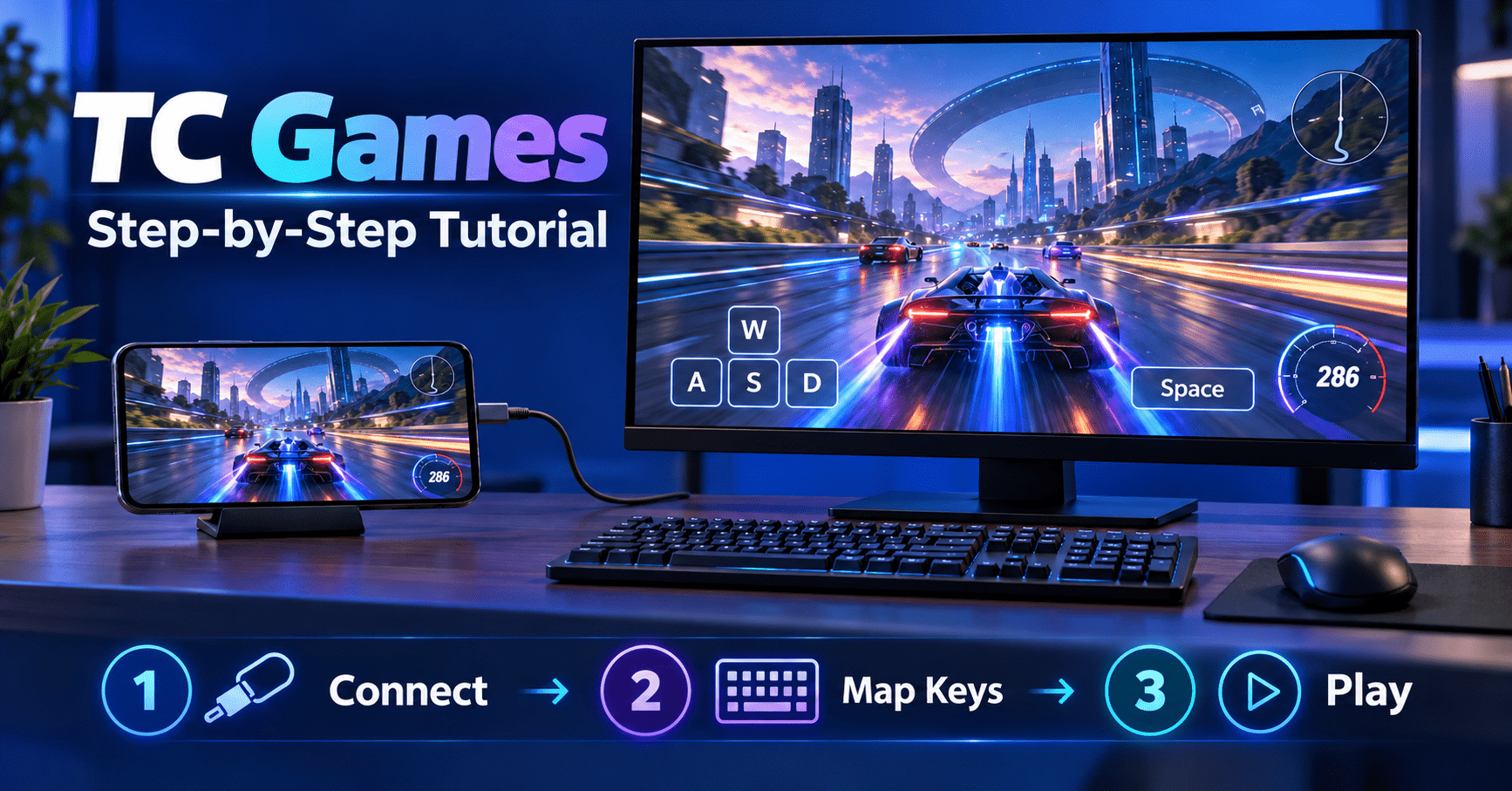
Play Android Mobile Games on Your PC with Keyboard & Mouse
Before You Start
You need: a Windows PC, an Android phone (Android 6.0 or above), and the original USB data cable (a charge-only cable will not work).
The USB connection is recommended first because it has the lowest latency. The official website is: https://www.sigma-rt.com/en/tcgames/
Step 1: Download and Install TC Games on Your PC
Figure 1: TC Games official website and the installation wizard
1. Open the official website in your browser: https://www.sigma-rt.com/en/tcgames/
2. Download the Windows client installer (64-bit recommended).
3. Double-click the installer, choose the install location if needed, and follow the wizard: click Next, then Install.
4. When installation finishes, check “Launch TC Games now” and click Finish.
5. Keep the TC Games PC client open on your desktop.
Step 2: Enable Developer Options on Your Phone
Figure 2: Android Settings – About phone, tap Build number 7 times
1. Open Settings on your phone.
2. Go to About phone / My device.
3. Tap Build number 7 times continuously until you see “You are now a developer.”
4. Go back to Settings and find Developer options (on some devices it is under More settings).
Step 3: Enable USB Debugging
Figure 3: Developer options – enable USB debugging
1. Open Developer options and turn on the USB debugging switch.
2. Special note: Xiaomi / Redmi: also enable “USB debugging (Security settings)”, otherwise key mapping will not work.
3. Leave the Developer options page open.
Step 4: Connect the Phone to the PC with a USB Cable
Figure 4: USB connection mode – Transfer files (MTP)
1. Plug the original data cable into a rear USB port on the PC (better power stability) and the other end into the phone.
2. When the USB mode popup appears on the phone, select Transfer files (MTP).
3. If no popup appears: pull down the notification bar, tap the USB options and switch it to Transfer files (MTP) manually.
Step 5: Authorize USB Debugging on the Phone
Figure 5: USB debugging authorization dialog on the phone
1. A dialog “Allow USB debugging?” will appear on the phone.
2. Check “Always allow from this computer” and tap OK / Allow.
If the dialog does not appear: turn USB debugging off and on again in Developer options.
Step 6: Install the TC Games Android App on Your Phone
Figure 6: TC Games Android app install prompt
1. The TC Games PC client automatically pushes the TC Games Android app (APK) to your phone.
2. When the phone asks for permission, tap Install. If the system blocks it, temporarily allow installation from this source.
3. Do NOT open the TC Games app on the phone manually; leave it in the background.
Step 7: Connect and Mirror with TC Games on the PC
Figure 7: TC Games device list, Connect button and mirror preview
1. Back in the PC client, your phone model should appear in the device list.
2. Select your phone and click Connect.
3. After a few seconds, the phone screen appears in the PC window – mirroring is successful. You can now control the phone directly by clicking on the mirrored screen.
Wireless (WiFi) alternative – you must complete the USB connection once first (to install the app and finish authorization):
1. Connect both the phone and the PC to the same WiFi router; use the 5 GHz band if possible (2.4 GHz tends to lag).
2. Unplug the USB cable, switch the PC client to WiFi connection mode, and a QR code appears.
3. Open the TC Games app on the phone, tap the scan icon in the top-right corner, and scan the QR code on the PC screen.
Step 8: Mirroring, Audio and Screen-Off Settings (Optional)
Figure 8: TC Games Settings – resolution, frame rate, audio transfer
1. Click Settings in the top-right corner of the TC Games client.
2. Resolution / frame rate: the free version supports up to 60 fps and 640p; VIP unlocks 1080P and 120 fps.
3. Enable Audio transfer so game sound plays through your PC speakers or headset.
4. If you want to save battery, enable “Allow the phone screen to turn off while mirroring.”
5. Close the settings window when you are done.
Step 9: Open the Game and Reset Its Native Key Layout (Critical)
Figure 9: In-game Settings – Custom layout, tap Reset
1. In the mirrored window, click to open the mobile game you want to play.
2. Go to the in-game Settings > Control / Operation settings > Custom layout.
3. Tap Reset to restore the game’s default factory key layout, then save and exit.
Do not skip this step. If the game’s native button positions have been changed, the TC Games keymap will be misaligned and keys will not respond.
Step 10: Load or Create a Keymap
Figure 10: TC Games Keymap Center – preset and auto-generate
1. Open the Keymap Center in the TC Games client.
2. If a preset keymap exists for your game: choose the scheme that matches your phone’s resolution and click Load.
3. If no preset exists: click Auto-generate keymap, select the game type (e.g. Shooter / MOBA), and a basic keymap is created automatically.
Step 11: Align and Edit the Keys
Figure 11: Keymap editor – align transparent key icons with game buttons
1. Enter the keymap editor; transparent key icons (WASD, Fire, Aim, etc.) are shown on top of the mirrored game screen.
2. Drag each icon so it exactly overlaps the corresponding button in the game (e.g. the fire icon on the game’s fire button, the move pad on the left joystick).
3. Double-click an icon to change the key it is bound to. A common shooter layout: WASD to move, left mouse button to fire, right mouse button to aim.
4. When finished, click Save keymap, and you can lock the layout so icons are not accidentally moved.
Step 12: Lock the Mouse and Start Playing
Figure 12: Hotkeys – Ctrl+Alt+P, F9, F7, F8
1. Save the keymap and exit the editor.
2. Press Ctrl+Alt+P to lock the mouse.
When locked: the mouse is captured for aiming and turning while the keyboard controls the game. Press Ctrl+Alt+P again to unlock and switch to other PC windows.
3. Other useful hotkeys:
F9: fullscreen mirror / exit fullscreen
F7: screenshot
F8: start / stop recording
Step 13: Play as Normal
Figure 13: Play mobile games with keyboard and mouse on PC
With the mouse locked, you can now play the mobile game with keyboard and mouse, just like a PC game.
Step 14: Configure Key Mapping for PUBG Mobile (Example)
Figure 14: Battle-royale shooter keymap – align icons and recommended bindings
1. Open PUBG Mobile in the mirrored window and wait until you are in the lobby.
2. In the game, go to Settings > Controls / Operation settings > Customize Layout. Tap Reset to restore the default factory layout, then save and exit.
3. In the TC Games Keymap Center, search for PUBG Mobile. If a preset keymap exists, load the one that matches your phone’s resolution. If not, click Auto-generate keymap and select the Shooter type.
4. Enter the keymap editor and align the transparent icons with the game buttons:
Left joystick icon → the movement joystick at the bottom-left
Fire icon → the fire button at the bottom-right
Aim / scope icon → the aim button on the right side
Jump, crouch, prone, reload, backpack and map icons → the corresponding buttons
5. Recommended bindings for PUBG:
WASD: move
Left mouse button: fire
Right mouse button: aim / scope
Space: jump
C: crouch
Z: prone
R: reload
B: backpack
M: map
6. When finished, click Save keymap and lock the layout so the icons are not accidentally moved.
7. Press Ctrl+Alt+P to lock the mouse (or F9 for fullscreen) and start playing.
Note: if PUBG updates its own layout or keys stop responding, reset the in-game custom layout again, then re-align the TC Games keymap.
Troubleshooting
1. The PC cannot detect the phone: try another original cable and a rear USB port; make sure USB debugging is enabled and re-authorize when the phone asks; for Xiaomi / Redmi also enable “USB debugging (Security settings).”
2. Mirroring works but keys do not respond: reset the in-game custom layout, and make sure the keymap icons are fully aligned with the game buttons.
3. WiFi mirroring is laggy: use the same router with the 5 GHz band, and prefer the USB connection for competitive games.
4. Keys are misaligned: the in-game layout was changed; reset the game layout, then re-align the TC Games keymap.