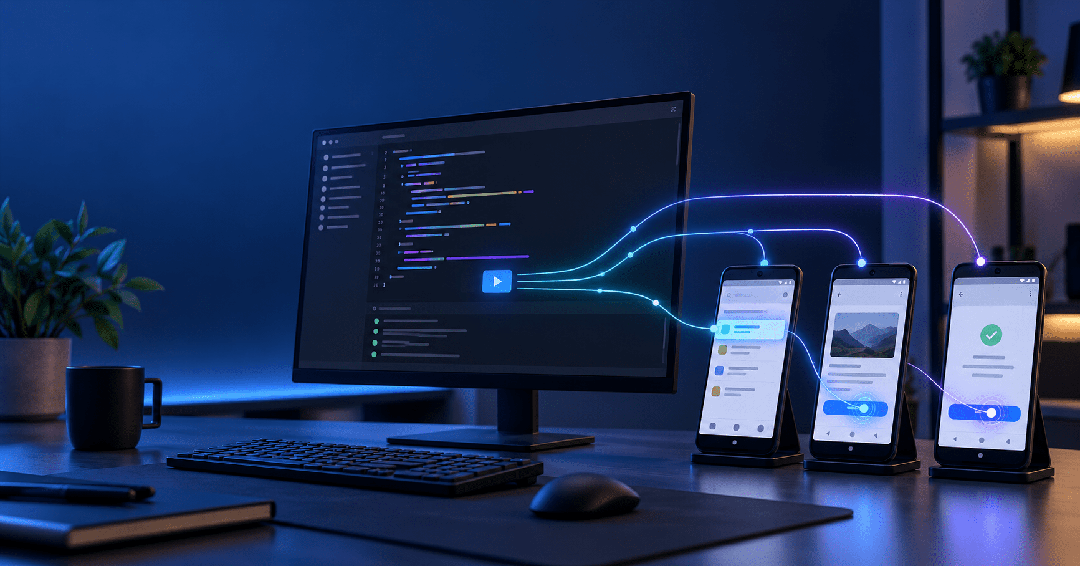
Lately, I’ve been spending a lot of time managing Android phones from my PC.
At first, my needs were simple: mirror the phone screen and control it with a mouse and keyboard. But as I started working with more devices and repeating the same actions again and again, I realized that screen mirroring wasn’t the part saving me the most time.
It was the scripting.
Some tasks used to require me to open an app, enter a page, tap a button, wait for something to load, and then repeat the same process on another phone.
Doing that once is easy.
Doing it dozens of times across multiple devices gets old very quickly.
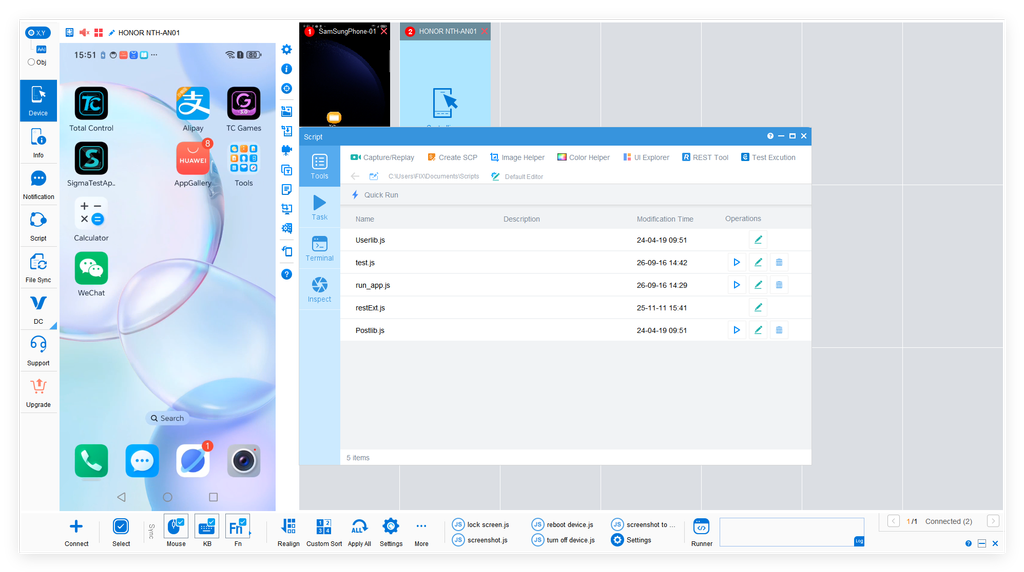
That’s when I started moving more of those repetitive steps into Total Control scripts.
1. FindNode Is Probably the Feature I Use the Most
When I first started experimenting with Android automation, the most obvious approach was to use screen coordinates.
For example:
Tap at x=500, y=1200That works until you switch devices.
Different phones can have different resolutions, aspect ratios, DPI settings, and UI layouts. Even a small change in an app interface can make a fixed coordinate unreliable.
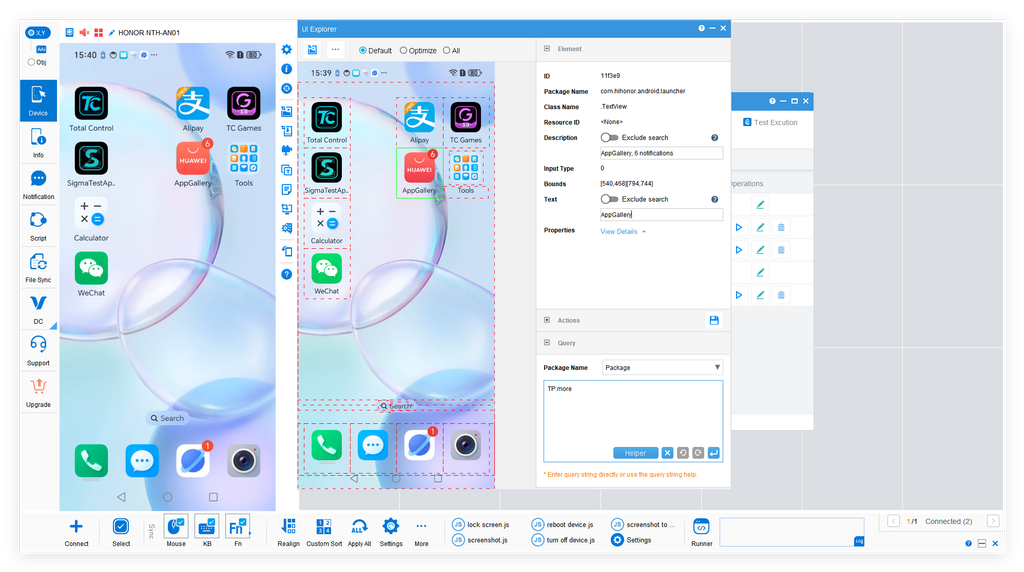
This is where FindNode became much more useful for me.
Instead of telling the script:
Tap this exact position.
I can build the workflow around:
Find this UI element first, then interact with it.
For example, if I need to find a button such as “Confirm” or “Next,” the script can locate the UI element before continuing.
That makes the same automation much easier to reuse across different Android devices.
2. JavaScript Makes the Workflow Much More Flexible
Recording actions is useful for simple tasks, but eventually I found that real automation needs some logic.
A workflow may need to do something like this:
Button found → Click it
Button not found → Wait
Popup appears → Close it
Action fails → Retry
Success → Continue
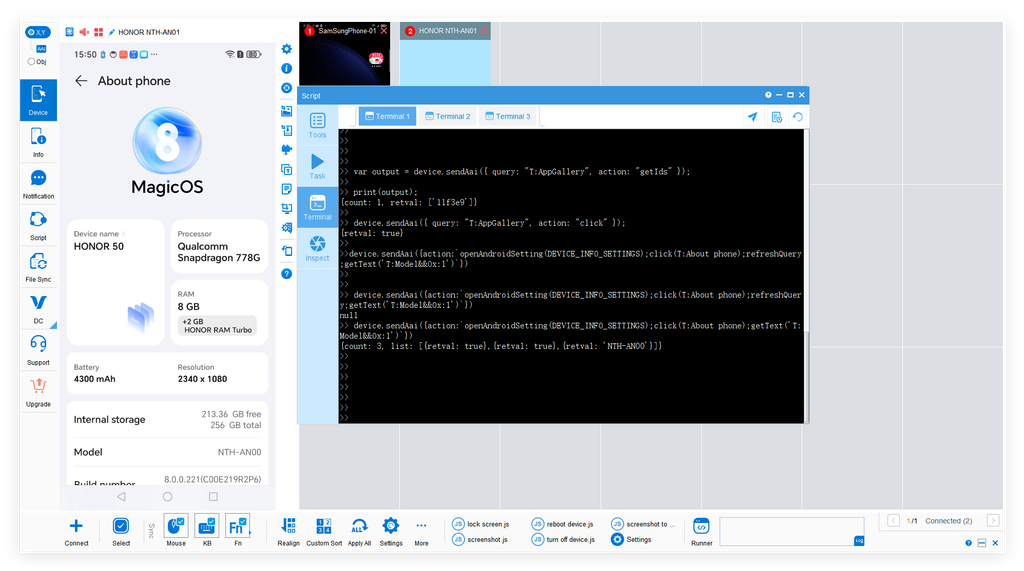
Total Control supports JavaScript, so the workflow doesn’t have to be a simple replay of recorded actions.
That is the biggest difference for me.
A basic macro is essentially:
Repeat exactly what I did before.
A script can be more like:
Check what is happening now, then decide what to do next.
That becomes much more useful when an app loads slowly, a popup appears unexpectedly, or different devices reach the same screen at slightly different times.
3. Scripts Become Much More Valuable with Multiple Devices
If I only had one phone, I probably wouldn’t care nearly as much about automation.
The real difference appears when the device count starts growing.
1 device
↓
5 devices
↓
10 devices
↓
More devices
Repeating the same workflow manually on every phone quickly becomes inefficient.
With scripts, I can spend more time designing the workflow once instead of repeating every action device by device.
And because FindNode reduces the dependence on fixed coordinates, the same workflow can be easier to reuse across phones with different screen sizes and resolutions.
For me, that is where scripting starts to feel genuinely useful.
It is not simply about clicking faster.
It is about reducing how much manual work grows as the number of devices increases.
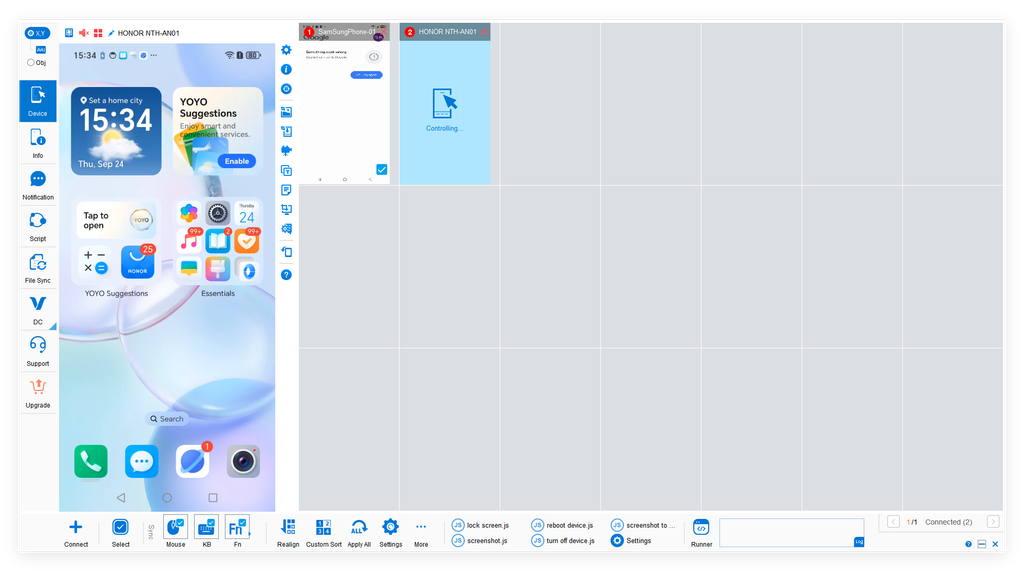
I No Longer Think of It as Just “Controlling a Phone”
After using Total Control for a while, the way I think about it has changed.
At first, I saw it as:
A way to control an Android phone from a PC.
Now I see it more as:
A way to turn Android devices into something I can automate with scripts.
For simple tasks, I can start with recording.
For more complex workflows, I can use JavaScript.
When different screen sizes make fixed coordinates unreliable, I can use FindNode.
And when multiple devices are involved, the same automation logic becomes much more valuable.
There is also REST API support if I need to connect Android device control with another application or internal system.
Of course, none of this is necessary if all you need is occasional screen mirroring for a single phone.
But if you regularly work with multiple Android devices and repeat the same steps every day, scripting is probably the part of Total Control worth exploring the most.